
Google Slides does not have the same full equation editor you may be used to in Google Docs, but you can still add math formulas in a few practical ways. The best method depends on how often you need equations and how polished you want them to look.
In this guide, you’ll learn two ways to insert equations in Google Slides: using a drawing-style workaround for simple formulas and inserting equations as an image for more complex math.
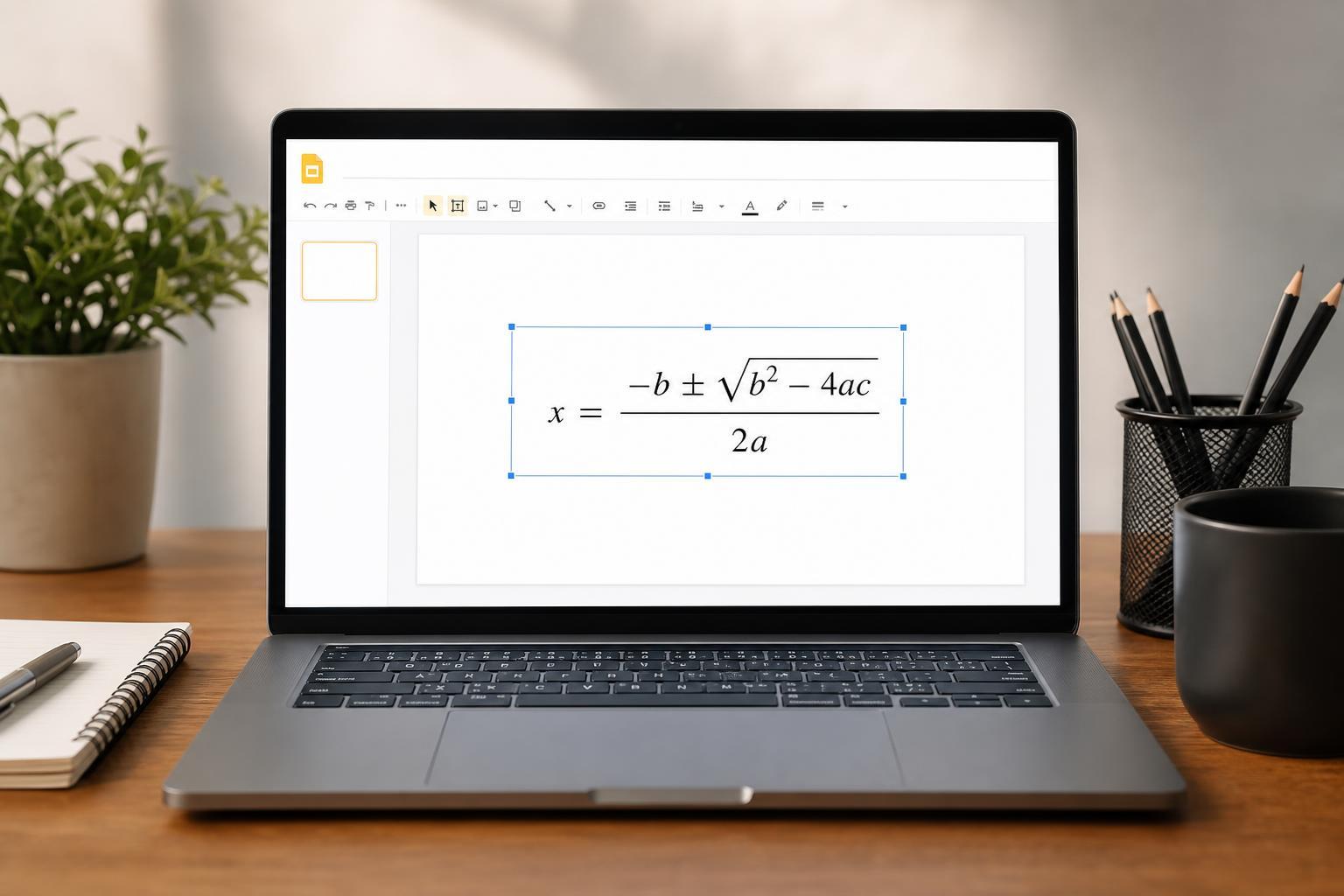
Method 1: Use Google Slides Text Boxes for Simple Equations
If your equation is short and does not need special formatting, the simplest option is to type it directly into a text box. This works well for basic math expressions, symbols, and classroom-style notes.
- Open your Google Slides presentation and select the slide where you want the equation.
- Click Insert in the top menu, then choose Text box.
- Click and drag on the slide to draw the text box.
- Type your equation using your keyboard, such as x + y = 10 or (a + b)^2.
- Use the toolbar to change the font, size, or alignment so it matches the rest of the slide.
For symbols that are not on your keyboard, you can copy and paste them from Google Docs, Character Map, or another source. This is a good option for simple formulas, but it is limited if you need fractions, superscripts, subscripts, or stacked notation.
Method 2: Create the Equation in Google Docs and Insert It as an Image
For cleaner-looking equations, create the formula in Google Docs or another equation editor, then paste or insert it into Google Slides as an image. This gives you more control over formatting, especially for fractions, exponents, and other structured math.
- Open a Google Doc and place the cursor where you want the equation.
- Go to Insert, then Equation.
- Type your equation using the equation toolbar or keyboard shortcuts.
- Once the equation looks right, select it and copy it.
- Return to Google Slides and paste it into your slide. If needed, use an image editor or screenshot tool to turn it into a clean image before placing it in Slides.
If the paste result does not keep the equation formatting the way you want, use a screenshot or export the equation as an image first. That usually gives you the most reliable result in Slides, especially for presentations that need consistent visual quality.
Which Method Should You Use?
- Use a text box if you only need simple math or a quick placeholder.
- Use a Google Docs equation or image if you need professional-looking formatting.
- Use the image method if the equation must stay visually consistent across multiple slides.
- Use text if you want the equation to remain easy to edit directly inside Slides.
A Better Workflow for Repeated Math Slides
If you are building a lesson, training deck, or presentation with several equations, it helps to keep the source formula in Google Docs and reuse it as needed. That way, you can update the equation once and replace the image in Slides only when necessary.
- Keeps your formatting more consistent
- Makes complex equations easier to build
- Reduces time spent adjusting spacing in Slides
- Helps avoid retyping formulas incorrectly
What to Do If the Equation Looks Messy
If an equation looks uneven, blurry, or awkwardly spaced, the problem is usually the format rather than the formula itself. Try increasing the font size, using a cleaner font, or replacing the text version with an image-based version from Google Docs.





