
OneDrive Files On-Demand is a simple way to keep files in sync without filling up your PC’s storage. It lets you see all of your OneDrive files in File Explorer while storing only the files you actually use on your device.
If your laptop or desktop is running low on space, this feature can help you free up room without deleting anything from the cloud.
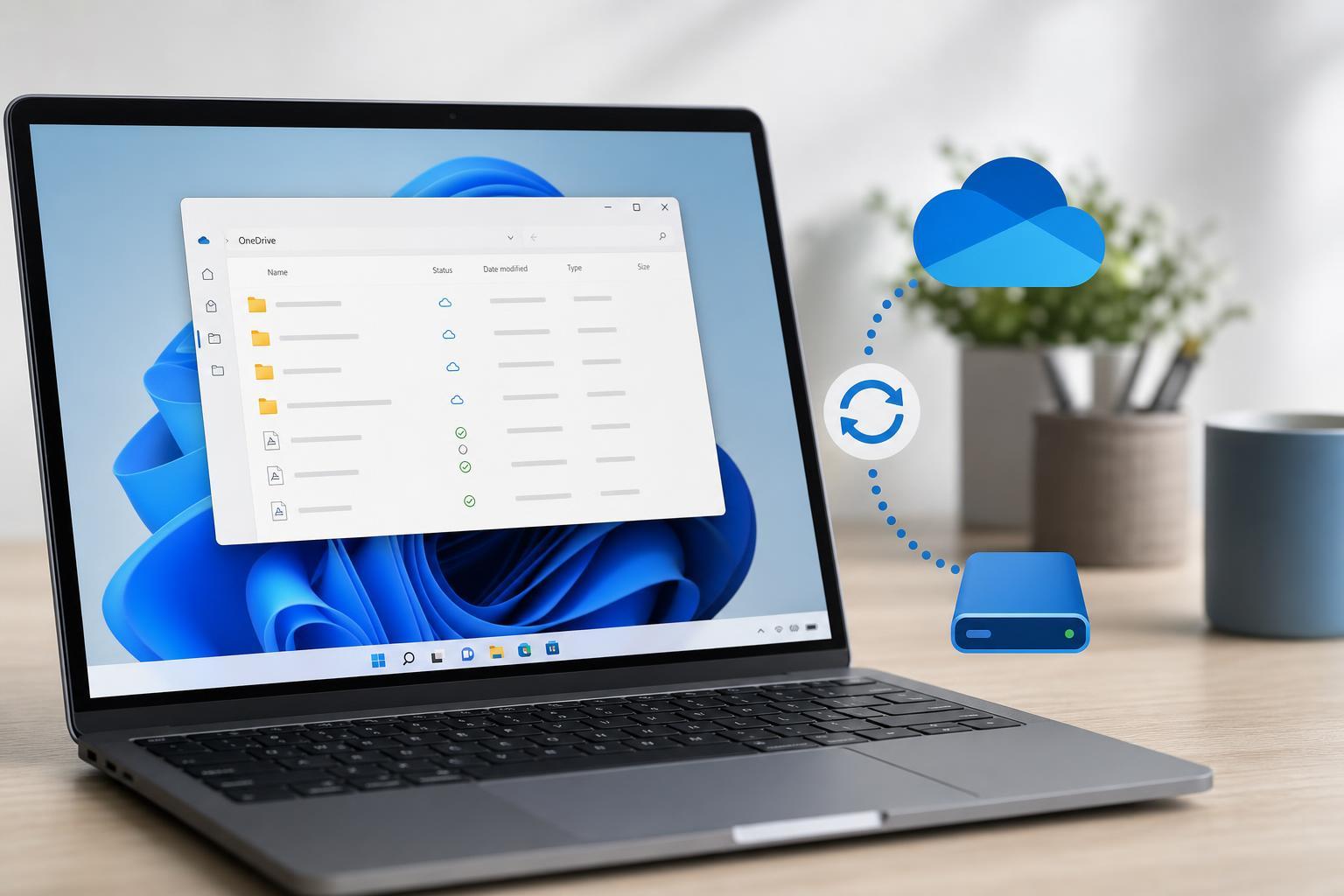
What OneDrive Files On-Demand Does
Files On-Demand shows your OneDrive contents in File Explorer even when the files are not fully downloaded to your computer. These files stay in the cloud until you open them, which means they do not take up local disk space unless you need them.
How to Turn On Files On-Demand
- Right-click the OneDrive cloud icon in the system tray and open OneDrive settings.
- Go to the Sync and backup or Settings section, depending on your OneDrive version.
- Turn on Files On-Demand if it is not already enabled.
- Wait for OneDrive to finish updating the folder view in File Explorer.
How to Free Up Space From Existing Files
Once Files On-Demand is enabled, you can remove the local copy of a file or folder while keeping it in OneDrive. This is the main step that actually frees space on your PC.
- Open File Explorer and browse to your OneDrive folder.
- Find the file or folder you want to keep in OneDrive but remove from local storage.
- Right-click it.
- Choose Free up space.
Windows removes the downloaded copy from your drive, but the item remains available in OneDrive and can be downloaded again later when you open it.
How to Tell Which Files Are Local and Which Are Online-Only
OneDrive uses status icons to show whether a file is stored on your PC or only in the cloud. These icons make it easier to decide what to remove and what to keep available offline.
- Cloud icon: online-only file that does not use local disk space
- Green check in a white circle: file is available locally when needed
- Solid green circle with check: file is always kept on this device
- Sync arrows: file is currently syncing or updating
When to Keep a File on This Device
Some files should stay downloaded, especially if you need them without an internet connection or use them often. Keeping only a small set of important files locally can still save a lot of space overall.
- Files you open every day
- Documents needed while traveling
- Large folders you do not want to wait to download later
- Files used by offline apps or games that expect local access
Common Problems and What They Usually Mean
If Free up space does not behave as expected, the issue is often related to sync status, permissions, or the file being in use.
- The file is still syncing, so OneDrive cannot change its local status yet
- The file is open in another app
- The folder is set to always keep on this device
- The item is not inside the OneDrive-synced folder
- The account is not fully signed in or sync is paused
A Smarter Way to Save Space
The best approach is not to remove everything from your PC. Instead, keep only the files you really need offline and let OneDrive handle the rest. That way you can reclaim storage without losing access to older documents, photos, or archives.
- Turn on Files On-Demand.
- Free up space on large folders you rarely use.
- Keep essential files available on the device.
- Review OneDrive storage regularly so local space does not fill up again.





