
Forgetting a Samsung PIN or pattern can lock you out of your phone fast, but in many cases there are still safe ways to regain access. The best option depends on whether you previously enabled Samsung’s remote unlock features, whether Smart Lock is set up, and whether you are willing to erase the device if nothing else works.
This guide explains the real recovery options that can help you unlock a Samsung phone you own, along with what to do if you need to reset the device and restore your data afterward.
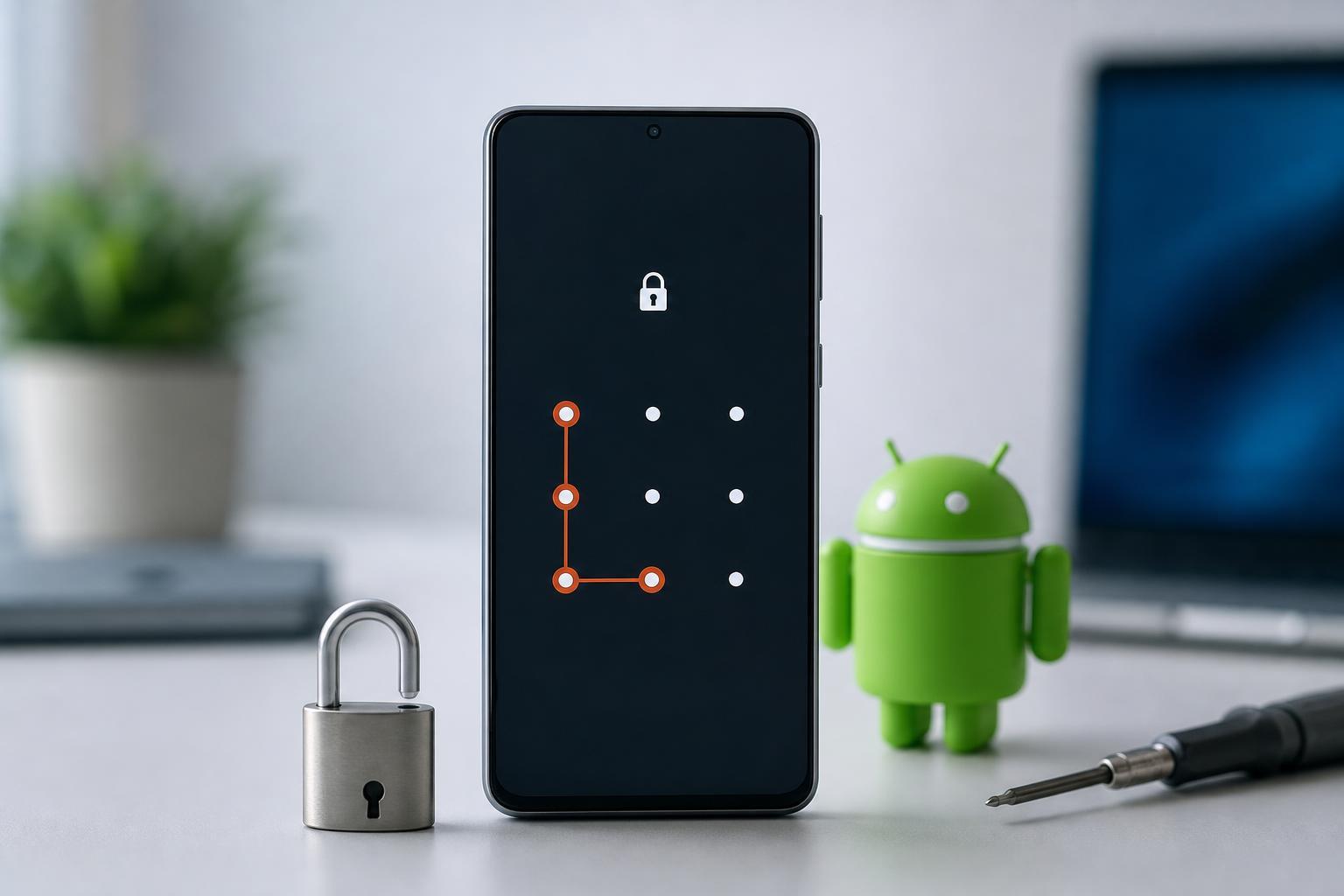
First, check for Samsung’s built-in unlock options
Before trying a reset, look for the options that can unlock the phone without deleting your files. These only work if you enabled them before you got locked out.
- Samsung Find My Mobile remote unlock
- Smart Lock trusted places or trusted devices
- Fingerprint or face unlock if the phone still allows biometric access
- Recovery through your Google account if the phone is asking for account verification after a reset
Use Samsung Find My Mobile to unlock the phone remotely
If your Samsung account was signed in on the device and Remote unlock was turned on, Samsung Find My Mobile may let you remove the screen lock from a browser on another device.
- On a computer or another phone, go to Samsung Find My Mobile and sign in with the same Samsung account used on the locked phone.
- Select the locked device from the list.
- Look for the Unlock option.
- Follow the prompts to confirm your Samsung account password or security verification.
- Wait for the phone to receive the command and unlock it.
Try Smart Lock if it was already configured
Smart Lock can keep a phone unlocked in trusted situations, such as when it is connected to a trusted Bluetooth device or in a trusted place. If the phone still accepts one of those conditions, you may be able to get back in without entering the PIN or pattern.
- Trusted device nearby, such as a watch, car system, or headset previously paired as trusted
- Trusted location, such as home or work, if you enabled location-based unlocking
- On-body detection, if enabled and the phone has not been reset or locked too long
If you can still unlock with biometrics, change the screen lock immediately
Some Samsung phones may still allow fingerprint or face unlock even when you have forgotten the PIN or pattern. If that happens, change the screen lock right away before the device forces a PIN after a reboot or security check.
- Unlock the phone with fingerprint or face unlock if it still works.
- Open Settings.
- Go to Lock screen and security or Security and privacy, depending on your model.
- Choose Screen lock type.
- Set a new PIN, password, or pattern you will remember.
If nothing else works, reset the phone
If you cannot use Samsung Find My Mobile, Smart Lock, or biometric access, the remaining option is usually a factory reset. This removes the screen lock, but it also erases the data on the phone.
A reset is often the only way back into the device when the lock screen password is completely forgotten.
- Back up anything you can still access, such as photos or files synced to Samsung Cloud, Google Photos, or other cloud services.
- Turn off the phone.
- Enter Recovery Mode using the button combination for your Samsung model. This can vary, especially if the phone is connected to a USB cable or uses newer button layouts.
- In Recovery Mode, select Wipe data/factory reset.
- Confirm the action and wait for the reset to finish.
- Set up the phone again after it restarts.
What happens after a factory reset
After a reset, Android may ask for the Google account that was previously used on the device. This is a theft-protection feature designed to prevent unauthorized use after a wipe.
- Enter the same Google account previously synced to the phone
- Use the correct password for that account
- If you recently changed the Google password, you may need to wait before signing in again
How to avoid getting locked out again
Once you are back in, spend a few minutes setting up recovery options so the problem is easier to fix next time.
- Turn on Samsung Find My Mobile and Remote unlock
- Keep your Samsung account and Google account recovery information up to date
- Set a PIN you can remember but that is still hard to guess
- Write the code down somewhere secure if your organization allows it
- Enable biometric unlock as a convenience layer, not the only way you access the phone
When to contact Samsung or your carrier
If the phone is tied to a company account, has encryption or management software, or you cannot complete a reset and account verification, contact Samsung support or your carrier for model-specific help. You may also need proof of purchase if the device was bought second-hand or if activation lock issues appear after reset.
If you are not the original owner, the safest and most legitimate option is to ask the seller to remove the device from their Samsung and Google accounts or provide proof that ownership was transferred properly.





