
Freeze Panes is one of Excel’s most useful features, especially when you’re working with large spreadsheets. It keeps row and column headings visible while you scroll, but sometimes it seems to stop working or behave unexpectedly. The problem is usually caused by the sheet layout, an active split view, hidden rows or columns, or a workbook setting rather than a broken Excel installation.
Here are five practical fixes to try when Freeze Panes is not working in Excel, along with the most common reasons each one helps.
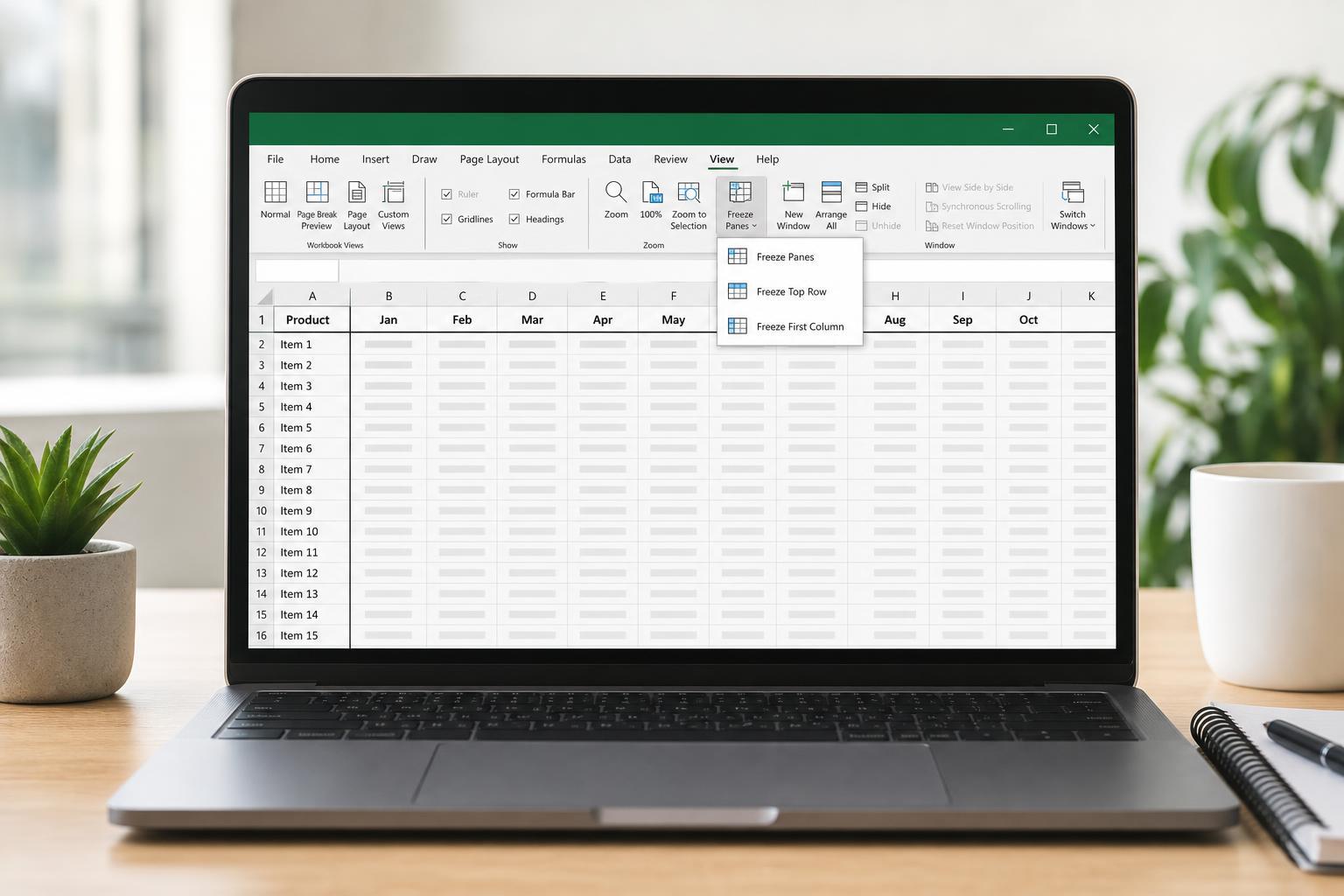
1. Check Whether You’re Using the Right Cell Before Freezing
Excel freezes rows above and columns to the left of the selected cell. That means the cell you click matters. If you want the top row to stay visible, you usually need to select a cell below it before turning on Freeze Panes. If you want the first column to stay visible, you need to select a cell to the right of it. If you choose the wrong cell, Excel may appear to ignore the command because it is freezing a different section than you expected.
- Click the cell just below the rows you want to keep visible and just to the right of the columns you want to keep visible.
- Go to the View tab.
- Select Freeze Panes and choose Freeze Panes from the menu.
- Scroll to confirm the correct rows and columns stay fixed.
2. Turn Off Split View Before Trying Again
If the worksheet is split into panes, Freeze Panes may not work the way you expect. Split view and Freeze Panes are different features, and having both active can make the sheet feel broken or confusing. If you see multiple scrollable sections in the same worksheet, turn off Split first.
- Open the View tab.
- Look for Split in the Window section.
- If it is active, click Split to turn it off.
- Select the correct cell again and reapply Freeze Panes.
3. Unfreeze Existing Panes and Apply the Command Again
Sometimes Freeze Panes is already active, but on the wrong row or column. In that case, Excel will not let you apply a new frozen area until the old one is removed. Unfreezing first clears the current setup and gives you a clean start.
- Go to the View tab.
- Select Freeze Panes.
- Click Unfreeze Panes.
- Select the correct cell for the layout you want.
- Go back to Freeze Panes and apply it again.
4. Check for Hidden Rows, Columns, or Protected Sheets
Hidden rows or columns can make it seem like Freeze Panes is not working correctly, especially if the boundary you expected is not visible. Protected sheets can also restrict layout changes. If the worksheet is protected, Excel may block changes to frozen panes or prevent you from adjusting the sheet the way you want.
- Look for hidden rows or columns near the top or left edge of the sheet.
- Try unhiding any rows or columns that should be part of the frozen area.
- Check whether the sheet is protected under the Review tab.
- If protection is enabled, you may need the password or permission from the file owner to change the layout.
5. Verify You’re in Normal View and Not in an Unusual Layout
Freeze Panes works best in Normal view. If the worksheet is in Page Layout view or another unusual viewing mode, the display can behave differently and make the frozen rows or columns harder to understand. Very large zoom levels, merged cells near the top of the sheet, and workbook tabs created from copied layouts can also make the result look wrong.
- Open the View tab.
- Choose Normal if the sheet is in Page Layout or another alternate view.
- Reduce zoom if the frozen area seems misaligned or cramped.
- If the top row uses merged cells, test Freeze Panes on a simpler section of the sheet to see whether the layout is the problem.
How to Narrow Down the Cause Quickly
If you want the fastest way to diagnose the issue, test Freeze Panes on a plain worksheet with no split view, no protection, and no hidden rows or columns. If it works there, the problem is usually the original sheet layout rather than Excel itself. That tells you where to focus: the active cell, sheet formatting, protection, or an existing split.
- Works on a blank sheet: the original worksheet layout is likely the issue.
- Does not work on any sheet: check Excel view mode or workbook-level restrictions.
- Only fails on one file: hidden rows, protected sheets, or merged cells are the most likely causes.
When Freeze Panes Still Refuses to Work
If none of these fixes solve the problem, save a copy of the workbook and test it in a new file. Corrupted workbook formatting can sometimes cause odd display behavior, especially in files that have been heavily edited over time. You can also try opening the file in the Excel desktop app if you were using Excel for the web, since the two versions do not always handle worksheet features the same way.
For most users, though, the issue is not a broken feature. It is usually a mismatch between the selected cell, the current view, or an existing worksheet layout that prevents Freeze Panes from behaving as expected.





