
Smooth scrolling in Google Chrome makes page movement feel less abrupt as you use the mouse wheel, trackpad, or keyboard. If scrolling on websites feels jumpy or too fast, enabling this feature can make browsing feel much more comfortable.
Chrome’s scrolling behavior can be affected by browser settings, hardware acceleration, extensions, and even your mouse or touchpad settings. This guide shows how to enable smooth scrolling and how to check a few related settings if the change does not seem to help.
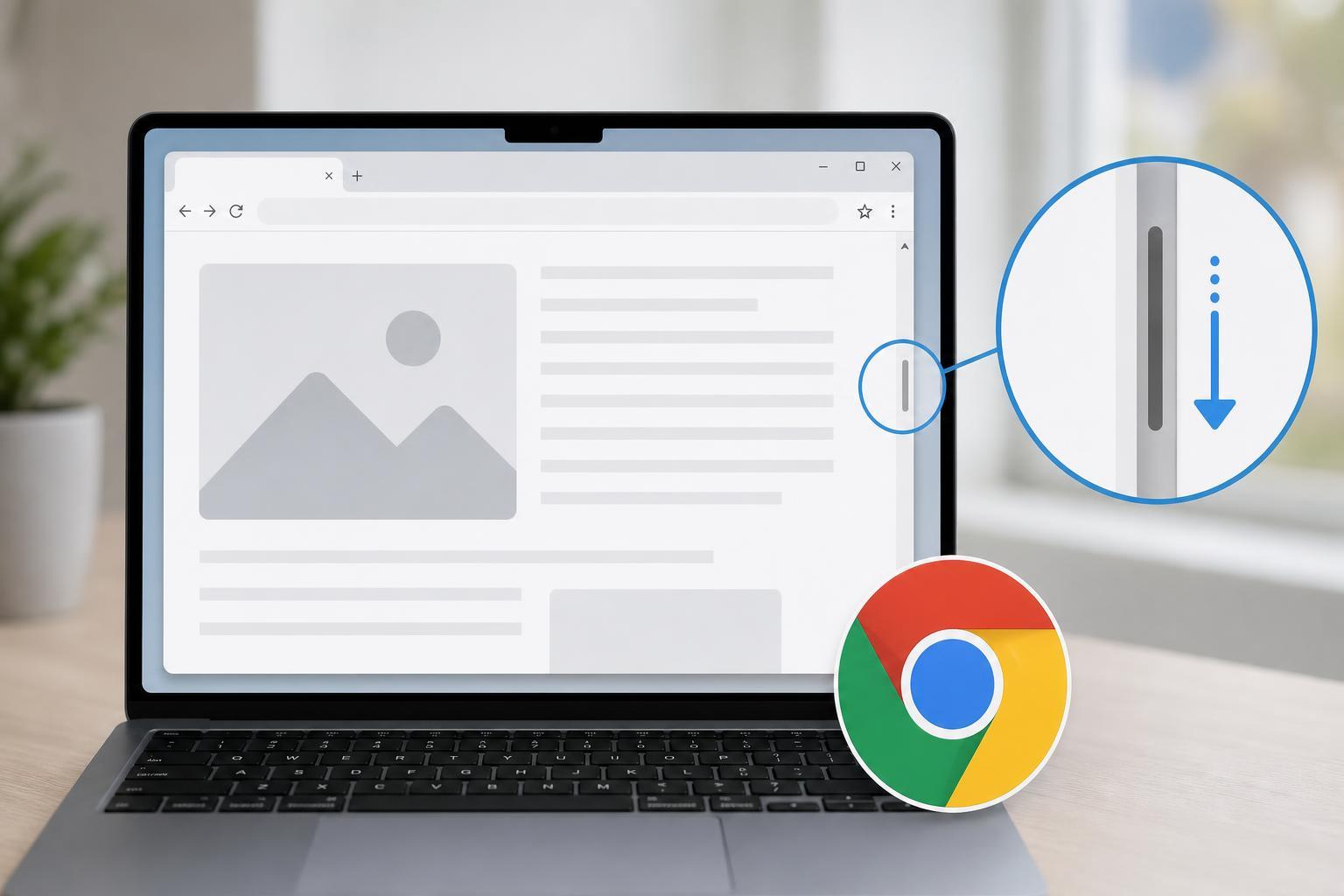
Turn On Smooth Scrolling in Chrome
- Open Google Chrome.
- Type chrome://flags into the address bar and press Enter.
- In the search box at the top, type smooth scrolling.
- Find the Smooth Scrolling flag.
- Set it to Enabled using the dropdown menu.
- Click Relaunch to restart Chrome and apply the change.
If the Smooth Scrolling Flag Is Missing
In some Chrome versions, smooth scrolling may already be enabled by default, or the flag may not be available at all. If you cannot find it, try scrolling a webpage normally first. If it already feels smooth, there may be nothing else to change inside Chrome.
- The feature may already be on by default.
- Your Chrome version may no longer expose the flag.
- A browser extension or system setting may be affecting the way scrolling feels.
- Your mouse or touchpad settings may be making scrolling feel too fast or inconsistent.
Check Hardware Acceleration and Extensions
If scrolling still feels stuttery after enabling the setting, the problem may not be the smooth scrolling option itself. Hardware acceleration can help Chrome use your graphics hardware more effectively, and some extensions can interfere with page performance.
- Open Chrome settings.
- Go to System.
- Make sure Use graphics acceleration when available is turned on.
- Restart Chrome if you changed it.
- If the issue continues, test Chrome in Incognito mode or temporarily disable extensions to see whether one of them is causing the problem.
Check Windows Mouse or Touchpad Settings
Chrome can only do so much if the device input itself feels too sensitive or inconsistent. On Windows, mouse wheel speed, touchpad scrolling speed, and precision settings can all affect how smooth browsing feels.
- Open Windows Settings and check mouse wheel scrolling speed.
- Review touchpad gesture settings if you use a laptop.
- Try another mouse if the scroll wheel feels uneven or skips.
- Update your mouse or touchpad driver if scrolling behaves strangely across apps, not just in Chrome.
When Smooth Scrolling May Not Help Much
Smooth scrolling improves how scrolling animation feels, but it will not fix every performance problem. If Chrome is lagging because a webpage is heavy, your system is under load, or a graphics driver is outdated, the browser may still feel slow even with the setting enabled.
- Pages that are overloaded with ads, animations, or embedded media
- Outdated graphics drivers
- Too many browser tabs or background apps
- Low memory or high CPU usage on the PC
What to Do If Chrome Still Feels Choppy
- Update Chrome to the latest version.
- Update your graphics driver from Windows Update or the hardware manufacturer.
- Close unused tabs and browser windows.
- Try Chrome without extensions enabled.
- Check whether the same website feels smoother in another browser to rule out a site-specific issue.
If scrolling is only rough on one or two websites, the problem is often with the site itself rather than Chrome. If it happens everywhere, focus on browser settings, drivers, and input devices instead.
A Quick Way to Tell Whether It Worked
After restarting Chrome, open a long webpage and scroll slowly with your mouse wheel or touchpad. The movement should feel less abrupt and more continuous. If the difference is subtle, that is normal—smooth scrolling is meant to improve the feel of motion, not dramatically change how Chrome behaves.





