
Efficiency Mode in Windows 11 is designed to reduce CPU usage and save power, but it can sometimes make Google Chrome feel less responsive than you want. If Chrome is being slowed down or you want it to run at full performance, you can turn Efficiency Mode off from Task Manager or stop Windows from applying it to the browser.
This guide shows you how to disable Efficiency Mode for Chrome, what the setting actually does, and what to do if Windows keeps turning it back on.
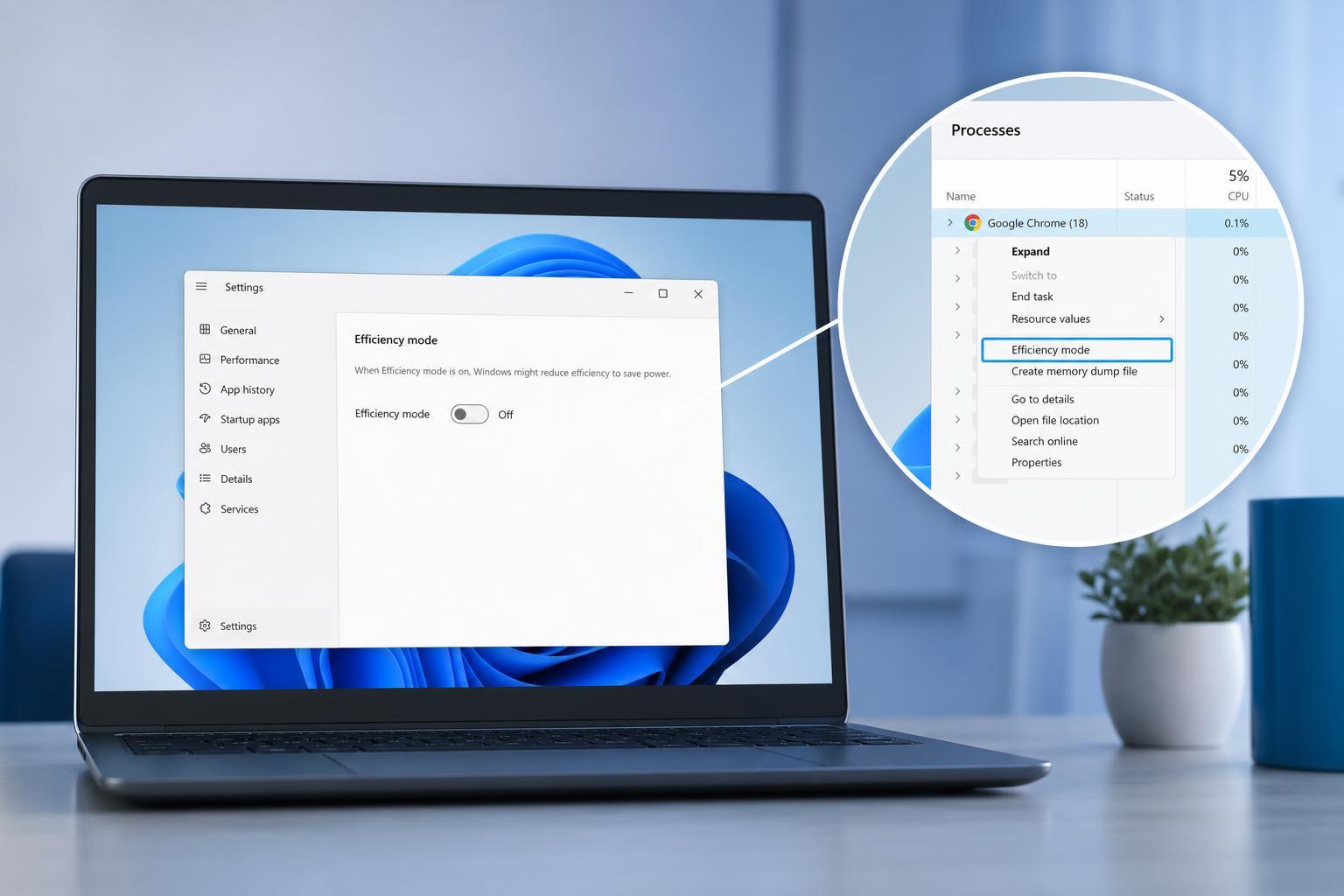
What Efficiency Mode Does in Chrome
Efficiency Mode is a Windows 11 feature that lowers the priority of selected processes so they use fewer system resources. For Chrome, that can mean less CPU activity in the background, which may help battery life and reduce heat on laptops.
Turn Off Efficiency Mode in Task Manager
The quickest way to disable Efficiency Mode for Chrome is through Task Manager while Chrome is running.
- Open Google Chrome.
- Press Ctrl + Shift + Esc to open Task Manager.
- If Task Manager opens in compact view, click More details.
- Find Google Chrome in the Processes tab. You may see several Chrome processes.
- Right-click the Chrome process that shows the Efficiency Mode leaf icon or is marked as being in Efficiency Mode.
- Select Efficiency mode to turn it off. If the option is already checked or active, selecting it should remove the setting.
Stop Windows from Reapplying Efficiency Mode to Chrome
If Windows keeps putting Chrome back into Efficiency Mode, the setting may be tied to how the browser process is being handled in Task Manager or to related power-saving behavior in Windows.
- Open Task Manager again with Ctrl + Shift + Esc.
- Go to the Details tab.
- Find chrome.exe in the list.
- Right-click the Chrome process.
- Look for Efficiency mode and make sure it is not enabled.
- If Chrome is still throttled, close Task Manager and open Chrome again to confirm whether the change sticks.
In many cases, the change should remain active only for the current process session. If Chrome closes and reopens, Windows may treat it as a new process and the mode may need to be disabled again.
Check for Related Windows 11 Power Settings
If your goal is better performance rather than only disabling Efficiency Mode, Windows power settings may also be affecting Chrome.
- Make sure your PC is not in a battery-saver mode.
- Check that Power mode is set to Best performance when plugged in, if available.
- On laptops, avoid ultra-aggressive power-saving settings when you need Chrome to stay responsive.
- If Chrome slows down only on battery power, Windows may be limiting performance to save energy.
When You Should Leave Efficiency Mode On
Efficiency Mode is useful when battery life, fan noise, or heat matters more than maximum browser responsiveness. On laptops, it can help reduce power usage during light browsing, video watching, or background tab activity.
If Chrome Still Feels Slow After Turning It Off
If disabling Efficiency Mode does not noticeably improve Chrome, the slowdown may be caused by something else.
- Too many open tabs or extensions
- Low available memory
- A Chrome profile issue
- Hardware acceleration problems
- A system-wide Windows power limit
- Background apps using CPU or disk resources
What to Try Next
- Close tabs you are not using and see whether Chrome becomes more responsive.
- Disable extensions one at a time to identify a heavy extension.
- Check Chrome’s Task Manager with Shift + Esc to see which tab or extension uses the most resources.
- Update Chrome and Windows 11 if either is out of date.
- If the problem is persistent, test Chrome with a fresh profile or another browser to compare performance.





