
Deleting a notebook in Microsoft OneNote is not always as simple as removing a file. In many cases, the notebook is stored in OneDrive or SharePoint, so you may need to delete it from the cloud location that contains it. The exact steps also depend on whether you are using OneNote on Windows, the web, or a work or school account.
This guide shows you how to delete a OneNote notebook safely, what happens after you remove it, and what to do if the notebook does not disappear right away.
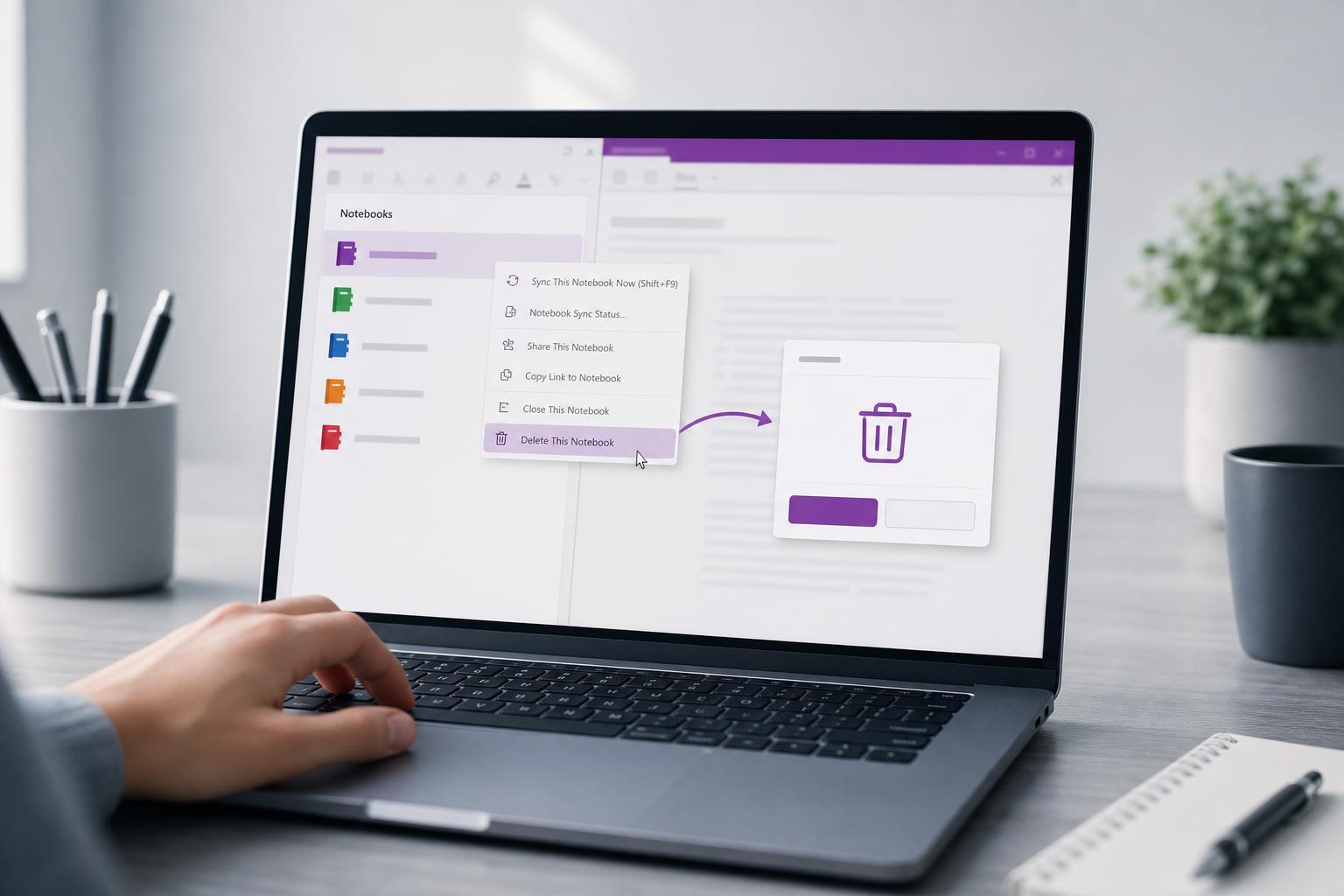
Before You Delete the Notebook
Before deleting anything, make sure you no longer need the notes inside it. Once a notebook is removed from its storage location, the content may be gone permanently unless you can restore it from the recycle bin or your organization’s retention system.
- Check whether the notebook is synced to OneDrive, SharePoint, or a local location.
- Copy any important pages or sections to another notebook if you want to keep them.
- Confirm whether the notebook is shared with other people, since deleting it may affect everyone who uses it.
- If this is a work or school notebook, check whether your organization has retention or recovery rules.
How to Delete a Notebook in OneNote on the Web
For most personal notebooks, the easiest way to delete it is through OneDrive in a browser. This works because OneNote notebooks are usually stored as files in your OneDrive storage.
- Open OneDrive in your browser and sign in with the same Microsoft account that owns the notebook.
- Find the notebook folder or notebook file you want to delete.
- Select the notebook, then choose Delete.
- If prompted, confirm the deletion.
- Empty the OneDrive recycle bin if you want to remove it more completely after the usual recovery period.
How to Delete a Notebook from OneNote for Windows
The OneNote desktop app usually does not permanently delete notebooks by itself. Instead, it lets you close the notebook, then you remove it from OneDrive or SharePoint where it is stored.
- Open OneNote for Windows and locate the notebook in the notebook list.
- Right-click the notebook name and choose Close This Notebook.
- Go to OneDrive or SharePoint in a browser and find the notebook’s storage location.
- Delete the notebook from there.
- Check the recycle bin if you want to confirm that it was removed.
How to Delete a Work or School Notebook
If the notebook belongs to a work or school account, it is often stored in SharePoint or OneDrive for Business. In that case, deletion depends on your permissions.
- Open the location where the notebook is stored, usually SharePoint or OneDrive for Business.
- Find the notebook folder or associated files.
- Delete the notebook if you have the required permissions.
- If you do not see a delete option, contact your Microsoft 365 administrator or notebook owner.
- Check the site recycle bin if you need to restore it shortly after deletion.
What Happens After You Delete a OneNote Notebook?
After deletion, the notebook usually moves to the recycle bin of the storage service where it was saved, such as OneDrive or SharePoint. It may remain recoverable for a period of time depending on the service and your organization’s policies.
- The notebook disappears from OneNote on your devices after sync completes.
- Other people sharing the notebook may lose access.
- Deleted content may still be recoverable from the recycle bin for a limited time.
- If the notebook was synced across devices, it may take a short time to disappear everywhere.
If the Notebook Will Not Delete
If you cannot delete the notebook, the problem is usually one of a few common issues: you are not signed in with the right account, the notebook is still open in OneNote, or you do not have permission to remove it.
- Make sure you are using the account that owns the notebook.
- Close the notebook in OneNote before trying to delete it from OneDrive or SharePoint.
- Check whether the notebook is part of a shared team site or school account.
- Look in the recycle bin to confirm whether it was already deleted.
- If the notebook is managed by an organization, ask the administrator for help.
A Quick Way to Decide What You Need
If you are trying to remove a notebook from your view, close it in OneNote. If you want to remove the notebook for everyone and delete its stored content, remove it from OneDrive or SharePoint. That distinction is the key to avoiding accidental data loss.





