
Windows 10 does not offer an obvious taskbar size slider, but you can still change how big it looks. The easiest method is to make the taskbar icons larger or smaller through the taskbar’s own settings, and there is also a registry-based option for users who want more control.
Change Taskbar Size Using the Taskbar Settings
This method changes the size of the taskbar buttons and is the simplest option for most people. It works well if you just want the taskbar to take up less space or be easier to click.
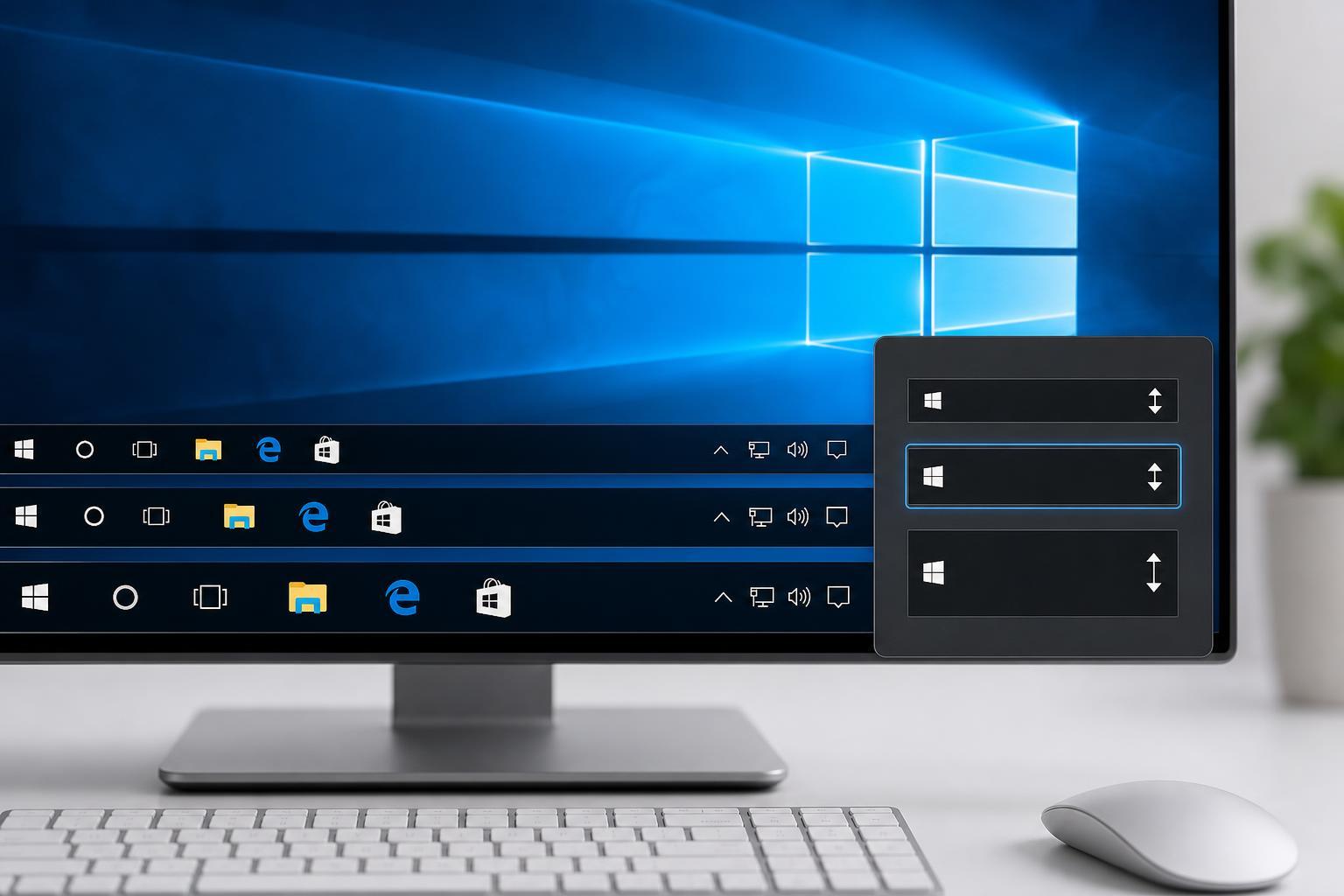
- Right-click an empty area of the taskbar.
- Click Taskbar settings.
- Under Use small taskbar buttons, turn the switch On to make the taskbar smaller, or Off to return to the normal size.
Resize the Taskbar with a Registry Change
If you want more flexibility than the small taskbar button setting provides, Windows 10 includes a registry value that can adjust the taskbar size more directly. This is more advanced and should be used carefully.
- Press Windows + R, type regedit, and press Enter.
- Go to: HKEY_CURRENT_USER\Software\Microsoft\Windows\CurrentVersion\Explorer\Advanced
- Right-click in the right pane, choose New, then click DWORD (32-bit) Value.
- Name the new value TaskbarSi.
- Double-click TaskbarSi and set its value to 0 for small, 1 for medium, or 2 for large.
- Click OK, then sign out and sign back in, or restart File Explorer to apply the change.
When the Taskbar Still Looks Wrong
If the taskbar size changes but still does not look the way you expected, display scaling may be part of the reason. A very high DPI scaling setting can make the taskbar appear larger or smaller relative to the rest of the desktop.
- Check Display settings if the taskbar looks unusually large or tiny compared with desktop icons.
- If you use a 4K or high-resolution monitor, Windows scaling may affect how noticeable the taskbar change appears.
- If you moved the taskbar to the side of the screen, its shape and width will look different from the bottom-positioned version.
Which Method Should You Use?
For most users, the built-in small taskbar buttons setting is enough. The registry method is mainly useful when the normal setting does not provide the size you want.





