
If you use iCloud Drive on a Windows PC, you may eventually want to move the folder to another drive or location. That sounds simple, but iCloud Drive has some limitations that make the process different from moving a normal folder.
This guide explains what Windows and iCloud actually allow, why the folder location is not always freely changeable, and the safest ways to work around the limitation without breaking file sync.
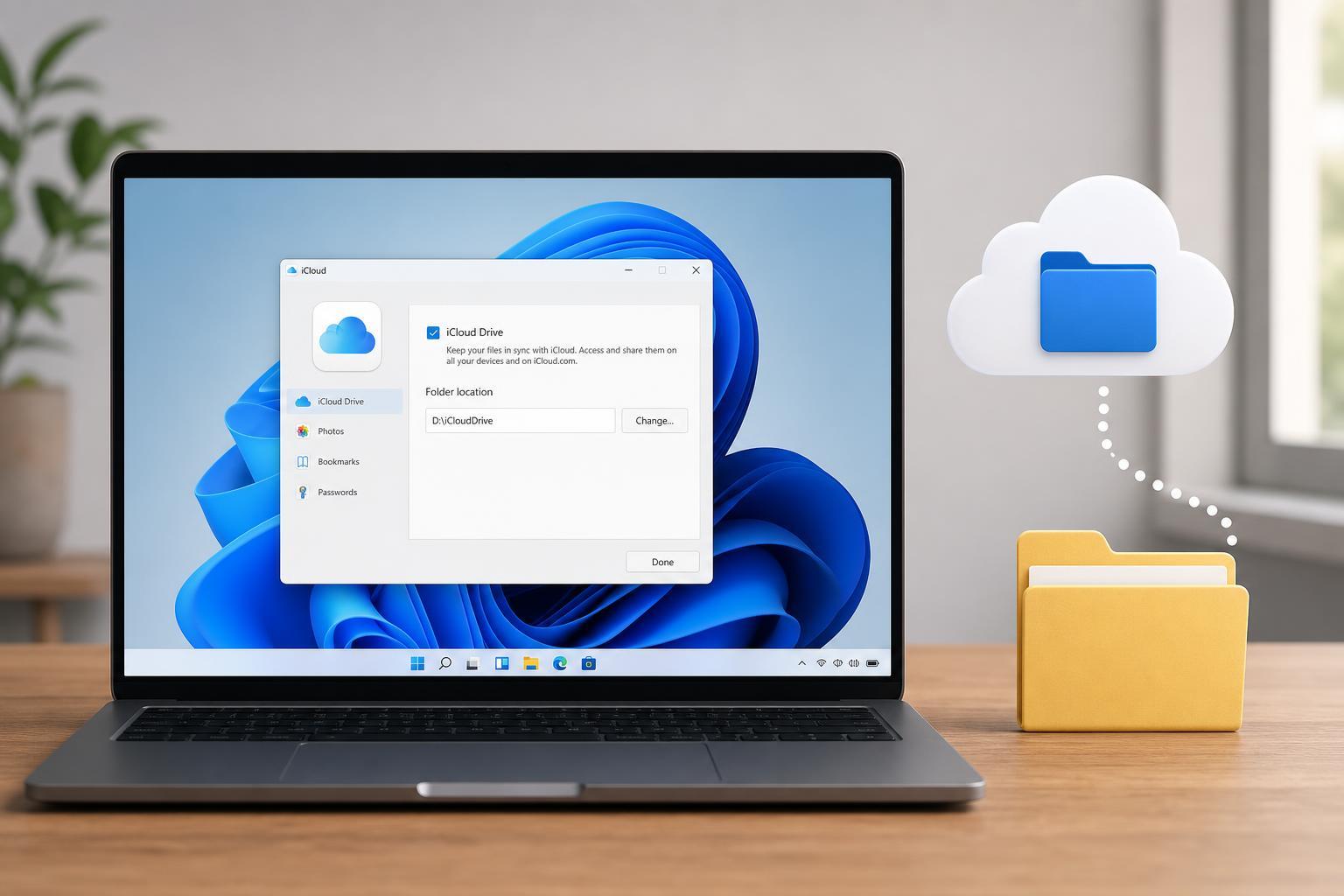
Can You Change the iCloud Drive Folder Location?
In most cases, iCloud for Windows does not let you freely choose a custom folder path for iCloud Drive the way you might with some other sync services. The iCloud Drive location is managed by the app, and changing it manually can interfere with syncing if it is not done in a supported way.
Check Whether Your iCloud for Windows Version Supports a Location Change
- Open iCloud for Windows from the Start menu.
- Look for any storage, sync, or iCloud Drive options in the app settings.
- Check whether there is a folder location, change location, or advanced storage option.
- If no location setting is available, your version likely does not support changing the iCloud Drive folder directly.
If you are using the Microsoft Store version of iCloud for Windows, the available settings may be different from older desktop versions. The exact options can change over time, so the safest approach is to look inside the app itself rather than assuming the folder can be moved.
If iCloud Does Not Offer a Location Setting
When there is no built-in option, the usual workaround is to leave iCloud Drive where it is and use Windows features to redirect access if you need files on another drive. This keeps the sync app working normally while still letting you store or view data elsewhere.
- Use symbolic links or junctions only if you understand the risks and how Windows handles them.
- Move only the files you create locally, not the active iCloud Drive sync folder, unless Apple’s app specifically supports the move.
- Use another local folder or drive for archives, backups, or large project files that do not need live iCloud sync.
- Consider freeing space on the current drive instead of relocating the sync folder if the goal is only to save storage.
The Safest Practical Workaround: Change What You Store in iCloud
If your real goal is to reduce pressure on your system drive, it is often better to control which files stay in iCloud Drive and which files stay only on a secondary drive. Keep active sync files in iCloud, and store large local-only folders elsewhere.
- Open iCloud Drive in File Explorer.
- Move only the folders and files you actually want synced into iCloud Drive.
- Keep large archives, installers, video projects, and backups on another drive.
- Remove unnecessary local copies of files that do not need to be available offline.
If You Need iCloud Drive on a Different Drive
Some users want iCloud Drive on a secondary SSD or hard drive because the system drive is small. In that case, the most reliable method is usually to reinstall or reset iCloud for Windows only if the app provides an option to choose the location during setup. If it does not, a supported relocation may not be available.
Before trying any advanced change, sign out of iCloud, back up important local files, and confirm that you know where your current iCloud data is stored. That reduces the chance of losing files that have not finished syncing yet.
- Back up important iCloud files before making changes.
- Make sure syncing has completed before signing out.
- Check Apple’s current iCloud for Windows settings after updating the app.
- If unsure, leave the default folder in place and use the secondary drive for non-synced data.
How to Verify the Folder After Changing It
- Open File Explorer and confirm the new folder location you expect to use.
- Add a small test file to iCloud Drive.
- Wait for sync to complete.
- Check the same file from another device or from the iCloud web interface.
- If the file does not appear, return to the original setup before adding more data.
When You Should Leave the Default Location Alone
If iCloud Drive is working normally and you only want a different layout in File Explorer, it is usually better not to change the folder location at all. Apple’s sync software is designed to work predictably with its own default paths, and keeping that arrangement avoids unnecessary sync problems.
What to Do If Sync Breaks After a Move
If iCloud stops syncing after you tried to move the folder, stop making changes and check the app’s status first. A broken path, a paused sync state, or a folder moved outside the app’s control are the most common causes.
- Open iCloud for Windows and check for sync errors.
- Confirm that the folder still exists in its expected location.
- Sign out and back in only if you have already backed up important files.
- Restore the folder to the original location if necessary.
- Re-test syncing with a small file before trusting the setup again.
Bottom Line
On Windows, the iCloud Drive folder location is not always something you can change freely. The safest approach is to use only the options provided by iCloud for Windows, and avoid manually moving the live sync folder unless Apple’s app clearly supports it.
If you need more free space or better organization, it is usually safer to change what you store in iCloud Drive rather than trying to relocate the sync folder itself.





