
If your Windows 10 PC wakes from sleep but refuses to reconnect to Wi-Fi, the problem is usually caused by a power-saving setting, a driver issue, or the wireless adapter not waking up properly. The good news is that this is often fixable without replacing hardware.
The best approach is to start with the most likely causes first: adapter power management, Wi-Fi driver problems, and the sleep settings that control how the network card behaves when the PC wakes.
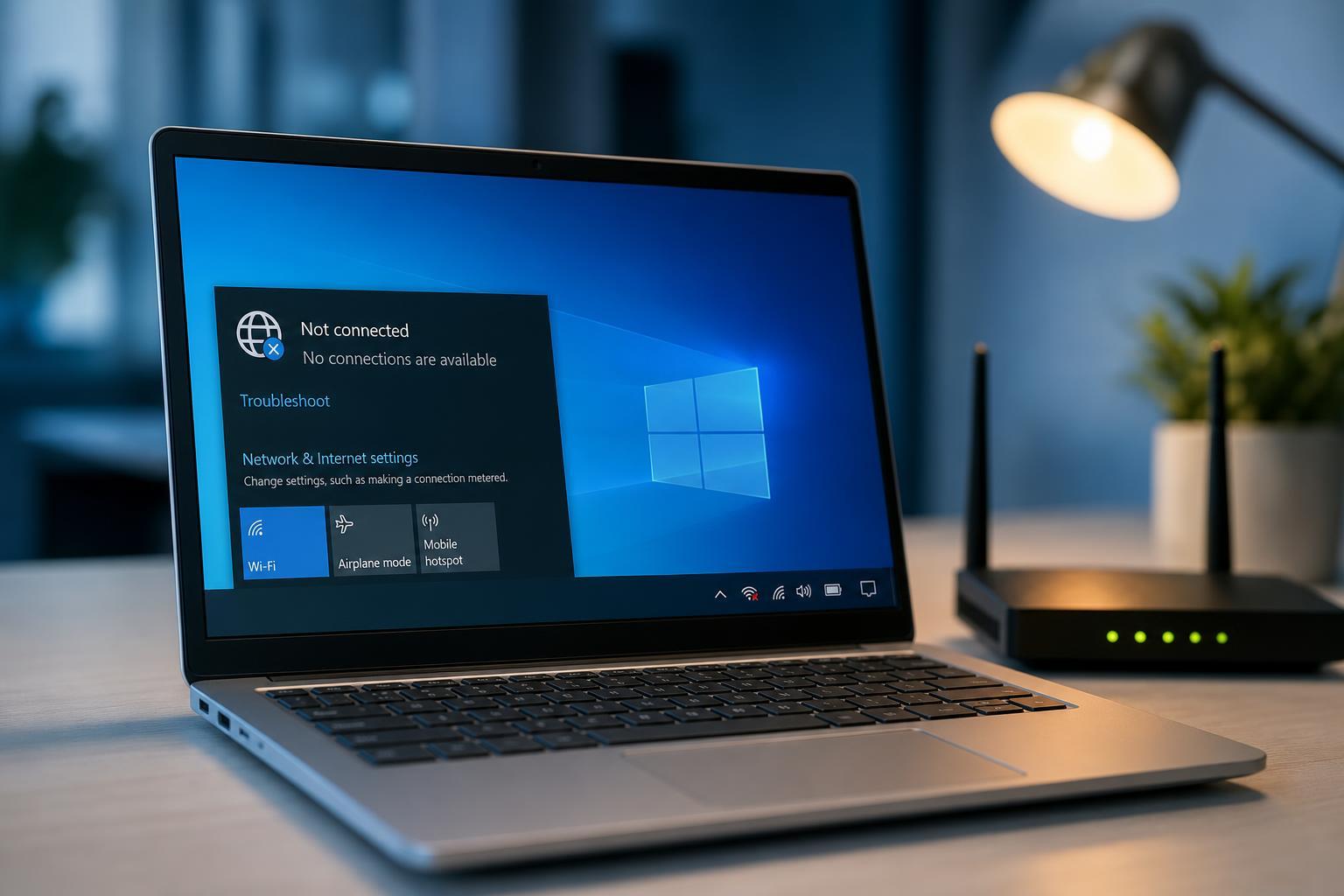
1. Make Sure Wi-Fi Is Actually Turning Back On
After sleep, Windows may wake with the wireless radio disabled even if the rest of the system looks normal. Check the network icon in the taskbar and make sure Wi-Fi is enabled, not just connected to the wrong mode or temporarily turned off.
- Click the network icon in the taskbar and confirm Wi-Fi is on.
- If Airplane mode is enabled, turn it off.
- If you use a laptop, check any physical wireless switch or keyboard wireless key.
- If the connection shows available networks but will not connect, move on to the adapter settings below.
2. Disable Power Saving for the Wireless Adapter
Windows can power down the Wi-Fi adapter during sleep to save energy, but some adapters do not wake up cleanly. Changing this setting often fixes the problem immediately.
- Right-click the Start button and open Device Manager.
- Expand Network adapters.
- Right-click your Wi-Fi adapter and choose Properties.
- Open the Power Management tab.
- Uncheck Allow the computer to turn off this device to save power.
- Click OK and test sleep again.
3. Update or Reinstall the Wi-Fi Driver
A buggy or outdated wireless driver is one of the most common reasons Wi-Fi fails after sleep. Windows may connect normally at boot but fail to recover the adapter after waking.
- Open Device Manager and expand Network adapters.
- Right-click your Wi-Fi adapter and select Update driver.
- Choose Search automatically for drivers.
- If the issue continues, right-click the adapter again and choose Uninstall device.
- Restart the PC so Windows can reinstall the driver automatically.
4. Turn Off Fast Startup
Fast Startup can sometimes make Windows resume in a way that leaves network hardware in a bad state. Disabling it is worth trying when the problem happens after sleep or shutdown and not during normal use.
- Open Control Panel and go to Power Options.
- Select Choose what the power buttons do.
- Click Change settings that are currently unavailable.
- Uncheck Turn on fast startup.
- Save the changes and test again.
5. Change the Wireless Adapter Power Mode
Some Wi-Fi adapters have their own advanced power settings that can put the card into a deeper sleep state than Windows handles well. Setting the adapter to a more aggressive performance mode can improve wake reliability.
- Open Device Manager and open your Wi-Fi adapter properties.
- Look for the Advanced tab.
- Find settings related to power saving, transmit power, or roaming aggressiveness.
- If available, reduce power saving or set the adapter for maximum performance.
- Apply the changes and test sleep again.
6. Reset the Network Stack
If Windows’ network configuration has become inconsistent, resetting the network stack can clear out stuck settings that prevent a clean reconnect after sleep.
- Open Settings and go to Network & Internet.
- Scroll down and choose Network reset.
- Follow the prompts to reset your network settings.
- After the reset, reconnect to your Wi-Fi network and re-enter the password if needed.
7. Update Windows 10
Windows updates often include fixes for power management, networking, and device compatibility. If the problem started after an update was missed for a long time, installing pending updates may solve it.
- Open Settings and select Update & Security.
- Click Windows Update.
- Install all available updates.
- Restart if Windows asks you to, then test the sleep and wake cycle again.
8. Test the Problem With a Different Sleep and Wake Pattern
If the connection only fails after a certain type of sleep behavior, the problem may be tied to how the PC enters low-power mode rather than to Wi-Fi itself. Test by putting the PC to sleep manually, waking it normally, and comparing that with lid-close sleep or idle sleep.
- Sleep from the Start menu and wake it with the power button or keyboard.
- Close and reopen the laptop lid if you normally use lid sleep.
- Try disconnecting from Wi-Fi before sleep and reconnecting after wake.
- Notice whether the failure happens every time or only with one method.
When the Problem Still Happens
If none of these fixes work, the wireless adapter may have a manufacturer-specific driver issue or a hardware problem. Check the laptop or Wi-Fi adapter maker’s support page for a newer driver, especially if Windows Update did not provide one. On some systems, a USB Wi-Fi adapter or built-in card replacement may be the only reliable long-term fix.
Which Fix Should You Try First?
Start with the adapter power-saving setting and the Wi-Fi driver. Those are the most common causes of Wi-Fi failing after sleep in Windows 10. If that does not help, move on to Fast Startup, adapter-specific power settings, and finally a network reset. That order usually solves the issue with the least disruption.





