
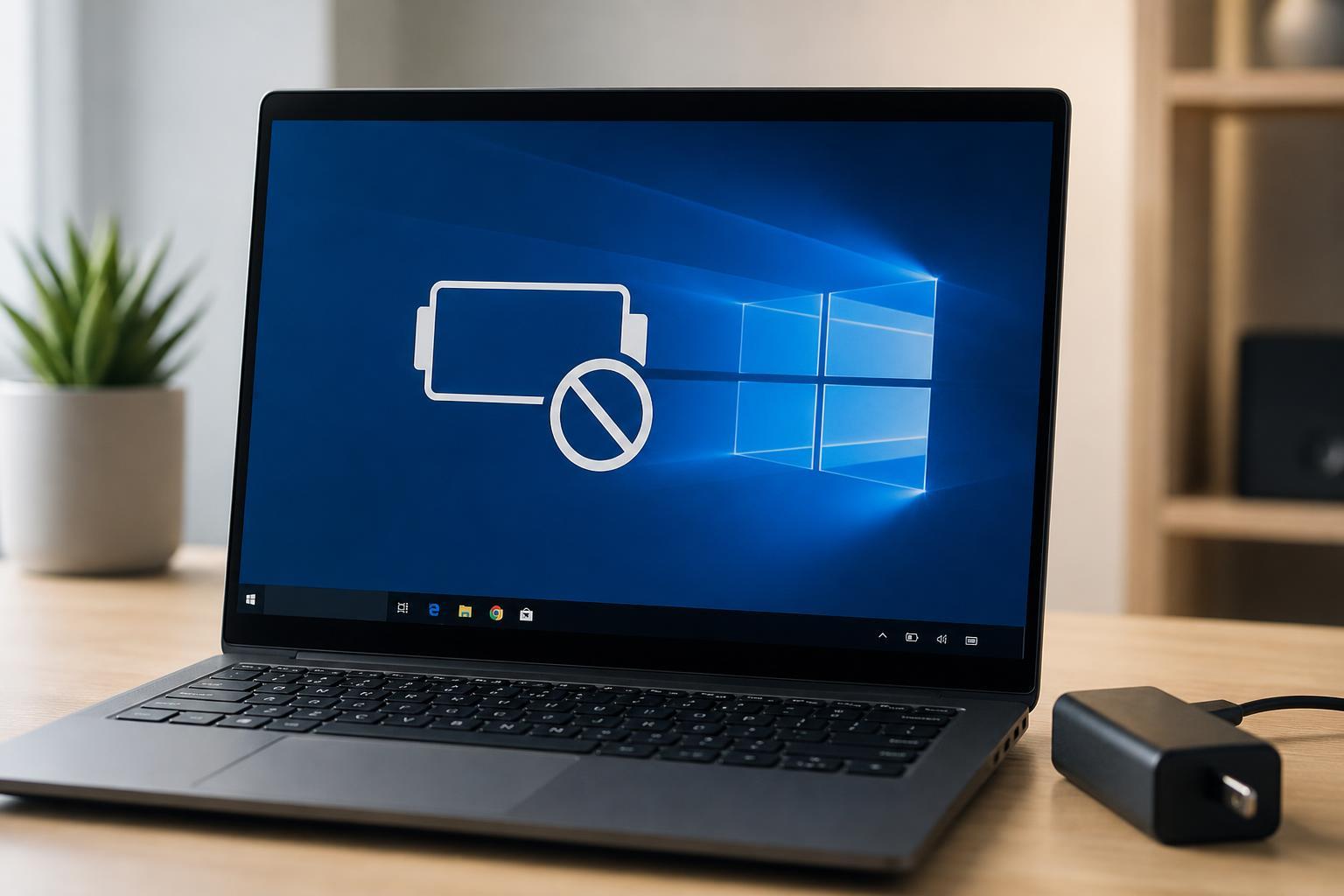
If Windows 10 says the battery is not detected, your laptop may stop charging correctly, show the wrong battery level, or act as if it is running only on AC power. The cause can be as simple as a loose battery connection or as complicated as a driver, firmware, or hardware problem.
The good news is that you can usually narrow down the issue with a few checks. Start with the easiest fixes first, then move to the more advanced steps if Windows still cannot see the battery.
1. Check Whether the Battery Is Actually Connected Properly
If your laptop has a removable battery, the first thing to check is whether it is seated correctly. A battery that is slightly loose can trigger the not detected message even when it still has charge left.
- Shut down the laptop completely.
- Disconnect the AC adapter.
- Remove the battery if your model uses a removable one.
- Inspect the battery contacts and the laptop battery bay for dust, damage, or bent pins.
- Reinsert the battery firmly and reconnect the power adapter.
- Turn the laptop back on and check whether Windows detects it.
2. Power Reset the Laptop
A power reset can clear temporary issues in the battery controller and embedded system. This is especially useful when the battery was detected before but suddenly stopped appearing in Windows.
- Shut down Windows.
- Unplug the AC adapter and remove any external devices.
- If the battery is removable, remove it.
- Press and hold the power button for 20 to 30 seconds.
- Reinstall the battery, reconnect the charger, and start the laptop again.
3. Run the Windows Hardware Troubleshooter
Windows 10 includes built-in troubleshooters that can sometimes detect problems with power components or device configuration. While it will not fix every battery issue, it is a quick step worth trying.
- Open Settings.
- Go to Update & Security.
- Select Troubleshoot.
- Choose Additional troubleshooters.
- Run the Power troubleshooter if it is available.
- Follow any prompts and apply suggested fixes.
4. Reinstall the Battery Drivers in Device Manager
Corrupted or outdated battery drivers can make Windows stop recognizing the battery properly. Reinstalling the battery-related devices often restores normal detection.
- Right-click the Start button and open Device Manager.
- Expand the Batteries category.
- Right-click each battery-related item, such as Microsoft AC Adapter and Microsoft ACPI-Compliant Control Method Battery.
- Choose Uninstall device for each one.
- Restart the laptop so Windows can reinstall the drivers automatically.
5. Check for Windows Updates
Microsoft sometimes ships fixes for power management bugs through Windows Update. If the battery stopped being detected after a system change, pending updates may help.
- Open Settings.
- Select Update & Security.
- Click Windows Update.
- Check for updates and install everything available.
- Restart the laptop if Windows asks you to.
6. Update the BIOS or UEFI Firmware
If Windows and the battery drivers look fine but the laptop still cannot see the battery, the issue may be in the system firmware. BIOS or UEFI updates sometimes improve battery detection and power management compatibility.
- Identify your laptop model exactly.
- Visit the manufacturer’s support website.
- Check whether a BIOS or UEFI update is available for your model.
- Read the release notes carefully to see whether battery, power, or stability fixes are mentioned.
- Follow the manufacturer’s update instructions exactly.
7. Remove and Reinstall the ACPI Battery Device
The ACPI battery device is the Windows component that communicates with the battery controller. If this device gets stuck or corrupted, removing it can force Windows to rebuild the connection.
- Open Device Manager.
- Expand Batteries.
- Right-click Microsoft ACPI-Compliant Control Method Battery.
- Select Uninstall device.
- If there are other battery entries, uninstall them as well.
- Restart the computer and let Windows reinstall the devices automatically.
8. Test for a Hardware Battery Failure
If none of the software fixes work, the battery itself may be faulty, or the laptop’s battery connector or power circuit may be damaged. At that point, the problem is more likely hardware-related than Windows-related.
- The laptop works on AC power but never detects the battery
- The battery does not charge at all
- The battery percentage is missing or stuck
- The battery is swollen, unusually hot, or physically damaged
- The issue remains after driver, Windows, and BIOS checks
How to Narrow Down the Real Cause
The pattern of the problem can tell you a lot. If the battery disappeared right after a Windows update or driver change, software is more likely. If the laptop never detects the battery even in BIOS or after a power reset, hardware becomes more likely.
- Detected in BIOS but not in Windows: likely driver or Windows power management issue
- Not detected in BIOS or Windows: likely hardware, battery connection, or motherboard issue
- Detected only when unplugged: possible AC adapter, charging circuit, or battery communication problem
- Battery shown but not charging: may be power adapter, cable, or battery wear rather than detection
When You May Need Professional Repair
If your laptop has an internal battery and the device still will not detect it after all eight fixes, the problem may involve the battery cable, charging board, or motherboard. In that case, professional service or a battery replacement is usually the safest next step.
For removable batteries, trying a known-good replacement battery can help confirm whether the original battery has failed. If a replacement is also not detected, the laptop hardware is likely the issue.





