
When Location Services stops working on an iPhone, apps like Maps, Find My, Weather, rideshare apps, and fitness trackers can lose access to your position or show the wrong location. The cause is often a privacy setting, weak GPS signal, or a problem with one app rather than the whole phone.
The fixes below move from the simplest checks to deeper settings changes so you can quickly narrow down what is preventing your iPhone from sharing location data.
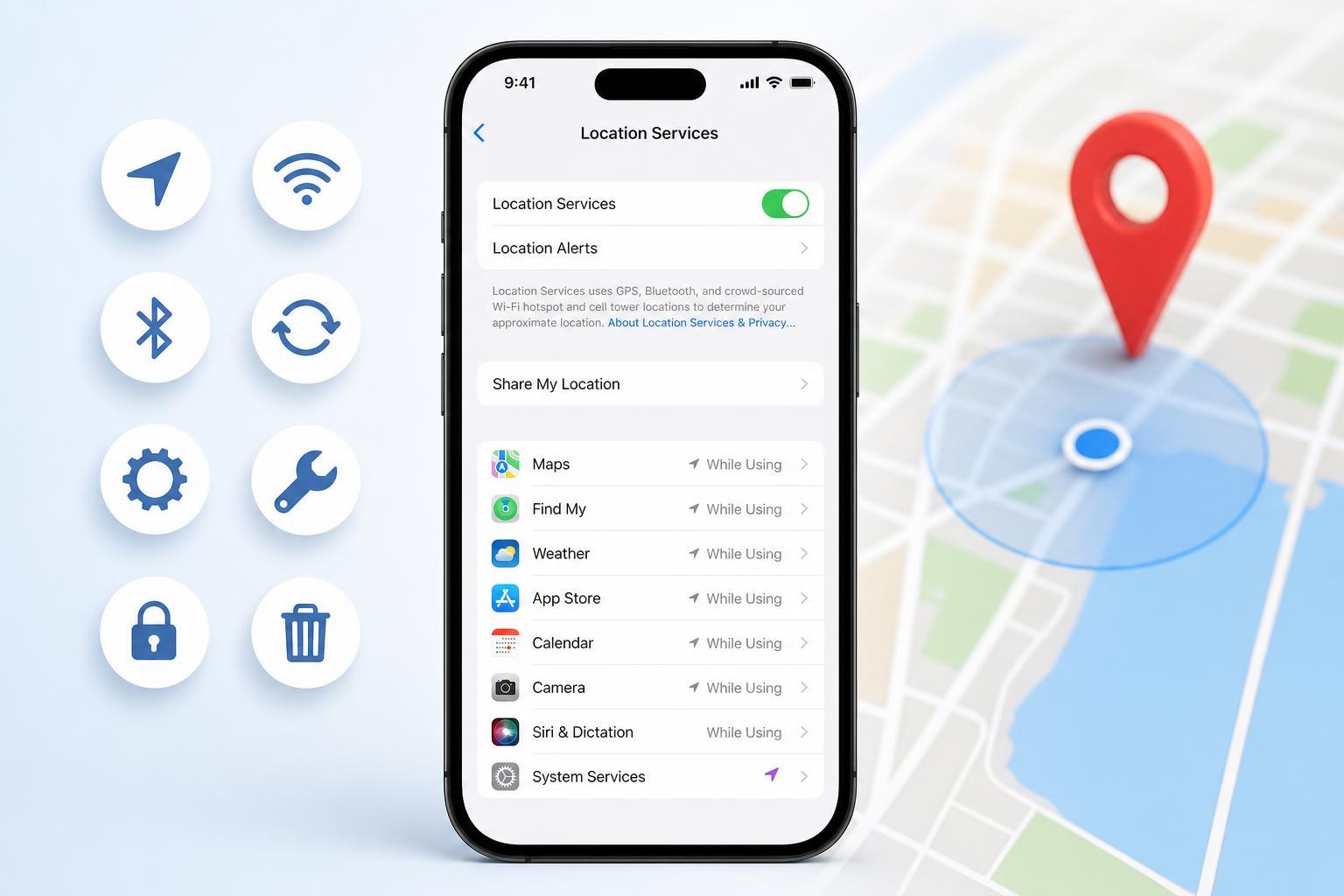
1. Make Sure Location Services Is Turned On
The first thing to check is the main Location Services switch. If it is off, apps cannot request location access at all.
- Open Settings.
- Tap Privacy & Security.
- Tap Location Services.
- Make sure Location Services is turned on.
2. Check the App’s Location Permission
If location works in some apps but not others, the issue may be the permission for a specific app. iPhone lets you choose whether an app can use your location always, only while using the app, or never.
- Go to Settings > Privacy & Security > Location Services.
- Scroll to the app that is not working properly.
- Tap the app and choose the appropriate permission, such as While Using the App or Always, if needed.
- If available, turn on Precise Location for apps that need accurate positioning.
3. Confirm Airplane Mode, Wi-Fi, and Cellular Are Working Normally
Location on iPhone can use GPS, Wi-Fi networks, cellular data, and Bluetooth to improve accuracy. If Airplane Mode is on, or if Wi-Fi and cellular reception are weak, the phone may struggle to determine your location.
- Turn off Airplane Mode if it is enabled.
- Make sure Wi-Fi is on, even if you are not connected to a network.
- Check that cellular data is enabled if you are away from Wi-Fi.
- If you are indoors or in a dense urban area, move near a window or go outside for a better GPS signal.
4. Set the Correct Date and Time
Incorrect date and time settings can interfere with iPhone services, including location-related features that rely on accurate system information.
- Open Settings.
- Tap General.
- Tap Date & Time.
- Turn on Set Automatically.
5. Review Screen Time and Privacy Restrictions
If Location Services was restricted through Screen Time, apps may appear to have permission but still fail to access your location. This can happen on family-managed devices or phones with content restrictions enabled.
- Open Settings.
- Tap Screen Time.
- Tap Content & Privacy Restrictions.
- Check whether Location Services changes are blocked or limited.
- If needed, adjust the restriction settings or enter the Screen Time passcode.
6. Reset Location and Privacy Settings
If the permissions have become inconsistent, resetting Location and Privacy settings can clear the problem without erasing your photos, messages, or other personal data. This will remove app permission choices, so you will need to grant access again afterward.
- Open Settings.
- Tap General.
- Scroll down and tap Transfer or Reset iPhone.
- Tap Reset.
- Choose Reset Location & Privacy.
- Enter your passcode if prompted.
7. Update iOS and the Problem App
A bug in iOS or in a specific app can cause location features to fail even when every setting looks correct. Updating both can often fix compatibility problems.
- Open Settings > General > Software Update and install any available iOS update.
- Then open the App Store and update the app that is having location problems.
- Test the app again after the update completes.
8. Reset Network Settings if Location Is Still Inaccurate
If your iPhone cannot use Wi-Fi and cellular data properly, location accuracy may suffer because those signals help supplement GPS. Resetting network settings can fix broken network configuration without deleting your personal files.
- Open Settings.
- Tap General.
- Tap Transfer or Reset iPhone.
- Tap Reset.
- Choose Reset Network Settings.
- Enter your passcode and confirm.
Other Clues That Point to a Hardware Problem
If Location Services fails everywhere, GPS never updates outdoors, and nearby navigation apps all behave the same way after trying the fixes above, the iPhone may have a hardware issue. Damage from a drop, water exposure, or internal antenna problems can affect location accuracy.
- Maps never locks onto your position, even outside with a clear sky view
- Your location is always wrong across multiple apps
- Compass behavior is also unreliable
- The problem started after the phone was dropped or exposed to moisture
Which Fix Should You Try First?
Start with the Location Services master switch, then check the app permission and signal conditions. If the problem affects more than one app, resetting Location & Privacy or updating iOS is usually the next best step. Only move to network resets or hardware checks if the simpler fixes do not help.





