
If an external drive is missing from Disk Management in Windows, the problem is usually happening below the normal file system level. That means Windows may not be detecting the drive properly, the connection may be unstable, or the enclosure, cable, or drive itself may be failing.
This guide walks through the most practical fixes in order, starting with the easiest checks and moving toward more advanced troubleshooting.
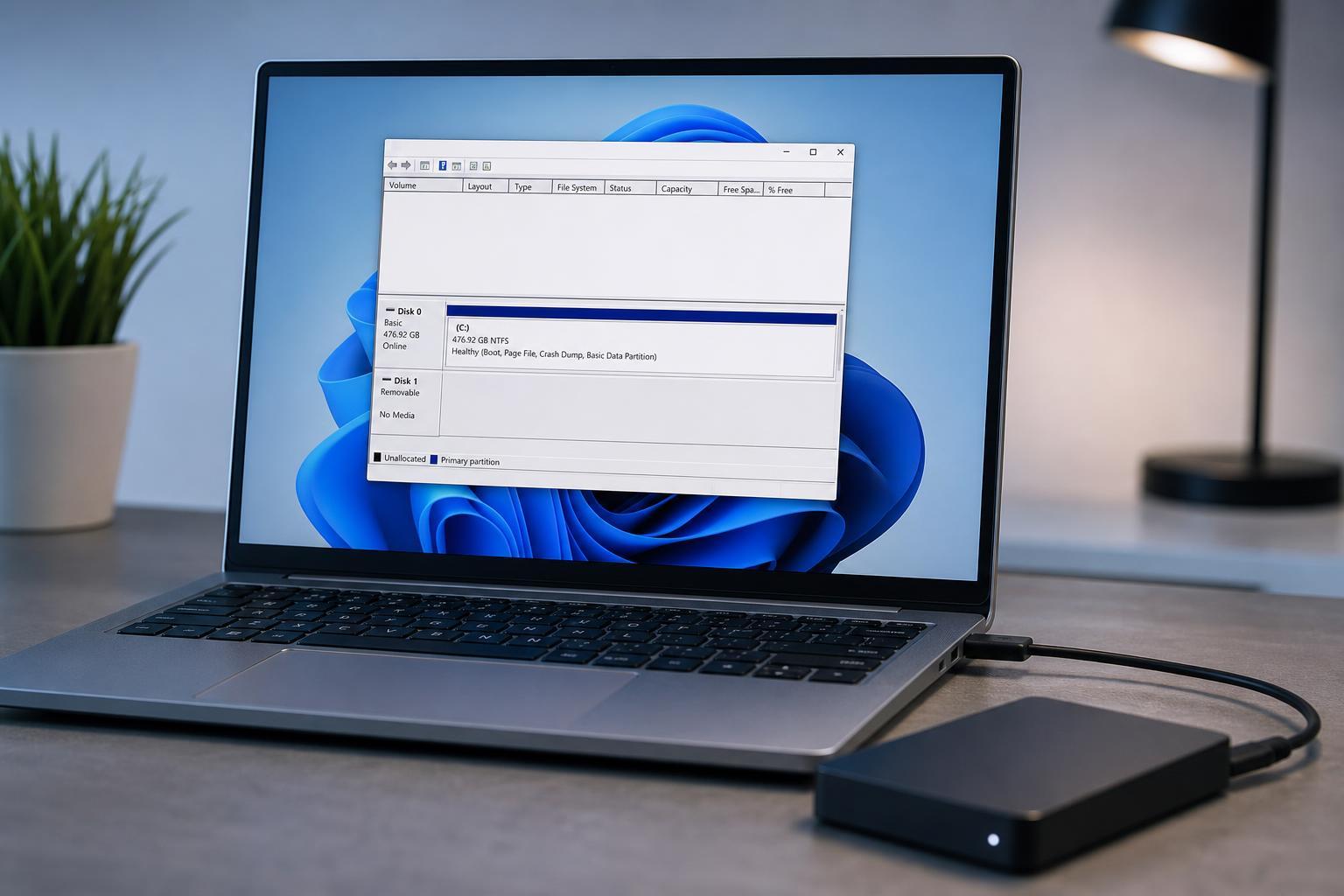
1. Check the cable, port, and power first
Before changing anything in Windows, confirm the drive is actually getting power and a stable connection. A bad USB cable or weak port is one of the most common reasons an external drive never reaches Disk Management.
- Try a different USB cable if the drive uses a detachable one.
- Plug the drive into a different USB port on the computer.
- Avoid USB hubs, docking stations, and front-panel ports for testing.
- If the drive has its own power adapter, make sure it is connected and working.
- Listen or feel for signs that the drive is spinning up or vibrates slightly when powered.
2. Test the drive on another computer
Checking the drive on a second PC helps separate a Windows problem from a hardware problem. If it shows up elsewhere, the drive itself may be fine and the issue is more likely with your system, port, or drivers.
- If the drive appears on another PC, the original computer is the likely problem.
- If it still does not appear anywhere, the drive, enclosure, or cable is more suspect.
- If the drive works only on one computer, compare the USB ports and drivers between the two systems.
3. Look in Device Manager for an unrecognized drive or controller issue
A drive may not appear in Disk Management if Windows is struggling with the USB device or storage controller first. Device Manager can reveal whether Windows sees the hardware at all.
- Right-click the Start button and open Device Manager.
- Expand Disk drives and Universal Serial Bus controllers.
- Look for the external drive, an Unknown device, or any item with a warning icon.
- If you see a problem device, right-click it and choose Uninstall device.
- Unplug the drive, reconnect it, and let Windows detect it again.
4. Rescan disks in Disk Management
Sometimes Windows detects the storage hardware but fails to refresh Disk Management automatically. A manual rescan can force Windows to look again for newly attached disks.
- Press Windows + X and open Disk Management.
- In the top menu, choose Action.
- Select Rescan Disks.
- Wait a few moments and check whether the drive appears.
5. Install or update the USB and chipset drivers
Outdated or corrupted USB, chipset, or storage controller drivers can prevent Windows from detecting external drives correctly. This is especially worth checking on older PCs, after a Windows update, or if the problem started suddenly.
- Open Device Manager.
- Expand Universal Serial Bus controllers and Storage controllers.
- Right-click the relevant device and choose Update driver.
- If that does not help, visit your PC or motherboard manufacturer’s support page and install the latest chipset and USB drivers.
- Restart the computer only if the driver installer asks for it.
6. Check whether the disk is offline or uninitialized
If Windows can see the hardware but the drive is not usable, it may be offline, uninitialized, or missing a partition table. In some cases, it will still show in Disk Management as an unknown or unallocated disk. If it does not appear at all, this step may not apply yet.
- Look for a disk labeled Unknown, Not Initialized, or Offline.
- If the drive is offline, right-click it and choose Online.
- If it is not initialized, Windows may prompt you to initialize it.
- Be careful with initialization if the drive contains data you want to keep, because the wrong action can make recovery more difficult.
7. Try Diskpart to see whether Windows detects the device at a lower level
If Disk Management still shows nothing, Diskpart can help confirm whether Windows sees the physical disk beneath the graphical interface. This is useful for diagnosing hidden detection problems.
- Open Command Prompt as an administrator.
- Type diskpart and press Enter.
- Type list disk and press Enter.
- See whether the external drive appears in the list.
- If it appears, note whether it is offline, unallocated, or the wrong size.
8. Rule out enclosure, adapter, or drive failure
If the drive still does not appear after the previous steps, the hardware itself may be the problem. External hard drives and SSDs can fail in the enclosure, the bridge board, or the drive mechanism.
- If the drive uses an external enclosure, remove the internal drive and test it in another enclosure or with a SATA-to-USB adapter.
- Listen for unusual clicking, repeated spin-up sounds, or no sound at all from a mechanical hard drive.
- Check whether the enclosure’s indicator light behaves normally.
- If the drive previously worked and then stopped after a drop or bump, physical damage is more likely.
When the drive still will not appear
If the external drive is missing from Disk Management, Device Manager, Diskpart, and another computer, the problem is usually not in Windows. At that point, the likely causes are a dead cable, failed enclosure, failed USB bridge, or a damaged drive.
If the data matters, stop using the drive and consider a professional data recovery service before trying more aggressive fixes such as formatting, partition changes, or repeated re-initialization.





