
If your Windows 10 PC is on a limited internet plan, even normal background activity can use more data than you expect. Windows updates, app sync, cloud storage, and streaming apps can all add up quickly.
The good news is that Windows 10 includes several built-in ways to reduce data usage without making the PC difficult to use. The best results usually come from combining a few settings instead of relying on just one.
1. Set Your Connection as Metered
A metered connection tells Windows that data is limited, so the operating system becomes more careful about downloads and background activity.
- Open Settings.
- Go to Network & Internet.
- Select Wi-Fi or Ethernet, depending on how you connect.
- Click your active network connection.
- Turn on Set as metered connection.
2. Limit Windows Update Downloads
Windows Update can consume a large amount of data, especially when feature updates or multiple security updates are downloaded in the background.
- Open Settings and go to Update & Security.
- Select Windows Update.
- Click Advanced options.
- Choose Delivery Optimization.
- Turn off Allow downloads from other PCs if you do not want Windows sharing update files over the internet.
If you use a metered connection, Windows Update is more likely to pause large downloads until you choose to allow them. You can also manually check for updates when you are on a better connection.
3. Stop Apps from Running in the Background
Some apps keep syncing, checking for messages, or downloading content even when you are not actively using them.
- Open Settings.
- Go to Privacy.
- Scroll to Background apps.
- Turn off Let apps run in the background, or disable it for specific apps you do not need active.
This can be especially useful for apps that update news feeds, mail, cloud files, or social content in the background.
4. Turn Off Sync for Cloud Services You Do Not Need Constantly
Cloud storage tools such as OneDrive can automatically upload and download files, which is convenient but can use a lot of data if you keep many folders synced.
- Find the OneDrive icon in the taskbar notification area.
- Open OneDrive settings.
- Go to the Backup or Sync settings.
- Pause syncing when you are on a limited connection, or choose fewer folders to sync.
If you only need certain documents offline, selective sync can reduce repeated file transfers and keep background traffic low.
5. Lower the Data Use of Streaming and Media Apps
Video and music streaming can use far more data than most people expect. Even a short session on a high-quality stream can consume a noticeable amount of bandwidth.
- Choose lower video quality in apps like Netflix, YouTube, or other streaming services.
- Avoid automatic HD or 4K playback unless you really need it.
- Download media over Wi-Fi for offline use when the app supports it.
- Mute autoplay features so the next video does not start playing automatically.
6. Reduce Sync and Auto-Update Activity in Other Apps
Many desktop apps update themselves automatically or sync content on a schedule. Game launchers, browsers, cloud tools, and communication apps can all use data in the background.
- Check the settings in your game launchers and disable automatic downloads where possible.
- Turn off browser sync features you do not need.
- Limit automatic photo, file, or folder backup tools to Wi-Fi only.
- Pause large game downloads until you are on an unlimited connection.
7. Monitor Which Apps Are Using the Most Data
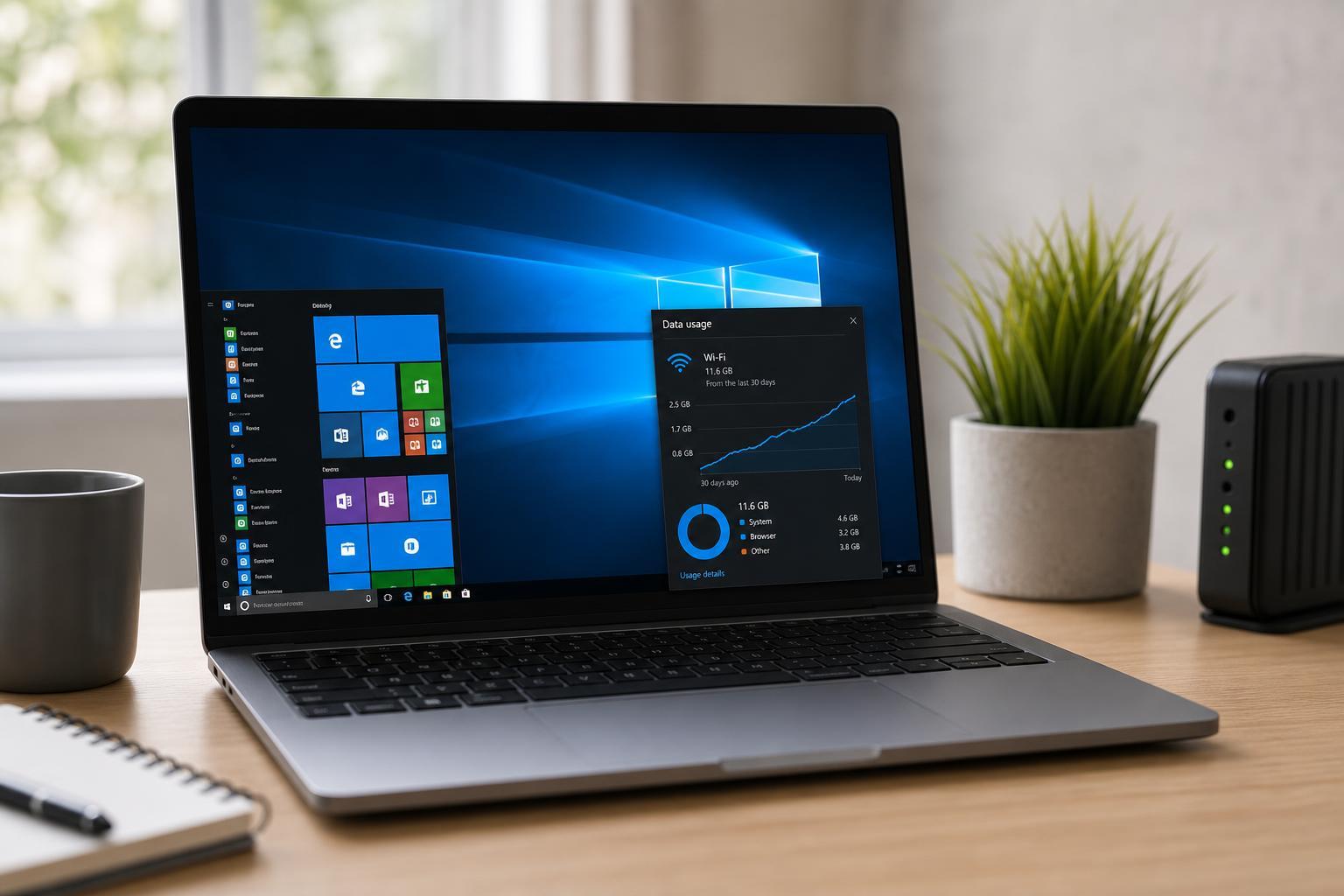
Windows 10 includes a data usage view that helps you spot which apps are consuming the most bandwidth.
- Open Settings.
- Go to Network & Internet.
- Select Data usage.
- Review the list of apps and how much data they used.
Once you know which apps are the biggest users, you can decide whether to limit them, change their settings, or avoid using them on a restricted connection.
Extra Habits That Help Save Data
A few small changes can also make a noticeable difference over time, especially on a laptop or shared family connection.
- Use Wi-Fi instead of mobile hotspot data whenever possible.
- Avoid large cloud backups while the connection is limited.
- Pause game downloads and launcher updates until later.
- Use offline documents and local files instead of streaming or syncing constantly.
How to Choose the Best Fixes First
If you want the biggest impact with the least effort, start with the settings that control background activity.
- Set the connection as metered.
- Limit Windows Update and Delivery Optimization.
- Stop background apps from running.
- Reduce cloud sync and streaming quality.
- Check data usage to find any remaining problem apps.
For most users, those five steps are enough to noticeably reduce monthly data usage without making Windows 10 harder to use.





