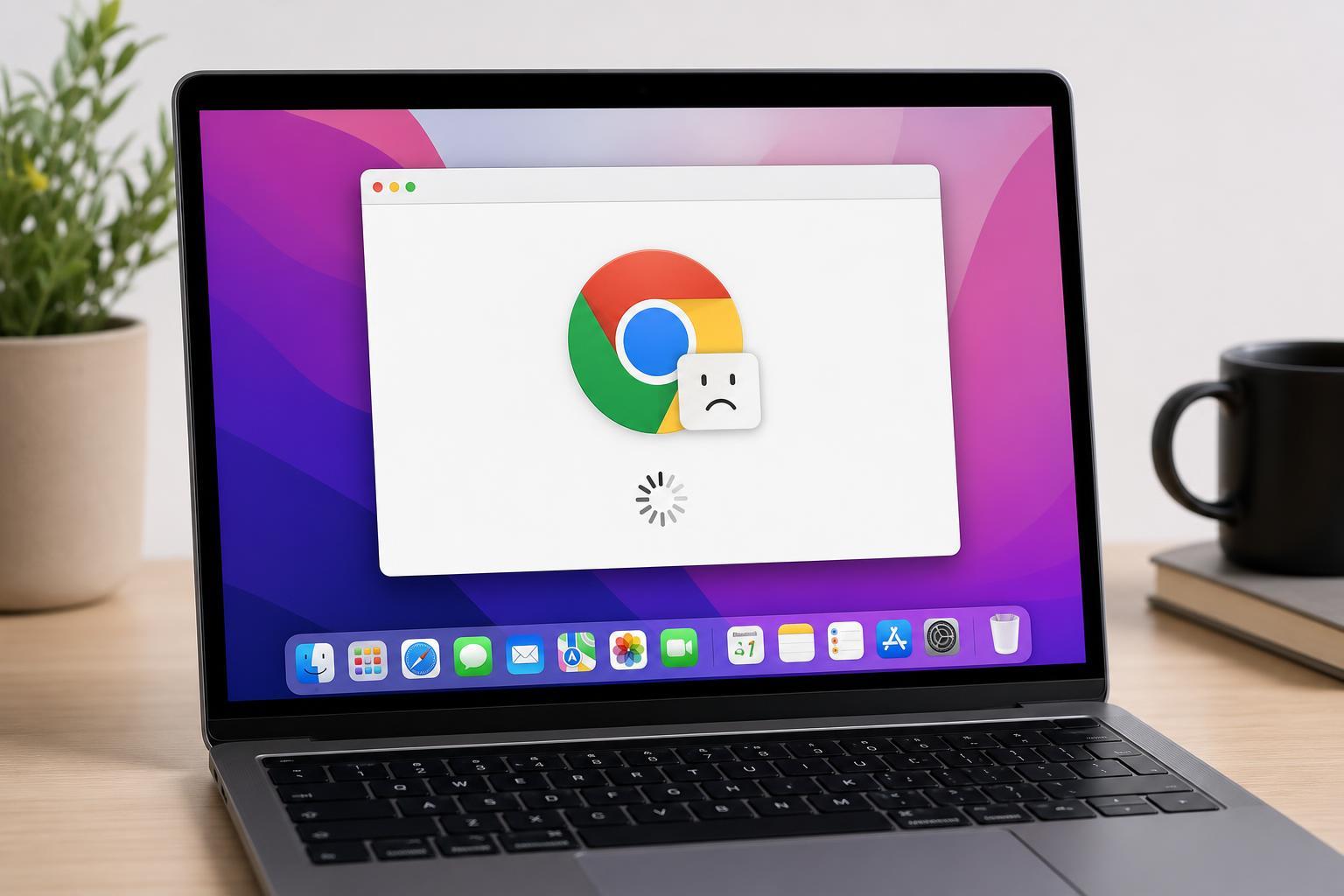
When Wi‑Fi is greyed out on a Mac, you usually cannot turn wireless networking on at all. That can make it look like the Mac has no Wi‑Fi hardware, but in many cases the issue is caused by a software setting, a bad network configuration, or a problem with the system controller.
The fixes below move from simple checks to deeper system-level steps so you can narrow down the cause without wasting time.
1. Check Whether Wi‑Fi Is Actually Disabled in macOS
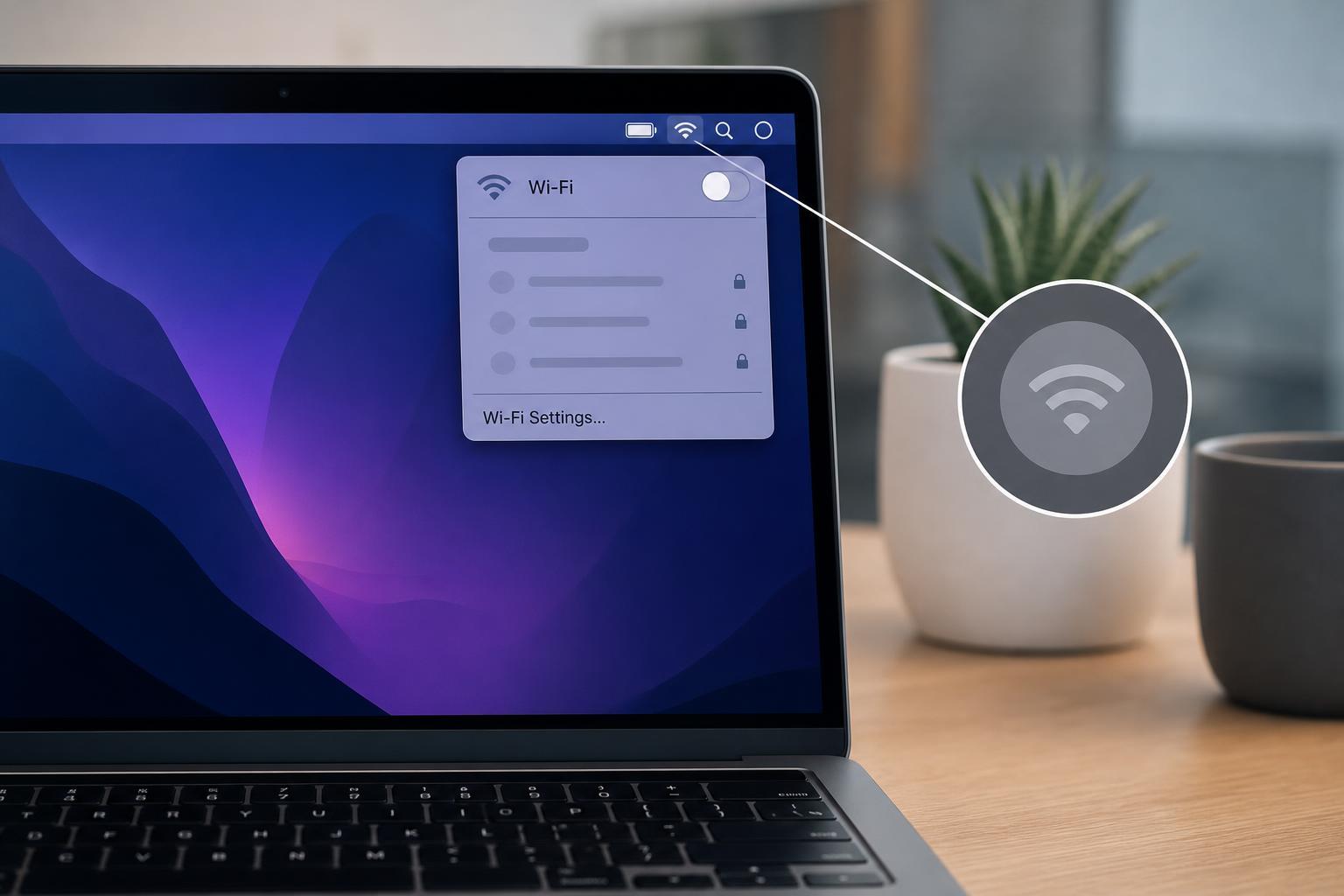
Before changing anything more complicated, open Control Center or System Settings and make sure Wi‑Fi is not just turned off. On some Macs, the Wi‑Fi control can appear unavailable if the system is still finishing startup tasks or if another network-related setting is interfering.
- Open System Settings and select Wi‑Fi.
- If the Wi‑Fi switch is present, turn it on.
- If Wi‑Fi is missing or greyed out, continue with the next steps.
- Check whether Airplane Mode or another focus-related network restriction is enabled on your Mac or linked devices.
2. Turn Off and Re-enable the Wi‑Fi Service
Sometimes the Wi‑Fi service in macOS becomes stuck even though the Mac itself is fine. Removing and re-adding the service can refresh the network interface and bring the toggle back.
- Open System Settings and go to Network.
- Select Wi‑Fi if it appears in the list.
- If available, remove the Wi‑Fi service or disable it briefly.
- Add the Wi‑Fi service back if macOS offers that option.
- Check whether the Wi‑Fi toggle becomes available again.
3. Restart the Mac’s Networking Components
A Mac can lose access to Wi‑Fi controls when background networking services stop responding. Restarting the Mac is a quick way to reset those services, but if the problem returns immediately, the cause is likely saved settings or a deeper system issue rather than a one-time glitch.
4. Delete and Recreate the Wi‑Fi Network Configuration Files
Corrupted network preference files are one of the most common reasons Wi‑Fi behaves strangely on a Mac. Removing these files forces macOS to rebuild the network configuration the next time it starts.
- Open Finder and go to the Go menu.
- Choose Go to Folder.
- Open the system network preferences location used by your macOS version.
- Look for files related to network settings, such as preference files and configuration entries.
- Move them to a backup folder instead of deleting them immediately.
- Restart the Mac so macOS can create fresh network settings.
5. Check for VPN, Security, or Profile Restrictions
Some VPN clients, antivirus tools, device management profiles, or enterprise security settings can interfere with network controls. They may not fully disable Wi‑Fi, but they can block changes to the adapter or override network behavior.
- Quit any third-party VPN apps and test Wi‑Fi again.
- Temporarily disable security software that manages network filtering.
- Check whether your Mac is enrolled in device management or uses a work/school profile.
- Remove only the profile or software you recognize and are allowed to change.
6. Reset the Mac’s Network Settings
If Wi‑Fi settings are still stuck, resetting network settings can clear conflicts between saved network profiles, DNS settings, and interface assignments. This is especially useful if the Mac recently switched between Wi‑Fi, Ethernet, hotspot, or a dock with built-in networking.
- Open System Settings and review the Network section for any unusual services.
- Remove old or unused network services if macOS allows it.
- Re-add the Wi‑Fi service if it is missing.
- Reconnect to your wireless network and enter the password again.
- Test whether Wi‑Fi can now be enabled normally.
7. Inspect for Hardware or macOS-Level Problems
If none of the software fixes work, the Mac may have a hardware fault or a low-level operating system issue. A failing Wi‑Fi module, damage from liquid exposure, or a problem introduced by a macOS update can all leave Wi‑Fi unavailable or greyed out.
- Check whether Bluetooth still works normally, since wireless issues can sometimes affect related components.
- Look for signs of liquid damage, overheating, or recent impact to the Mac.
- Try another user account to see whether the issue is limited to one profile.
- Run Apple Diagnostics if your Mac supports it.
- If the Wi‑Fi option remains greyed out everywhere, contact Apple Support or a qualified repair service.
How to Narrow Down the Cause Faster
A few clues can help you tell whether the issue is software or hardware:
- Wi‑Fi is missing only in one user account: likely a profile or preference issue.
- Wi‑Fi was working after an update and then stopped: the update may have changed a network component or preference.
- Wi‑Fi is greyed out in every account and after resetting settings: hardware or macOS corruption becomes more likely.
- The Mac sees other wireless features but not Wi‑Fi: the adapter or its driver layer may be the problem.
What to Try First
If you want the fastest path, start with the Wi‑Fi toggle check, then remove and re-add the Wi‑Fi service, and then move on to preference file cleanup. Those are the most likely fixes when the Wi‑Fi option is greyed out but the Mac still otherwise works normally.