
If your iPhone screen suddenly looks washed out, overly tinted, inverted, too bright, or otherwise distorted, the cause is often a display setting rather than a serious hardware fault. In other cases, the problem can come from iOS glitches, accessibility options, or actual screen damage.
This guide walks through seven practical fixes for an iPhone screen with messed up colors, starting with the easiest checks and moving toward more advanced troubleshooting.
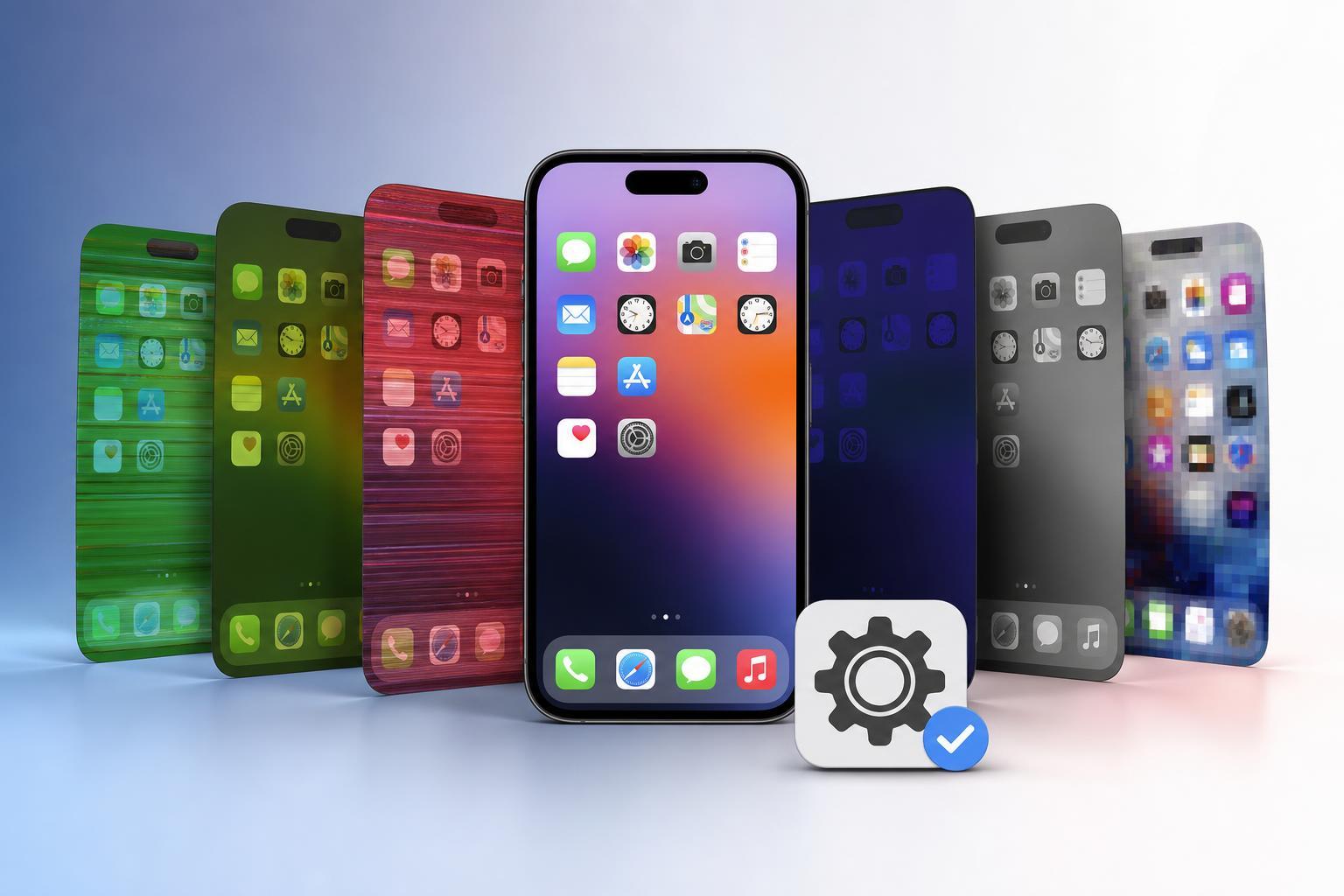
1. Check for Display Settings That Change Screen Colors
Several iPhone features can make the screen look unusual even when the phone is working normally. These settings are often turned on by accident or activated through shortcuts.
- True Tone, which adjusts the display based on ambient light
- Night Shift, which adds a warmer color tone
- Color Filters, which can change how colors appear
- Reduce White Point, which lowers brightness and can make the screen look dimmer or odd
- Classic Invert or Smart Invert, which changes the colors on screen
- Open Settings.
- Tap Display & Brightness.
- Turn off True Tone and Night Shift if they are enabled.
- Go to Accessibility, then Display & Text Size.
- Check whether Color Filters, Reduce White Point, or Invert Colors are turned on. Disable anything that should not be active.
2. Make Sure Accessibility Shortcuts Did Not Turn Something On
Many display changes on iPhone can be triggered quickly through the Accessibility Shortcut. If you accidentally triple-click the side button, a color-related feature may have been enabled without you noticing.
- Triple-click the side button and see whether a menu appears.
- If a display option is checked, tap it to turn it off.
- If the shortcut is set to something you do not use, open Settings > Accessibility > Accessibility Shortcut and review the assigned options.
- Remove display-related features from the shortcut if you keep activating them by mistake.
3. Restart the iPhone to Clear a Temporary Glitch
A temporary iOS graphics glitch can sometimes make colors appear wrong, especially after an app crash, update, or display setting change. A normal restart can clear the issue.
- Power off the iPhone using the usual shutdown option for your model.
- Wait a few seconds after the screen goes completely dark.
- Turn the iPhone back on and check the display again.
4. Update iOS to Fix Display Bugs
If the screen color issue started after an iOS update or appeared out of nowhere, the operating system itself may be part of the problem. Apple sometimes fixes display bugs in later updates.
- Connect the iPhone to Wi-Fi and make sure it has enough battery or is plugged in.
- Open Settings.
- Tap General.
- Select Software Update.
- Install any available update.
5. Test Whether an App Is Causing the Distortion
Sometimes the iPhone display itself is fine, but one app makes the colors look wrong while it is open. This is more likely if the issue only appears inside a specific game, video app, photo editor, or browser.
- Open a few different apps and compare the screen behavior.
- Check whether the issue appears on the Home Screen, Control Center, and Settings app.
- If the problem only happens in one app, update that app from the App Store.
- If updating does not help, delete and reinstall the app if it is safe to do so.
6. Reset Display-Related Settings If the Problem Persists
If the colors are still wrong after checking settings and restarting, resetting system settings can clear a configuration problem that is hard to spot manually. This does not erase your personal data, but it does reset several preferences.
- Open Settings.
- Tap General.
- Scroll down and tap Transfer or Reset iPhone.
- Choose Reset.
- Select Reset All Settings.
7. Check for Hardware Damage or Screen Failure
If the iPhone was dropped, exposed to moisture, or started showing flickering colors, vertical lines, black spots, or a tinted screen after impact, the display hardware may be damaged. Software fixes will not solve a failing screen.
- Color patches or bleeding that stay in the same place
- Flickering lines or random color blocks
- Screen areas that look dark, green, pink, or yellow all the time
- Problems that change when you press the phone or move it slightly
- The issue appearing immediately after a drop or liquid exposure
- Take a screenshot and view it on another device if possible.
- If the screenshot looks normal but the phone screen does not, the problem is likely hardware.
- Inspect the phone for cracks, bent edges, or signs of liquid damage.
- Arrange repair service through Apple or a trusted repair provider.
How to Narrow Down the Cause Quickly
The fastest way to identify the cause is to determine whether the issue follows the software or stays with the physical display.
- If the colors change after adjusting settings, it is likely a software or accessibility issue.
- If the screen only looks wrong in one app, the app may be the cause.
- If the colors are wrong everywhere, even in Settings, a system setting or hardware problem is more likely.
- If screenshots look normal but the physical screen does not, suspect hardware damage.
When to Get the iPhone Repaired
If none of the software fixes help, or if the display shows cracks, flickering, discoloration after impact, or visible damage, the phone likely needs service. iPhone screen color problems caused by hardware usually do not improve on their own.
For the best result, back up your iPhone first if it still works well enough to do so, then contact Apple Support or a reputable repair shop.





