
Public Wi‑Fi networks in hotels, airports, cafés, and offices often use a captive portal, which is the login page that appears before you can get online. When that page does not show up, the connection can look active but still block web access.
The problem can come from a browser issue, a network setting, a DNS problem, or the Wi‑Fi network itself. These seven fixes cover the most common causes on both Mac and Windows.
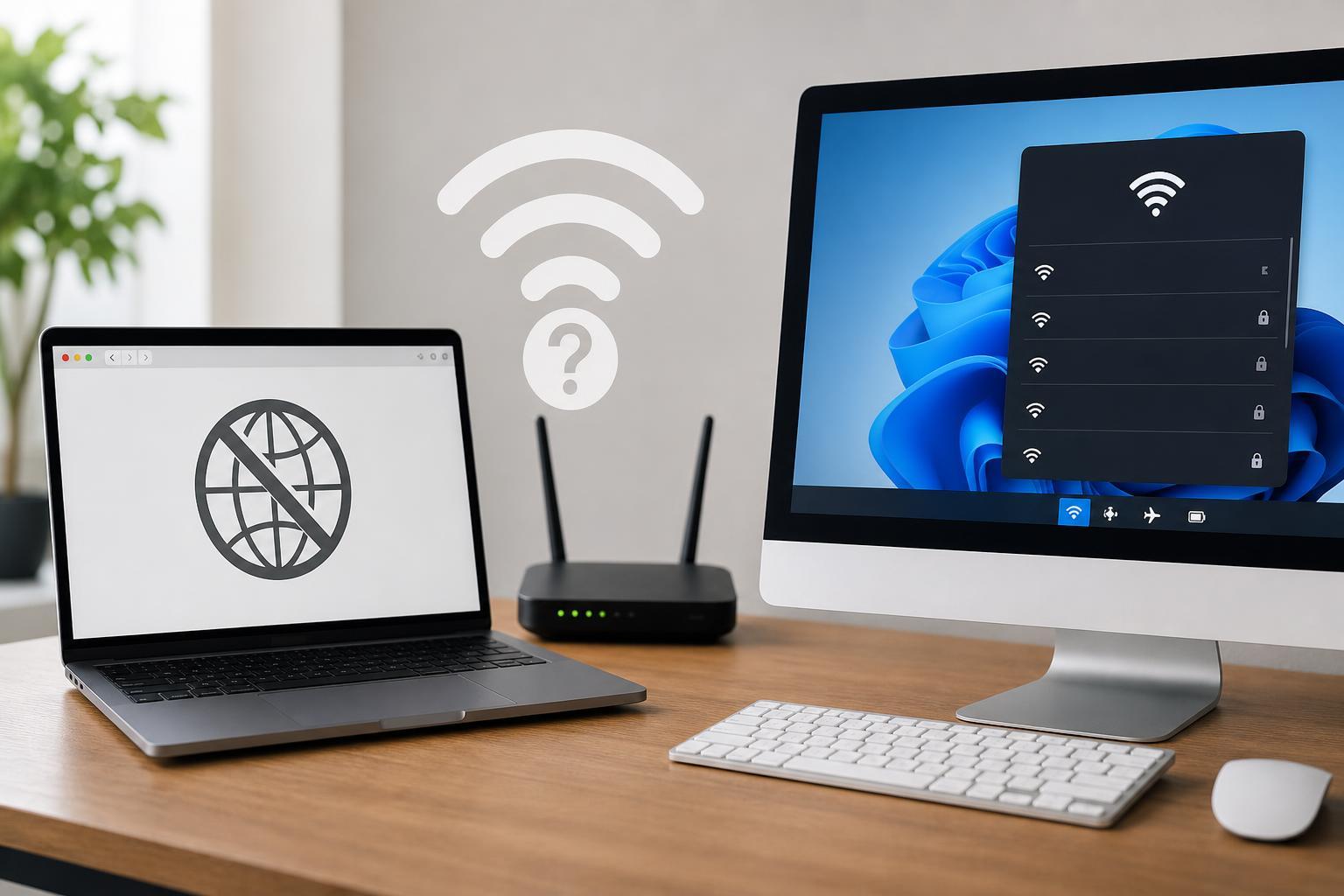
1. Open a Non-HTTPS Website to Trigger the Portal
Captive portals usually appear when your device tries to reach an unsecured webpage first. If your browser opens to an HTTPS site, the browser may refuse to redirect cleanly, which can make it seem like the login page is missing.
- Connect to the Wi‑Fi network.
- Open a browser window.
- Type a plain HTTP address such as http://neverssl.com or http://example.com.
- Wait a few seconds for the login page to appear.
- If you see a blank page or no redirect, try another browser.
2. Forget the Network and Reconnect
Saving a broken network profile can stop the login page from appearing properly. Forgetting the network clears the saved connection details and forces your Mac or Windows PC to negotiate the Wi‑Fi connection again.
- Open your Wi‑Fi settings.
- Find the public network you are using.
- Choose Forget, Remove, or Forget This Network.
- Reconnect to the network and wait for the portal prompt.
- If the page still does not appear, open a browser and try a non-HTTPS site.
3. Turn Off VPN, Proxy, or Security Filtering
VPNs, proxy settings, and some security apps can redirect traffic away from the captive portal or block the page entirely. When that happens, the network may connect, but the sign-in screen never loads.
- Disconnect any VPN before joining the Wi‑Fi network.
- Check proxy settings and temporarily disable manual proxy use.
- Pause web filtering or firewall features from third-party security software if they are interfering with the portal.
4. Disable and Re-enable Wi‑Fi or Toggle Airplane Mode
Sometimes the device simply needs to refresh its network session. Turning Wi‑Fi off and back on forces a new connection attempt and can make the portal redirect appear.
- Turn Wi‑Fi off on your device.
- Wait a few seconds.
- Turn Wi‑Fi back on and reconnect to the network.
- Open a browser and try to load a simple HTTP page again.
On laptops, Airplane mode can achieve the same effect if you briefly enable it and then disable it. This is often faster than digging through advanced settings.
5. Check DNS and IP Settings
Incorrect DNS or an unusual IP configuration can stop captive portal detection. If the computer cannot resolve the portal correctly, the browser may never be redirected to the sign-in page.
- Open the Wi‑Fi or network adapter settings.
- Make sure the connection is set to obtain an IP address and DNS automatically unless the network requires manual values.
- If you changed DNS settings previously, switch back to automatic or remove custom DNS entries for the public network.
- Reconnect and try the portal again.
6. Try Another Browser or Clear Browser Data
A browser extension, cached redirect, or cookie issue can interfere with captive portal pages. If the login page opens in one browser but not another, the browser itself is likely part of the problem.
- Try a different browser such as Edge, Chrome, Safari, or Firefox.
- Open a private or incognito window.
- Temporarily disable extensions, especially ad blockers and privacy tools.
- If needed, clear the browser cache and cookies for the network login attempt.
7. Renew the Connection or Reset Network Settings
If the portal still will not appear, the network stack may need a fresh start. Renewing the DHCP lease or resetting network settings can clear a stuck connection state.
- Disconnect from the Wi‑Fi network.
- Reconnect and wait a moment for the system to request a new address.
- If that does not help, use the operating system’s network reset option.
- On Windows, this may involve resetting the network adapter or using Network reset in Settings.
- On Mac, remove and re-add the Wi‑Fi service or create a new network location if needed.
How to Tell Whether the Problem Is Your Device or the Network
If the login page appears on another phone, tablet, or laptop, the hotspot is probably working and the issue is local to your Mac or Windows device. If no devices can reach the portal, the network may be down or the captive portal service may be misconfigured.
- The portal appears on one device but not another: likely a device setting or browser issue.
- No device gets the portal: likely a hotspot or network problem.
- You connect but cannot open any sites: often a sign that the portal has not been completed yet.
When to Contact the Network Owner
If you have tried the steps above and the page still does not appear, the issue may be on the Wi‑Fi provider’s side. Ask the hotel, café, campus, or office staff whether the portal is working and whether the network requires a different login method.
A missing captive portal is usually fixable, but it is not always caused by your computer. Working through the steps in order will help you rule out browser issues, device settings, and network configuration problems without making unnecessary changes.





