
If your Windows 10 PC hibernates but returns to the lock screen instead of restoring your desktop, the problem is usually tied to power settings, sign-in behavior, or a Windows feature that interrupts resume. In many cases, you can fix it without reinstalling anything.
This guide walks through the most practical ways to fix the hibernate-to-lock-screen issue, starting with the simplest checks and moving to the settings that are most likely to cause it.
1. Confirm Windows Is Actually Hibernating
Before changing settings, make sure the PC is really entering hibernate and not sleep, hybrid sleep, or a lid-close action that wakes it differently. The way a laptop or desktop resumes can vary depending on how power options are configured.
- Hibernate saves your session to disk and powers off almost completely.
- Sleep keeps the session in memory and can resume in a different state.
- Some systems are set to lock the screen after waking even when hibernate worked correctly.
If hibernate is not behaving the way you expect, the rest of the fixes may be aimed at the wrong power state.
2. Turn Off Password Requirement on Wake, If Appropriate
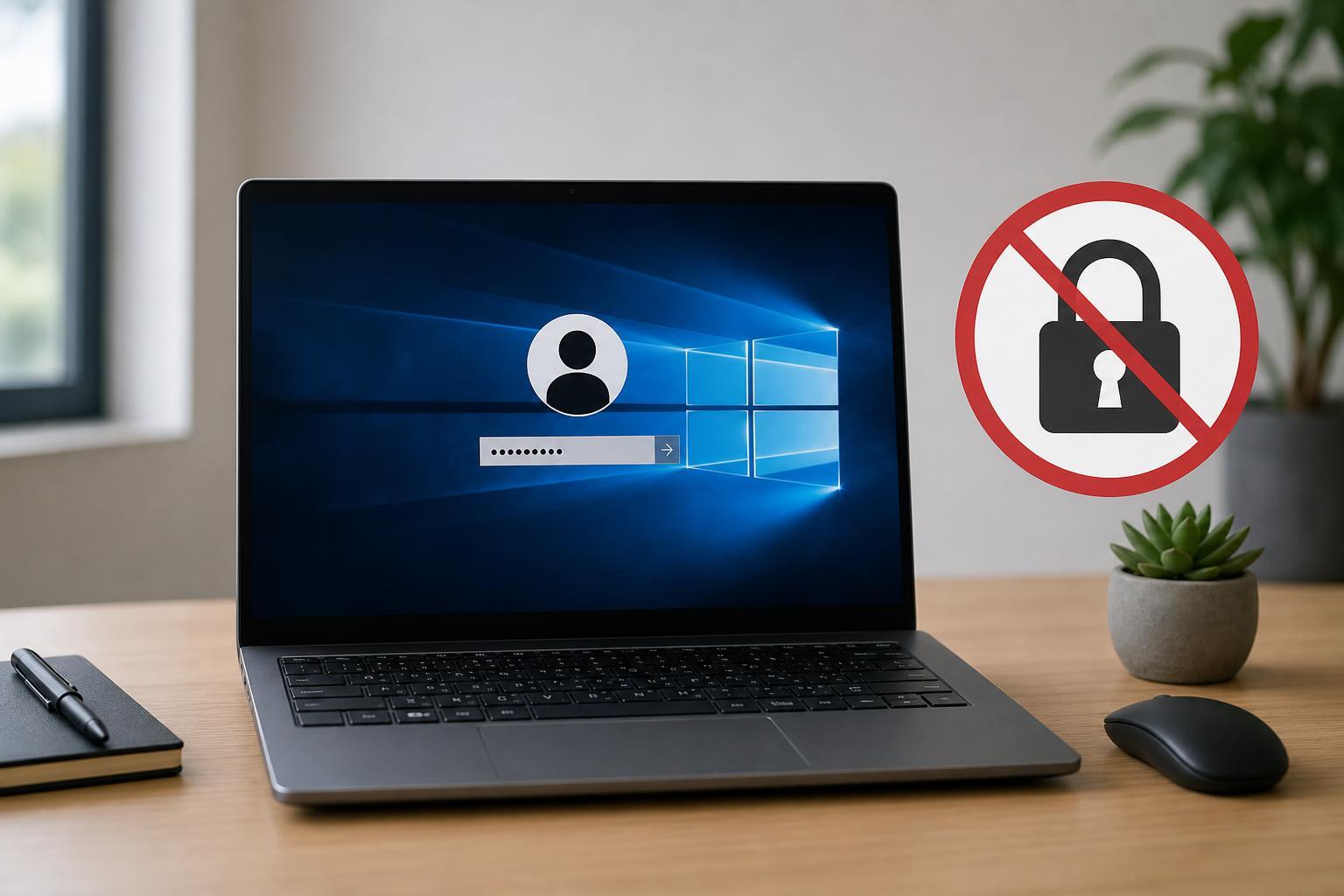
A common reason Windows appears to go straight to the lock screen is that it is configured to require sign-in when waking from hibernate. That does not always mean hibernate failed; Windows may simply be locking the session as soon as it resumes.
- Open Settings and go to Accounts.
- Select Sign-in options.
- Under Require sign-in, choose Never if you want Windows to resume without asking for credentials.
- If you use a work or school account, check whether your organization has enforced sign-in rules.
3. Check Screen Saver and Lock Screen Timeout Settings
A screen saver or inactivity timeout can lock Windows very quickly after it resumes, making it seem as though hibernate always returns to the lock screen.
- Open Settings and go to Personalization.
- Select Lock screen, then open Screen saver settings if available.
- Set the screen saver to None or increase the wait time.
- Open Settings > Accounts > Sign-in options and review any lock-related timing options.
4. Disable Fast Startup Temporarily
Fast Startup can interfere with how Windows transitions between shutdown, hibernate, and resume on some systems. It does not affect every PC, but it is a worthwhile test because it can change how the system restores power-state data.
- Open Control Panel and go to Power Options.
- Select Choose what the power buttons do.
- Click Change settings that are currently unavailable.
- Uncheck Turn on fast startup (recommended).
- Save changes and test hibernate again.
5. Update or Reinstall the Graphics Driver
A display driver problem can cause Windows to wake incorrectly, show the lock screen, or fail to restore the session cleanly. This is especially common on systems with older OEM graphics drivers.
- Right-click the Start button and open Device Manager.
- Expand Display adapters.
- Right-click your graphics card and choose Update driver.
- If updating does not help, uninstall the device and restart to let Windows reinstall it, or install the latest driver from the PC or GPU maker.
6. Adjust Power Plan and Advanced Hibernate Settings
Some power plan settings can conflict with hibernate behavior, especially on laptops. Restoring the plan to a cleaner default or checking advanced sleep settings can help isolate the problem.
- Open Control Panel > Power Options.
- Select your active power plan and choose Change plan settings.
- Open Change advanced power settings.
- Review Sleep, Allow hybrid sleep, Hibernate after, and Power buttons and lid settings.
- Set suspicious options back to their defaults or test with a balanced configuration.
- Disable hybrid sleep if it seems to trigger strange wake behavior.
- Make sure Hibernate after is set consistently with how you want the PC to behave.
- Check lid-close and power-button actions if the problem happens on a laptop.
7. Use System File Repair Tools
If Windows system files are damaged, power-state transitions can behave unpredictably. Built-in repair tools can fix corrupted files that affect hibernate, sign-in, or display resumption.
- Open Command Prompt as administrator.
- Run sfc /scannow and wait for it to finish.
- If problems are found but not fixed, run DISM /Online /Cleanup-Image /RestoreHealth.
- Restart after the repairs complete and test hibernate again.
When the Problem Still Happens
If none of these fixes work, the issue may be caused by a BIOS/UEFI setting, a chipset driver, a third-party security tool, or a manufacturer power-management utility. At that point, check for firmware updates from your PC maker and review any software that controls sleep, wake, or encryption behavior.
- Update BIOS/UEFI only if the manufacturer specifically recommends it for power or resume issues.
- Remove or disable third-party utilities that manage sleep or display behavior.
- Check whether the problem happens only after docking, unplugging a monitor, or closing the lid.
Which Fix Should You Try First?
If your PC resumes to the lock screen but otherwise seems normal, start with sign-in settings and screen saver/lock timeout options. If Windows behaves more erratically after hibernation, move next to Fast Startup, the graphics driver, and power plan settings. Those fixes solve most hibernate resume complaints on Windows 10 without needing deeper system changes.





