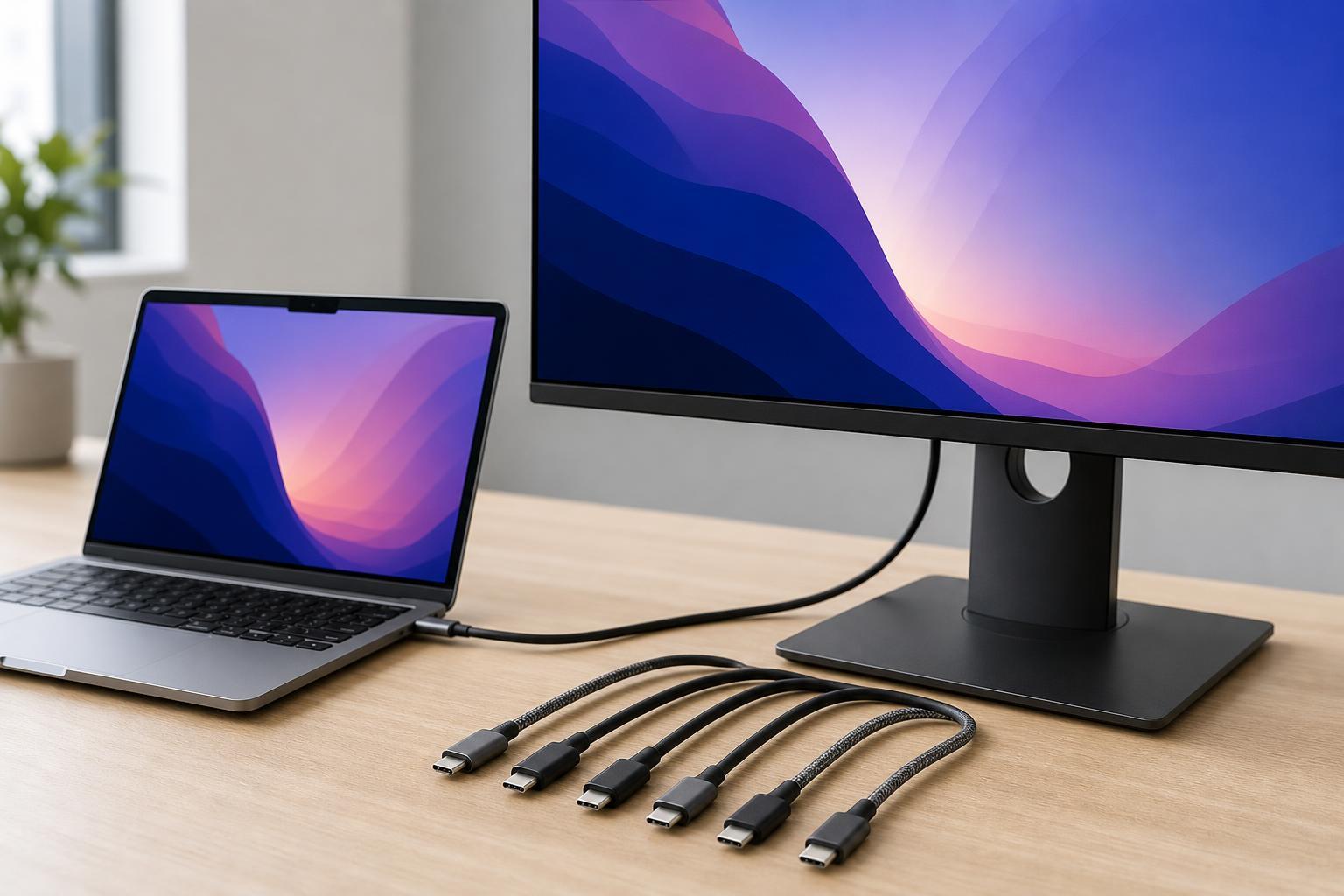
Connecting a MacBook to a monitor with USB-C is one of the cleanest ways to build a desk setup, but not every cable will deliver the same result. Some cables are great for charging only, some support video but not high refresh rates, and some are built specifically for displays and docks. Choosing the right one matters if you want reliable picture quality, stable connections, and the features your monitor can actually use.
This guide breaks down the seven best kinds of USB-C cables for MacBook-to-monitor use, what each one is best for, and the features that matter most before you buy.
What to Look for in a USB-C Cable for a MacBook Monitor Setup
Before choosing a cable, confirm that both your MacBook and monitor support USB-C video output. On many setups, the cable is doing more than passing a display signal: it may also carry charging power, USB data, and sometimes audio or hub functions.
- Video support: The cable must support DisplayPort Alt Mode or Thunderbolt video, not just charging.
- Resolution and refresh rate: Check that the cable can handle your monitor's target resolution, such as 4K or 5K, and the refresh rate you want.
- Power delivery: Some USB-C monitor setups can charge your MacBook at the same time, but the cable and monitor both need to support it.
- Cable length: Longer cables can be less reliable at high resolutions, especially if they are passive or low quality.
- Certification and build quality: A properly rated cable is more likely to work consistently and last longer.
1. Thunderbolt 4 USB-C Cable
A Thunderbolt 4 cable is one of the safest choices for MacBook users because it is designed for high-bandwidth display connections and typically supports excellent compatibility with modern monitors and docks. If you want a single cable that is most likely to handle a demanding setup, this is the one to start with.
Thunderbolt 4 cables are especially useful if your MacBook connects to a Thunderbolt dock or a monitor with Thunderbolt support. They are also a strong choice when you want to avoid guessing whether the cable can keep up with 4K displays or accessory hubs.
2. Thunderbolt 3 Cable
A Thunderbolt 3 cable is still a very solid option for many MacBook-to-monitor setups. It usually supports high data rates and display output, and it can work well with compatible monitors, docks, and hubs.
The main advantage is compatibility with many existing MacBook accessories. If you already own Thunderbolt 3 gear, this cable can be a practical buy without sacrificing much in everyday use.
3. USB-C Cable Rated for 4K Video
Not every setup needs a Thunderbolt cable. If your monitor is a standard USB-C display and you simply want a dependable connection for 4K output, a USB-C cable rated for video and 4K support may be all you need.
This is often the best value option when your monitor supports USB-C video directly and you do not need the extra bandwidth for more advanced peripherals. Just make sure the cable explicitly supports display output, because many USB-C charging cables do not.
4. USB-C to USB-C Cable with Power Delivery
If your monitor can charge your MacBook over USB-C, a cable with power delivery support is useful because it can reduce desk clutter by replacing a separate charger cable. This can be a very clean setup for laptops used at a desk most of the time.
Look carefully at the wattage support on both the cable and the monitor. A cable may support charging, but not necessarily at the wattage your MacBook needs for full-speed charging while also driving a display.
5. Short USB-C Cable for Desk Setups
A short USB-C cable can be an excellent choice if your MacBook sits close to the monitor or dock. Shorter cables often reduce clutter and can be more reliable for high-bandwidth video than longer alternatives.
This option makes sense when cable length is not a limitation. If you do not need extra slack, a shorter cable can help keep the workspace neat and may reduce the chance of signal issues caused by cable distance.
6. Braided USB-C Cable
A braided cable is worth considering if you unplug and reconnect your MacBook regularly. The braided outer layer can improve durability and help the cable resist fraying, especially in busy desk or travel setups.
A braided cable is not automatically better for video quality, but it can last longer in real-world use. If you move your MacBook between rooms, take it to work, or constantly connect and disconnect from a monitor, durability becomes more important.
7. Certified USB-C Cable from a Known Brand
A well-certified cable from a reputable brand is often the best practical choice when you want fewer surprises. The specific version matters less than whether the cable is honestly rated for the resolution, data rate, and charging level you need.
Look for clear labeling, published support details, and compatibility with your exact use case. A good brand does not guarantee success on its own, but it usually makes it easier to avoid misleading listings and low-quality cables.
Which Cable Is Best for Your MacBook and Monitor?
The best choice depends on your monitor and how you use your MacBook. If you want the most reliable all-around option, Thunderbolt 4 is usually the easiest recommendation. If you only need standard 4K video and charging, a good USB-C cable with display and power support may be enough.
- Choose Thunderbolt 4 if you want maximum compatibility and a premium setup.
- Choose Thunderbolt 3 if you already use older Thunderbolt accessories.
- Choose a 4K-rated USB-C cable for simple monitor connections without extra dock features.
- Choose a USB-C power delivery cable if the monitor will charge your MacBook too.
- Choose a short cable if your setup is compact and clutter-free.
- Choose a braided cable if durability matters more than anything else.
- Choose a certified brand-name cable if you want the safest general-purpose option.
Common Mistakes to Avoid
Many MacBook monitor problems come from the cable, not the display itself. A cable that works fine for charging a phone may fail completely when asked to carry a high-resolution video signal.
- Buying a charging-only USB-C cable for a display connection
- Using a cable that does not support the resolution or refresh rate you want
- Expecting every USB-C port on a monitor to behave the same way
- Choosing an extra-long cable without checking its video rating
- Assuming a higher price automatically means better monitor compatibility
How to Confirm a Cable Will Work Before You Buy
- Check your MacBook model to see whether it supports USB-C display output, Thunderbolt, and your target resolution.
- Check your monitor manual or product page for USB-C video support, power delivery, and supported refresh rates.
- Choose a cable that explicitly lists video support, not just charging or data transfer.
- Match the cable rating to the display task, such as 4K, 5K, or Thunderbolt.
- Keep the cable length as short as practical for your desk layout, especially for high-resolution monitors.
Bottom Line
For most MacBook users, a Thunderbolt 4 cable is the most dependable choice for connecting to a monitor. If you want a simpler and more affordable setup, a certified USB-C cable that clearly supports video output and the right resolution can work just as well. The key is to match the cable to your monitor's capabilities instead of buying based on the connector shape alone.