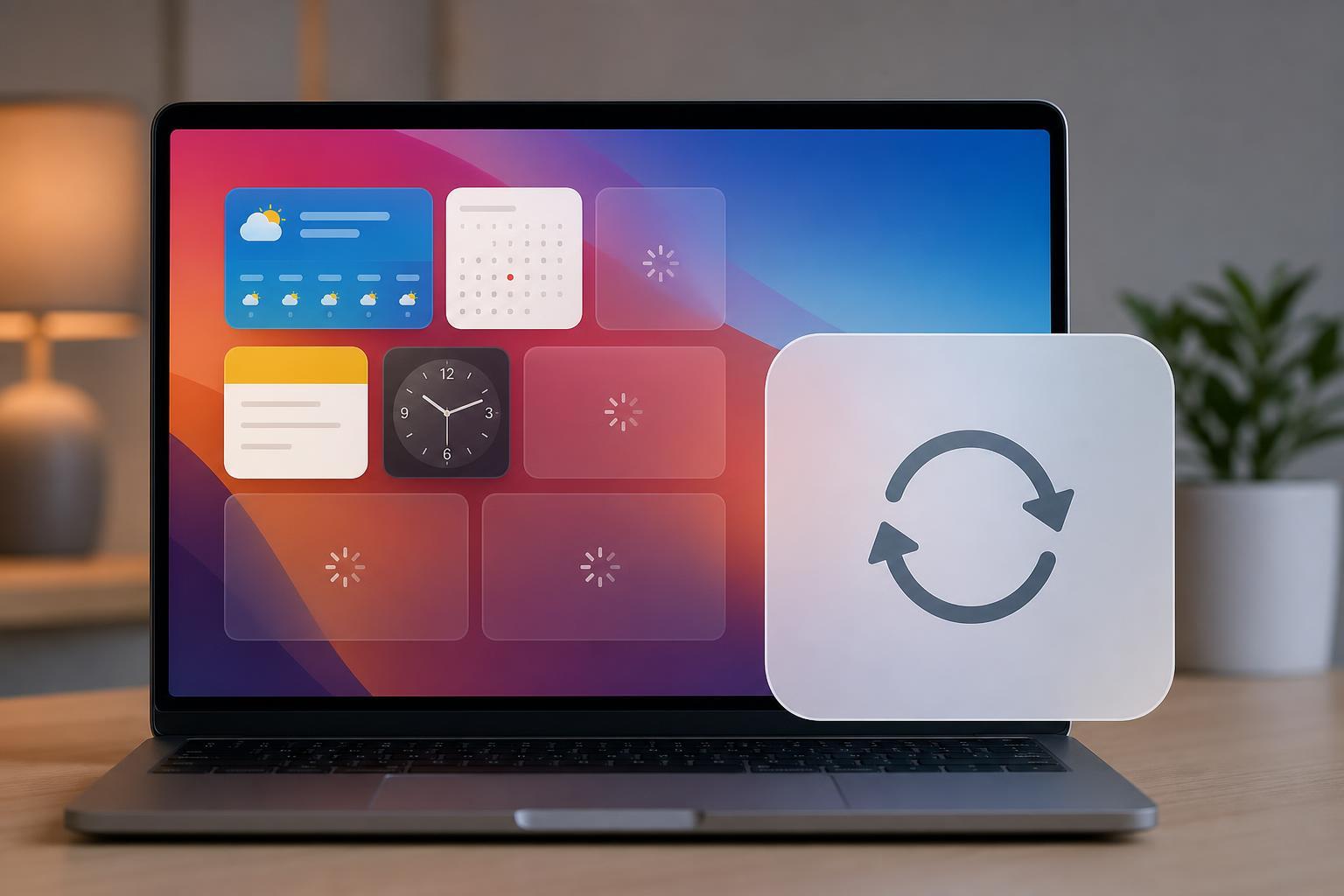
Mac widgets are supposed to give you quick access to weather, reminders, calendar events, news, and other useful information at a glance. When they stop loading, show blank panels, or refuse to update, the problem is usually tied to a setting, a temporary system issue, or a widget-specific problem rather than a serious hardware fault.
This guide walks through six reliable fixes for widgets not working on Mac, starting with the simplest checks and moving to more involved steps only if needed.
1. Check Whether the Widget App or Service Is Actually Available
Some Mac widgets depend on the app they come from. If the related app is disabled, signed out, missing permissions, or unable to sync, the widget may appear blank or fail to refresh.
- Open the app that powers the widget, such as Calendar, Weather, Reminders, Notes, or a third-party app.
- Make sure you are signed in if the app relies on an account.
- Check whether the app itself is showing current information or whether it is also empty or out of date.
- If it is a third-party widget, confirm the app is still installed and supported on your current version of macOS.
2. Make Sure Widgets Are Allowed to Use the Right Permissions
Widgets often need access to location, calendar data, reminders, contacts, or notifications. If macOS has blocked those permissions, the widget may load partially or show incomplete information.
- Open System Settings.
- Go to Privacy & Security.
- Check the relevant permission categories, such as Location Services, Calendars, Reminders, Contacts, or Photos, depending on the widget.
- Enable access for the app that provides the widget if it is disabled.
- If the widget uses location-based data, make sure Location Services is on for the app and for the system.
3. Remove the Widget and Add It Again
A widget can get stuck because its cached data is corrupted or its layout has become broken. Removing it and adding it again often forces macOS to rebuild it properly.
- Open the Notification Center or the widget area on your Mac.
- Find the broken widget.
- Use the widget menu or right-click option to remove it.
- Add the same widget again from the widget gallery.
- Check whether it now loads correctly and refreshes as expected.
4. Update macOS and the App That Powers the Widget
Widget support changes over time, and older versions of macOS or the widget’s app may not communicate correctly. A pending update can also fix bugs that cause widgets to freeze, disappear, or show stale data.
- Open System Settings and check for macOS updates.
- Install any available update if your Mac is eligible.
- Open the App Store or the app’s own update method and update the app that provides the widget.
- After updating, check whether the widget starts loading normally.
5. Confirm That the Mac Has a Stable Internet Connection
Many widgets need network access to fetch live information. If your Mac is offline, using a captive portal, or dealing with a weak connection, widgets may stay blank or fail to refresh.
- Open a website in Safari or another browser to confirm internet access.
- If the problem affects only some widgets, test whether those widgets depend on online data.
- Disconnect from and reconnect to Wi-Fi if the connection seems unstable.
- If you use a VPN or security software, temporarily disable it only long enough to test whether it is interfering.
6. Reset the Widget Area or Sign Out of iCloud if Sync Is Broken
If multiple widgets fail at once, the issue may be tied to your account sync rather than one specific widget. In some cases, signing out of iCloud and back in can restore calendar, reminders, and other synced widgets. If only the widget area is misbehaving, a simple reset of the desktop widgets may help.
- Check whether the problem affects one widget or many widgets.
- If several synced widgets are broken, open System Settings and review your iCloud account status.
- Make sure the services used by the widgets, such as Calendars, Reminders, or Notes, are enabled for iCloud.
- If sync appears stuck, sign out of iCloud only if you understand the impact on your files, photos, and data, then sign back in if appropriate.
- If the problem is limited to the widget interface, remove the affected widgets, restart the widget area by closing and reopening Notification Center, then add them again.
How to Narrow Down the Cause
If you are not sure which fix to try first, use the behavior of the widget as a clue.
- One widget is broken: focus on the app behind that widget, its permissions, and its updates.
- Several widgets are broken: look for account sync problems, network issues, or a broader macOS bug.
- Widgets are blank but the app works: the widget cache or widget process may be stuck.
- Widgets never refresh: check network access, permissions, and the app’s background activity.
When to Suspect a Deeper macOS Problem
If widgets still fail after you have checked permissions, updated macOS, refreshed the widget, and confirmed that the related app and internet connection are working, the issue may be tied to a corrupted user profile, a system extension conflict, or a macOS bug that needs a later update.
At that point, test with a different user account if possible, or look for a macOS update that specifically addresses stability issues. If only one third-party widget continues to fail, the app itself may need to be repaired or replaced.