
If WhatsApp says media download failed, the problem is usually caused by a weak connection, missing permissions, full storage, or an app setting that is getting in the way. The good news is that most cases can be fixed without losing chats or reinstalling the app right away.
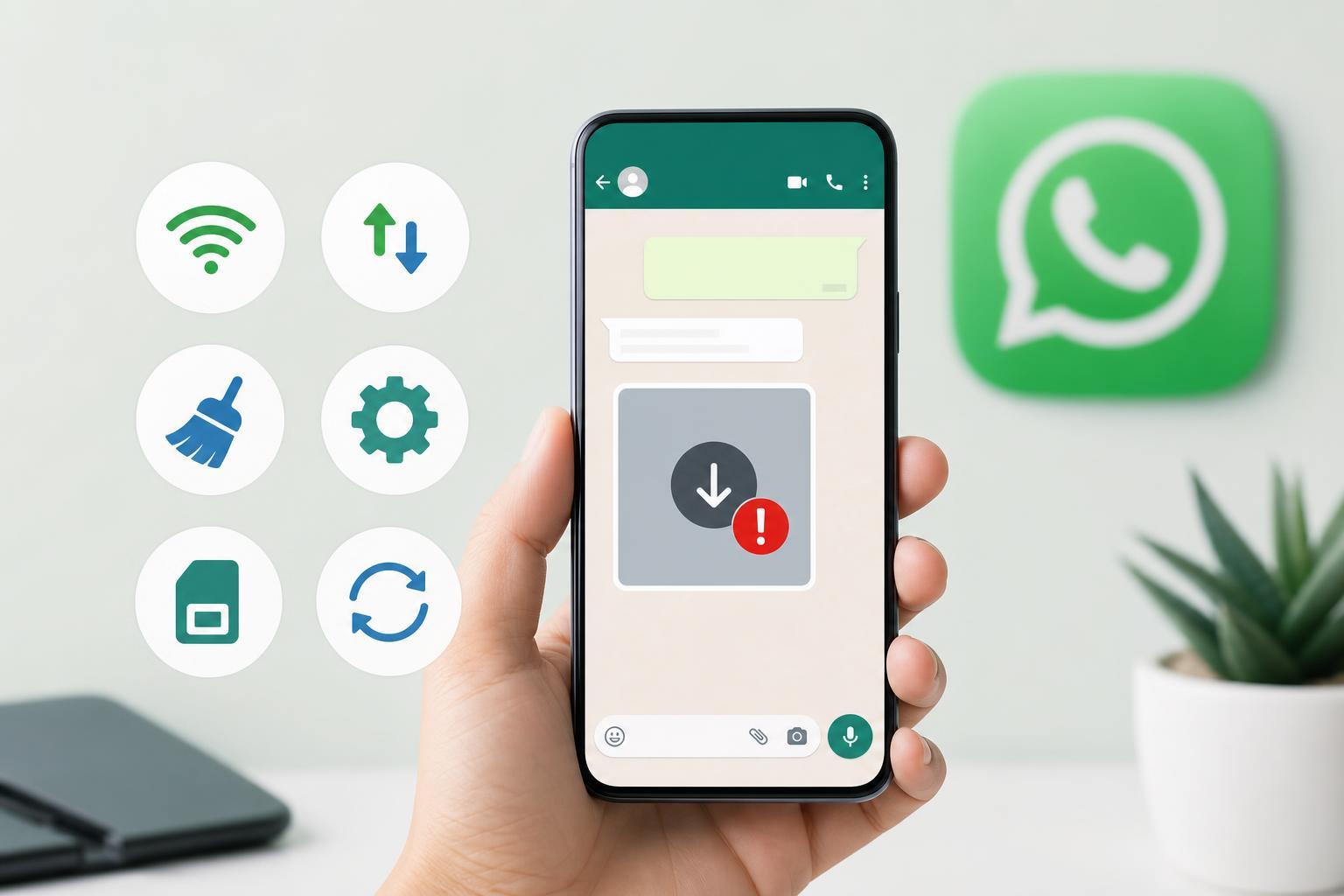
This guide walks through six fixes that solve the most common causes of WhatsApp photo, video, voice note, and document download problems on Android and iPhone.
1. Check Your Internet Connection
WhatsApp needs a stable connection to download media. A message may still send and receive while downloads fail if the connection is weak, unstable, or restricted.
- Open a website or another app that uses the internet to see whether the connection is working normally.
- Switch between Wi‑Fi and mobile data to see if one connection works better.
- If you are on Wi‑Fi, move closer to the router or test a different network.
- If mobile data is involved, make sure you have signal and enough data available.
2. Make Sure WhatsApp Has the Right Permissions
On both Android and iPhone, WhatsApp needs permission to access photos, files, and sometimes local storage in order to save downloaded media properly.
- Open your phone’s Settings app.
- Find WhatsApp in the app list.
- Check permissions for Photos, Files and media, or Storage, depending on your phone.
- Allow the permissions that are needed for saving or accessing media.
3. Free Up Storage Space
If your phone is nearly full, WhatsApp may fail to download images, videos, and other files even when everything else looks normal.
- Check your phone’s storage in Settings.
- Delete unneeded photos, videos, large files, or unused apps.
- Clear out especially large WhatsApp media files if they are taking up space.
- Try the download again after freeing a reasonable amount of storage.
4. Set the Correct Date and Time
An incorrect date or time can interfere with WhatsApp’s connection to its servers and cause media downloads to fail unexpectedly.
- Open Settings on your phone.
- Go to Date & Time settings.
- Turn on automatic date and time if it is available.
- If automatic time is already on, toggle it off and back on again, then test WhatsApp.
5. Check WhatsApp’s Auto-Download Settings
WhatsApp can be set to avoid downloading media automatically on mobile data, Wi‑Fi, or roaming. If those settings are too strict, files may appear to fail or never start downloading.
- Open WhatsApp and go to its settings menu.
- Look for Storage and data or a similar data-usage section.
- Check which media types are allowed to auto-download on Wi‑Fi and mobile data.
- Enable the file types you want, or relax the current restrictions if they are too limited.
6. Update WhatsApp and Your Phone Software
An outdated version of WhatsApp or your phone’s operating system can cause download bugs, compatibility issues, or broken permissions behavior.
- Open the App Store or Google Play Store and check for a WhatsApp update.
- Install any available app update.
- Check your phone’s system update section and install pending OS updates if available.
- Open WhatsApp again and test the download after updates finish.
If Downloads Still Fail
If none of the above fixes work, the issue may be tied to the specific media file, a temporary WhatsApp server problem, or a deeper app installation issue.
- Ask the sender to resend the file if possible.
- Try downloading a different photo or video to see whether the problem affects every file or only one.
- Make sure WhatsApp is allowed to use background data if your phone restricts it.
- Back up your chats before reinstalling WhatsApp, since reinstalling can remove local app data if you are not prepared.
Which Fix Should You Try First?
Start with the simplest checks: test your connection, confirm storage space, and verify WhatsApp permissions. Those three cause most media download problems. If the issue still continues, move on to date and time, auto-download settings, and updates.
In most cases, one of these six fixes is enough to get WhatsApp media downloading normally again without any advanced troubleshooting.





