Keyboard typing lag on Android can make even simple messages frustrating. If letters appear late, words come out in the wrong order, or the keyboard stutters while you type, the cause is usually a software issue, a heavy app load, or a problem with the keyboard app itself.
This guide walks through six practical fixes, starting with the quickest checks and moving to more advanced steps if the delay keeps coming back.
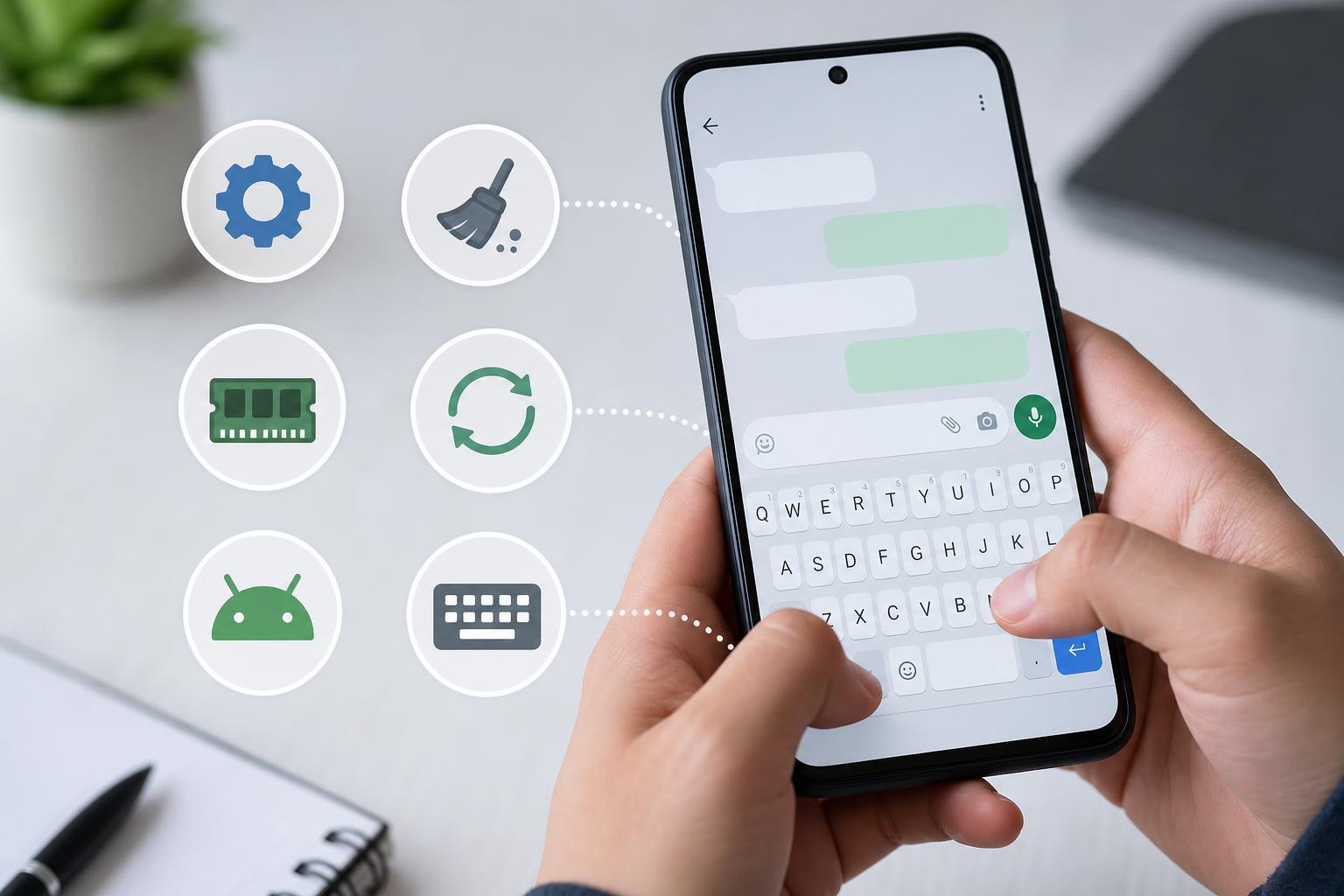
1. Close Apps That Are Using Too Much Memory
If your phone is running lots of apps in the background, the keyboard may not get enough resources to respond quickly. This is especially common on older phones or devices with limited RAM.
- Open the recent apps screen and close apps you are no longer using.
- If a game, browser, or social app seems to trigger the lag, fully close it and test the keyboard again.
- Try typing in a simple app like Notes or Messages to see whether the delay improves.
2. Force Stop and Reopen the Keyboard App
Sometimes the keyboard app itself gets stuck or starts behaving slowly. Force stopping it clears the current session and can fix temporary glitches.
- Open Settings on your Android phone.
- Go to Apps or Apps & notifications.
- Find your keyboard app, such as Gboard or Samsung Keyboard.
- Tap Force stop.
- Return to a text field and open the keyboard again.
3. Clear the Keyboard App Cache
A damaged or overloaded cache can cause typing delays, odd predictions, or input lag. Clearing the cache removes temporary files without deleting your personal data or saved words in most cases.
- Open Settings and go to Apps.
- Select your keyboard app.
- Tap Storage and cache.
- Choose Clear cache.
- Test typing again to see whether the response is faster.
4. Update the Keyboard App and Android System
Outdated software is a common cause of input lag. Keyboard apps receive bug fixes and performance improvements, and Android updates can also improve how the system handles typing.
- Open the Google Play Store and check for updates to your keyboard app.
- If you use a manufacturer keyboard, check the phone maker's app store or system update tools.
- Go to Settings > System > Software update or a similar menu and install any available Android update.
- After updating, test the keyboard in a few different apps.
5. Turn Off Features That May Be Slowing the Keyboard
Some keyboard features are useful, but they can also increase typing delay on slower devices. Prediction, autocorrect, voice input, swipe typing, animated effects, and clipboard tools may all add extra processing overhead.
- Temporarily disable predictive text or autocorrect to see whether typing becomes more responsive.
- Turn off swipe typing or gesture input if you do not use it often.
- Reduce keyboard animations, themes, or sound effects if your keyboard offers those options.
- If your keyboard includes voice typing shortcuts or built-in search tools, try disabling them for testing.
6. Switch to a Different Keyboard or Reset the Current One
If the lag continues after the basic fixes, the keyboard app itself may be the problem. Trying another keyboard is a fast way to confirm whether the issue is app-specific or system-wide.
- Install a trusted keyboard app from the Google Play Store, such as one from a well-known developer.
- Go to Settings > System > Languages & input or Keyboard settings.
- Select the new keyboard as the default input method.
- Test typing in several apps to compare performance.
- If the new keyboard feels faster, consider keeping it or reinstalling the original keyboard app.
Other Things That Can Cause Keyboard Lag
If the problem is still happening, the cause may not be the keyboard app alone. These issues can also create noticeable typing delay:
- A nearly full storage drive on the phone
- Overheating, which can reduce performance
- A faulty screen protector or touchscreen issue
- Accessibility settings that change input behavior
- A problem limited to one app rather than the whole phone
How to Narrow Down the Cause
To figure out whether the lag is coming from the keyboard, the phone, or a single app, compare typing in a few places. If the delay happens everywhere, the keyboard app or system performance is more likely. If it happens only in one app, that app is probably the source of the problem.
What to Try First
- Close background apps and test typing again.
- Force stop the keyboard app.
- Clear the keyboard cache.
- Update the keyboard app and Android system.
- Disable keyboard features you do not need.
- Try a different keyboard to confirm whether the original app is the problem.