
When Windows 11 apps can open but refuse to connect online, the problem is usually not the internet connection itself. The issue may be caused by app permissions, proxy settings, DNS problems, firewall blocks, or a damaged app installation.
This guide walks through six practical fixes, starting with the most common causes and moving to deeper troubleshooting if needed.
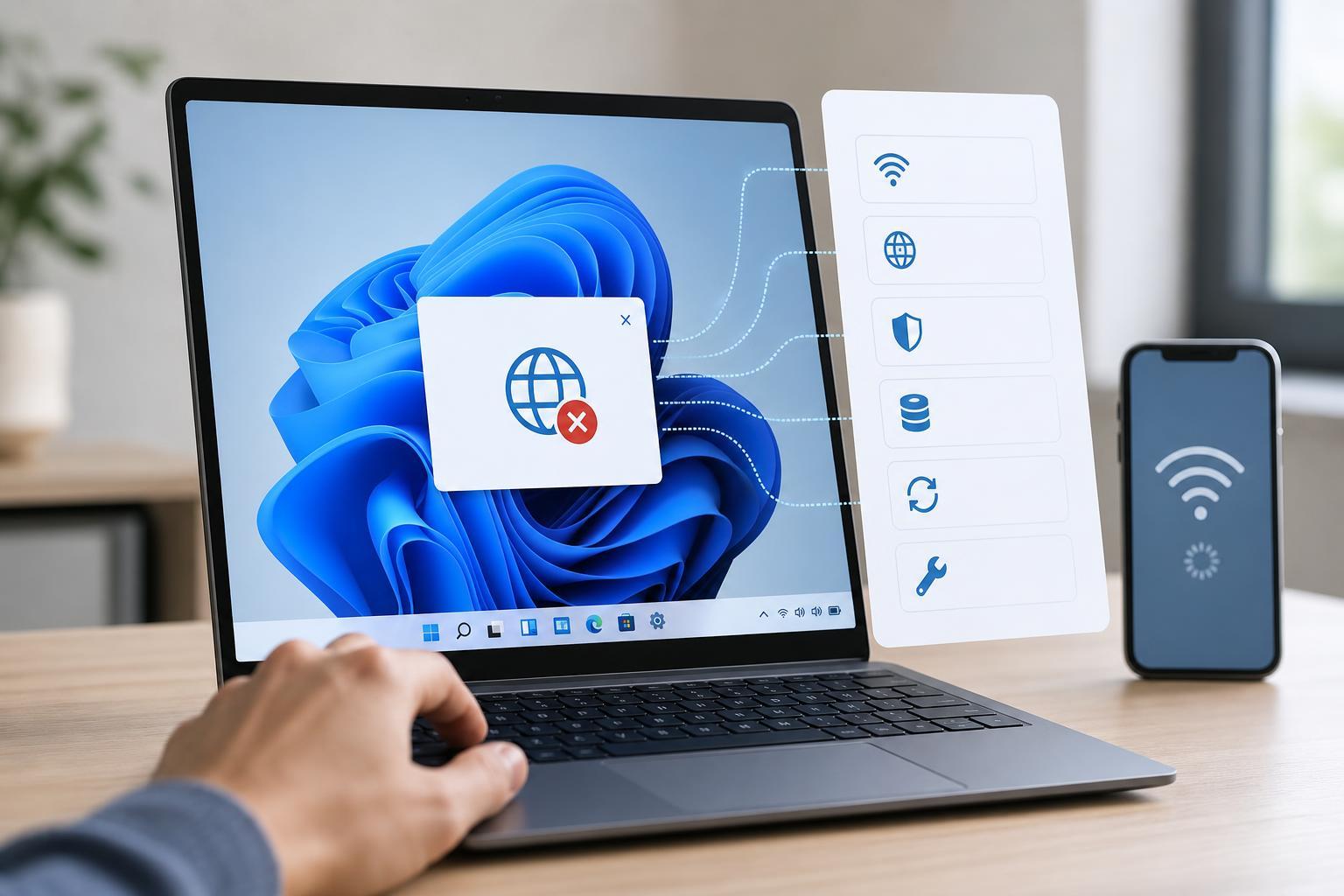
1. Confirm the Problem Is With the App, Not the Connection
Before changing settings, check whether the internet connection is actually working on the PC. Open a browser and load a few websites. If web pages also fail to load, the issue is broader than the app.
- If browsers work but one app does not, the problem is likely app-specific.
- If all apps fail, focus on network, DNS, proxy, or firewall settings.
- If only one Microsoft Store app fails, its local data or permissions may be damaged.
2. Turn Off Proxy Settings and VPN Temporarily
A proxy server or VPN can interfere with how Windows 11 apps reach the internet, especially if the app does not fully support the network route being used.
- Open Settings.
- Go to Network & internet.
- Select Proxy.
- Turn off any manual proxy setup and make sure automatic proxy detection is not causing issues.
- If you use a VPN, disconnect from it and test the app again.
3. Check Firewall and Security Software Permissions
Windows Defender Firewall or third-party security software may block an app from making outgoing connections. This is especially common after a security update or when a new app is installed.
- Open Windows Security.
- Go to Firewall & network protection.
- Select Allow an app through firewall or open the firewall rules in your security software.
- Make sure the affected app is allowed on private networks, and on public networks if you use it there.
- If you use third-party antivirus or firewall software, check its app control or web protection settings as well.
4. Reset the App or Repair Its Files
If the issue affects only one Microsoft Store app, Windows may be able to fix it with the built-in Repair or Reset options. Repair tries to preserve your data, while Reset removes the app’s local data and returns it to a cleaner state.
- Open Settings.
- Go to Apps > Installed apps.
- Find the affected app.
- Open the three-dot menu and choose Advanced options if available.
- Click Repair first and test the app.
- If Repair does not help, use Reset.
For desktop apps installed outside the Microsoft Store, reinstalling the program is often the closest equivalent to a reset.
5. Flush DNS and Reset the Network Stack
If several apps cannot reach online services even though the browser works, corrupted DNS cache or network settings may be the problem. Windows can hold on to bad network information longer than expected.
- Open the Start menu, type cmd, and run Command Prompt as an administrator.
- Enter ipconfig /flushdns and press Enter.
- Enter netsh winsock reset and press Enter.
- Restart the computer after the commands finish.
- Test the app again.
If the problem continues, consider checking your DNS server settings in the network adapter properties or switching to a reliable DNS provider through your router or adapter settings.
6. Update Windows, the App, and the Network Driver
Outdated Windows components, an old app version, or a buggy network adapter driver can all interfere with internet access inside apps. This is common after major updates or when a device has been offline for a long time.
- Open Settings and check Windows Update for pending updates.
- Update the affected app from the Microsoft Store or the developer’s website.
- Open Device Manager, expand Network adapters, and update the adapter driver if a newer version is available.
- If the network issue started after a driver update, consider rolling the driver back instead.
How to Narrow Down the Cause Quickly
If you are not sure where the problem is coming from, use this simple order of checks:
- Test the internet in a browser.
- Disable VPN or proxy settings.
- Check firewall or antivirus permissions.
- Repair or reset the app.
- Flush DNS and reset network settings.
- Update Windows, the app, and the network driver.
That order usually separates app problems from system-wide network problems without wasting time on unnecessary changes.
When You May Need a Deeper Fix
If none of these steps work, the issue may be tied to a damaged Windows user profile, a broken certificate store, or a larger system networking problem. At that point, creating a new user account for testing or running a full network reset can help confirm whether Windows itself is the cause.
Which Fix Should You Try First?
For most people, the best starting point is to disable any proxy or VPN, then check firewall permissions, and then repair the app. If several apps are affected, DNS and network stack resets are usually the next most useful step.





