
If Windows 11 suddenly stops detecting a USB flash drive, keyboard, mouse, external drive, or other accessory, the cause is usually a connection problem, a driver issue, or a power setting that is getting in the way. The good news is that most USB recognition problems can be fixed without replacing the device or reinstalling Windows.
This guide walks through six practical fixes, starting with the simplest checks and moving to deeper troubleshooting only if needed.
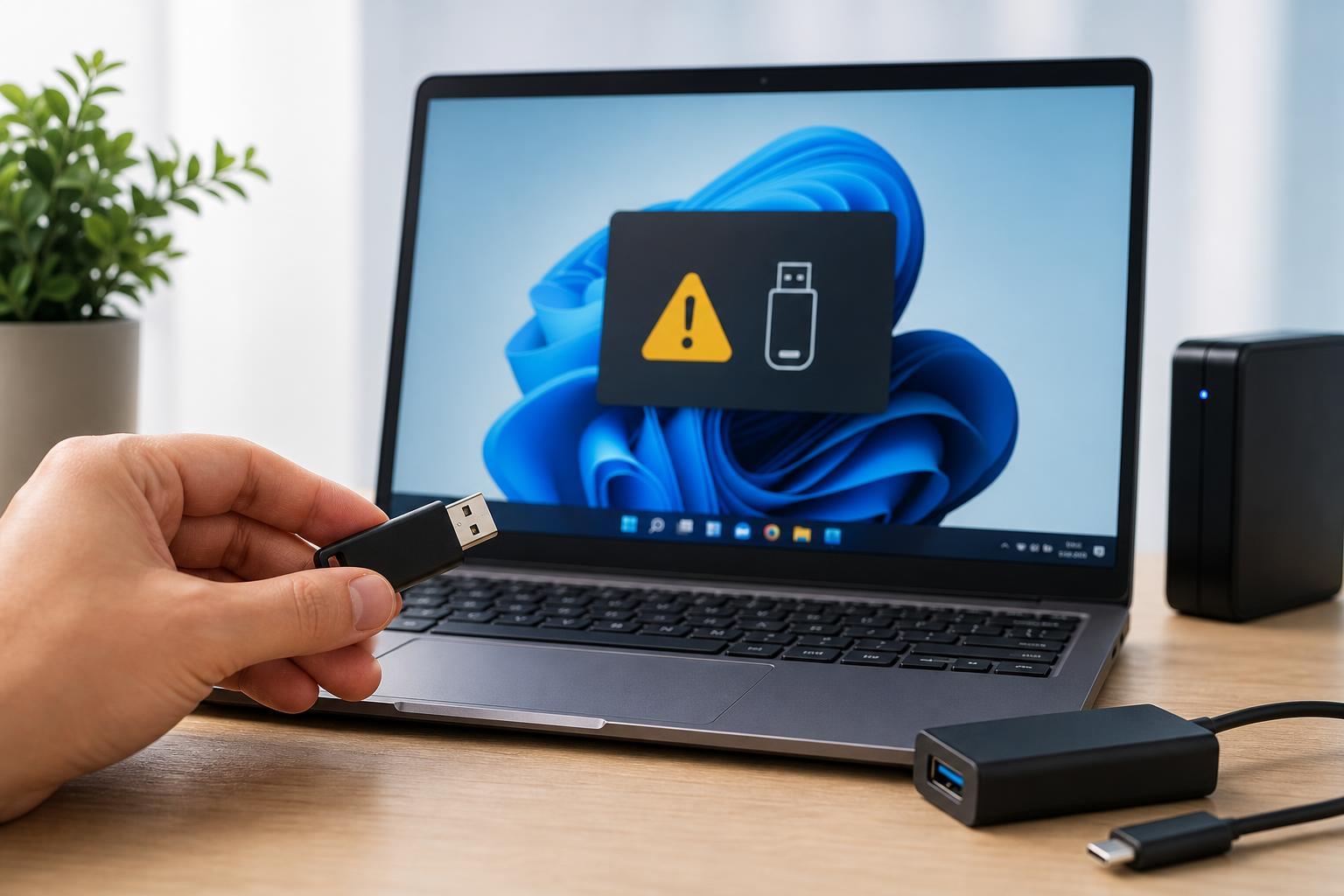
1. Try a Different USB Port and Check the Cable
Before changing settings in Windows, make sure the problem is not with the port, cable, or device itself. A single damaged port or worn cable can make Windows look like it is failing when the real issue is physical connection.
- Unplug the USB device and reconnect it firmly.
- Try a different USB port on the PC, preferably one directly on the computer instead of a hub.
- If the device uses a cable, test another cable if possible.
- If you are using a USB hub or dock, connect the device directly to the PC.
2. Check Whether Windows Detects the Device in Device Manager
Device Manager can reveal whether Windows sees the USB device at all, even if it is not showing up in File Explorer. This is one of the fastest ways to tell whether you are dealing with a driver issue or a hardware issue.
- Right-click the Start button and open Device Manager.
- Expand Universal Serial Bus controllers and also check Disk drives, Keyboards, Mice and other pointing devices, or Portable devices if relevant.
- Look for warning icons, unknown devices, or entries that appear and disappear when you reconnect the USB device.
- If you see the device listed with a warning icon, right-click it and choose Uninstall device, then unplug the device and reconnect it.
If Windows removes and reinstalls the device automatically, that can clear a corrupted driver instance. If it appears as an unknown USB device, Windows may not have the correct driver or may not be able to read the device properly.
3. Update or Reinstall the USB and Chipset Drivers
USB problems in Windows 11 are often tied to outdated or corrupted drivers. Updating the chipset and USB controller drivers can fix detection issues, especially after a major Windows update or when using a newer motherboard or laptop model.
- Open Device Manager and expand Universal Serial Bus controllers.
- Right-click each USB controller or hub you suspect may be involved, then choose Update driver.
- Select Search automatically for drivers.
- If that does not help, visit your PC or motherboard manufacturer’s support page and install the latest chipset and USB-related drivers for your model.
- Restart only if the driver installer or Windows prompts you to do so.
If a device driver is the problem rather than the USB controller itself, you may also need to install the driver supplied by the device manufacturer. This is common with printers, audio interfaces, docking stations, and specialized hardware.
4. Turn Off USB Power Saving Features
Windows 11 uses power-saving settings that can shut down USB devices or stop them from waking correctly. This is especially common with external drives, wireless receivers, and devices that disconnect after the computer has been idle.
- Open Device Manager and expand Universal Serial Bus controllers.
- Double-click each USB Root Hub, Generic USB Hub, or similar entry.
- Open the Power Management tab.
- Clear the option that allows the computer to turn off this device to save power.
- Click OK and repeat for other relevant USB hub entries.
You can also adjust USB selective suspend in Power Options if the problem keeps coming back. This setting can reduce power to unused USB ports, but it sometimes causes devices to drop offline unexpectedly.
5. Run the USB Troubleshooter and Check for Windows Updates
Windows updates can fix compatibility issues, but in some cases an update can also introduce a temporary USB problem until a later patch arrives. Checking for updates and running built-in troubleshooting can repair missing components or restore the correct drivers.
- Open Settings and go to Windows Update.
- Install any available updates, including optional driver updates if they look relevant.
- Go to Settings > System > Troubleshoot > Other troubleshooters.
- Run the troubleshooter related to hardware or USB devices if one is available.
- Reconnect the USB device after the update or troubleshooting process finishes.
6. Test the Device on Another PC and Inspect the Device Format
If Windows 11 still refuses to recognize the USB device, check whether the device works elsewhere. This helps separate a Windows problem from a failing flash drive, external disk, or accessory.
- Plug the USB device into another Windows PC if possible.
- If it works elsewhere, the original PC is likely the problem.
- If it does not work anywhere, the device may be damaged.
- For storage devices, check whether the drive has a file system Windows can read. A drive that was used on another platform or became corrupted may need repair or reformatting.
How to Narrow Down the Cause Quickly
If you want to avoid trying every fix in order, use the symptoms to guide you:
- The device works in another port but not one specific port: likely a bad port or hub.
- Windows makes a sound but nothing appears: often a driver, power, or file system problem.
- The device appears in Device Manager with a warning icon: likely a driver or compatibility issue.
- The device fails on every computer: the USB device itself may be faulty.
- An external drive spins up but does not show in File Explorer: it may need disk management or file system repair.
When the Problem May Be Hardware-Related
If several different USB devices fail in the same port, or if only the ports on one side of a laptop stop working, the issue may be physical damage or a motherboard/controller fault. In that case, Windows settings will not fully solve the problem.
For desktops, testing the rear ports and checking the case front-panel connector can help isolate the fault. For laptops, damaged USB ports usually need professional repair if cleaning the port does not restore reliable contact.





