
Bluetooth is one of the easiest ways to connect wireless headphones, speakers, mice, keyboards, controllers, and other accessories to a Windows 11 PC. If Bluetooth is off or missing from your system, you can usually turn it on in more than one place depending on how your device is set up.
This guide shows five practical ways to enable Bluetooth in Windows 11, plus what to check if the Bluetooth option does not appear at all.
1. Turn On Bluetooth from Settings
The main Bluetooth control in Windows 11 is in the Settings app. This is usually the most reliable place to turn it on and verify that your PC is ready to pair devices.
- Press Windows + I to open Settings.
- Select Bluetooth & devices from the left side.
- At the top, switch Bluetooth to On.
- If needed, select Add device to pair a new accessory.
2. Use Quick Settings
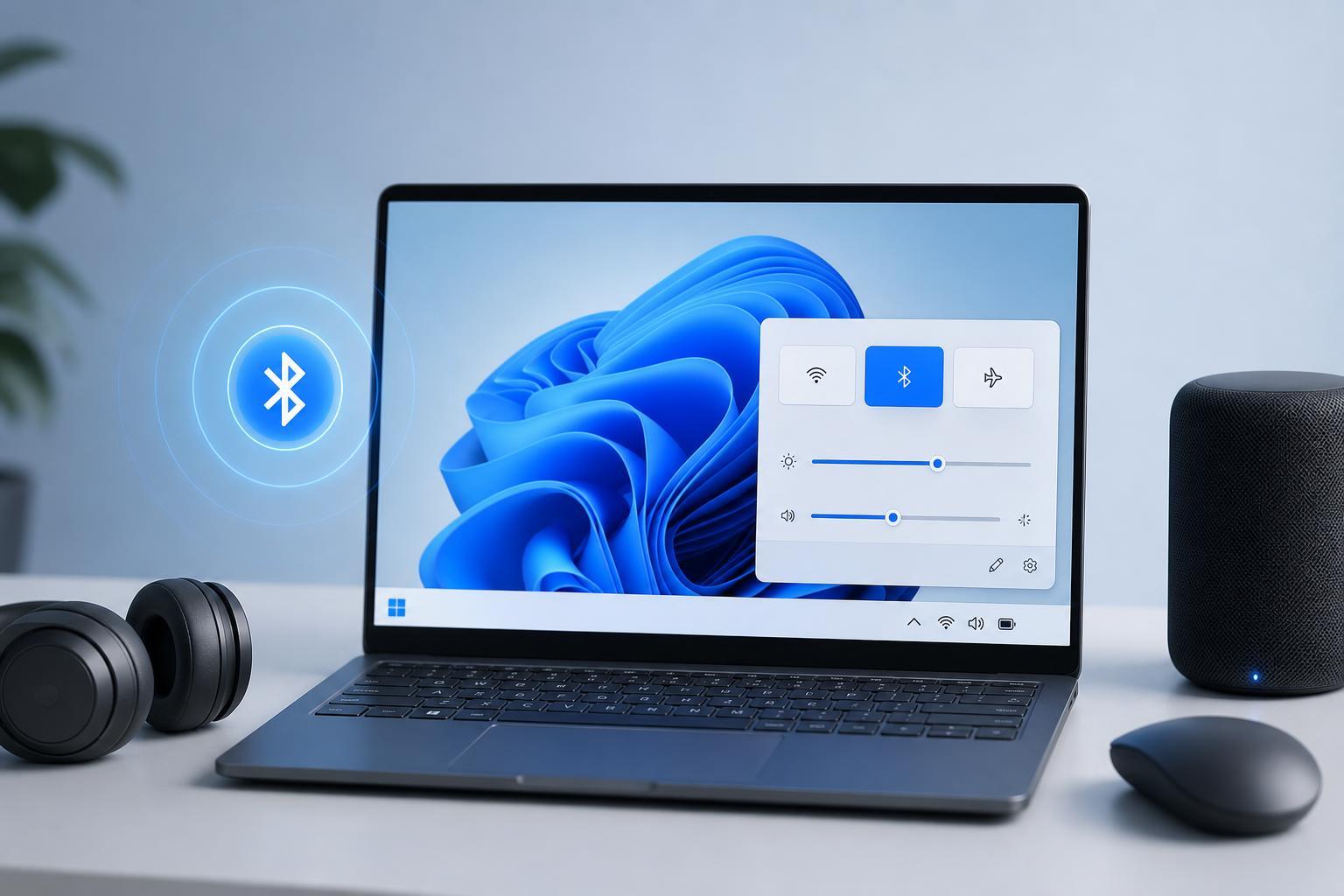
Windows 11 includes a Quick Settings panel with a Bluetooth button on many PCs. This is the fastest way to turn Bluetooth on and off without opening the full Settings app.
- Press Windows + A or click the network, volume, or battery area on the taskbar.
- Look for the Bluetooth tile.
- If it is highlighted, Bluetooth is on. If it is dim, click it to enable Bluetooth.
- If you do not see Bluetooth, click the pencil icon or Edit quick settings and add it if available.
3. Enable Bluetooth from Device Manager
If Bluetooth seems to be missing or disabled at the driver level, Device Manager can help. This is especially useful when Windows shows no Bluetooth toggle in Settings.
- Right-click the Start button and choose Device Manager.
- Expand the Bluetooth category.
- Right-click your Bluetooth adapter.
- If you see Enable device, select it. If it is already enabled, try Disable device and then Enable device again only if you are troubleshooting a stuck adapter.
4. Turn on Bluetooth Using a Keyboard or Laptop Hotkey
Some laptops include a function key or hardware wireless switch that controls Bluetooth or all wireless radios. The exact key varies by manufacturer.
- Look for a key with a wireless symbol, Bluetooth icon, or airplane-style radio symbol.
- Hold Fn if required, then press the key.
- Check whether Bluetooth turns on in Quick Settings or Settings.
- If your laptop has a physical wireless switch, make sure it is in the on position.
5. Turn Bluetooth On from Airplane Mode and Wireless Controls
Bluetooth can be affected by Airplane mode and other wireless controls. If Airplane mode is enabled, Windows may disable wireless features until you turn them back on manually.
- Open Quick Settings with Windows + A.
- Check whether Airplane mode is on.
- Turn Airplane mode off if you want Bluetooth available.
- Then switch Bluetooth on if it does not come back automatically.
If Bluetooth Is Still Missing
If none of the methods above work, the problem is usually not the switch itself. Windows may not be detecting the Bluetooth adapter, or the driver may need attention.
- Check Device Manager for an unknown device or disabled Bluetooth adapter.
- Install the latest Bluetooth or wireless driver from your PC or motherboard manufacturer.
- Make sure Bluetooth is enabled in the BIOS or UEFI if your hardware offers that option.
- Run Windows Update, since driver updates are sometimes delivered that way.
- If you are using a desktop PC, confirm that it actually has Bluetooth hardware built in or through a USB adapter.
How to Tell Which Method Is Best
Start with Settings if Bluetooth is simply off. Use Quick Settings if you want the fastest toggle. Go to Device Manager when Bluetooth is missing, greyed out, or behaving like the adapter is disabled. Hotkeys and wireless switches are most relevant on laptops with manufacturer-specific controls.
When the Bluetooth Toggle Does Not Appear
If Windows 11 shows no Bluetooth switch anywhere, that usually means one of three things: the PC has no Bluetooth adapter, the adapter is disabled at the hardware or BIOS level, or the driver is not installed correctly. Checking Device Manager is the quickest way to narrow that down.
Once Bluetooth is available again, you can pair accessories from Settings by selecting Bluetooth & devices and then Add device.





