
If your iPhone keeps dropping calls, showing weak bars, or struggling to load data, the problem is usually one of two things: weak coverage from your carrier or a setting, case, or device issue that is making reception worse. The good news is that there are several practical things you can try before assuming the phone is faulty.
This guide covers five useful ways to improve cellular signal on an iPhone, along with a few checks that help you figure out whether the issue is temporary or something more serious.
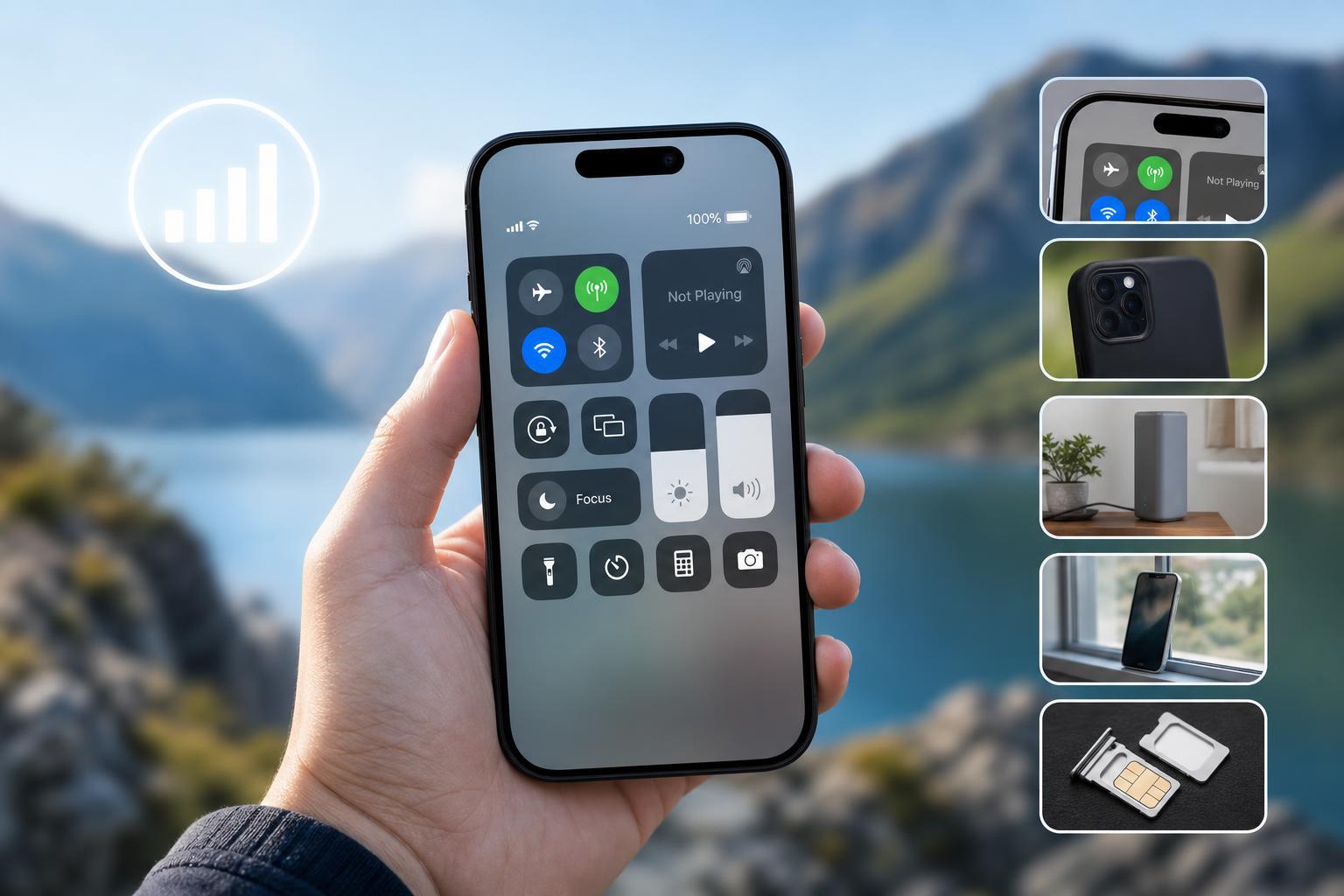
1. Move to a Better Location
Cell signal can change a lot from one room, street, or even side of a building to another. Thick walls, metal structures, basements, elevators, and low-lying areas can all weaken reception. If your signal is bad only in one place, your iPhone may be working normally and simply fighting poor coverage.
- Step outside or move near a window to test whether the signal improves.
- Try a higher floor if you are inside a building.
- Avoid underground areas, parking garages, and areas with lots of concrete or metal.
- If you are in a moving vehicle, reception may improve or worsen as you pass between towers.
2. Check Airplane Mode and Cellular Settings
Sometimes the phone is connected poorly because cellular radio settings are stuck in an odd state or disabled. Airplane Mode can help reset the connection to the network without changing other settings.
- Open Control Center and tap Airplane Mode on, then wait about 10 seconds.
- Turn Airplane Mode off and watch whether the signal returns.
- If needed, go to Settings > Cellular and make sure Cellular Data is enabled.
- If you use dual SIM or eSIM, confirm the correct line is selected for data and calls.
- Check whether Voice & Data is set appropriately for your carrier, such as 5G Auto, 5G On, or LTE, depending on what your network supports.
3. Remove or Adjust the Case
Some thick, metal, magnetic, or poorly designed cases can interfere with cellular reception, especially if the phone is already in a weak-signal area. While most cases do not cause major problems, it is worth testing without one if your signal is unusually poor.
- Take the case off the iPhone.
- Test signal strength in the same location for a few minutes.
- If signal improves, try a different case that is less likely to interfere.
- Avoid covering the phone with accessories that may block the antennas or worsen heat buildup.
4. Update Carrier Settings and iOS
Carrier settings updates can improve how your iPhone connects to your mobile network. iOS updates can also fix bugs that affect modem performance, signal handling, or network stability.
- Go to Settings > General > About and wait a few seconds to see whether a carrier settings update appears.
- If prompted, accept the carrier update.
- Then go to Settings > General > Software Update and install any available iOS update.
- After updating, test cellular service in the same area where you were having trouble.
5. Reset Network Settings if the Connection Still Seems Wrong
If your iPhone has the correct settings but still struggles to hold a signal, resetting network settings can remove corrupted or conflicting network information. This does not erase your photos or apps, but it does clear saved Wi‑Fi networks, Bluetooth pairings, and cellular-related settings.
- Open Settings.
- Tap General.
- Tap Transfer or Reset iPhone.
- Tap Reset.
- Choose Reset Network Settings and confirm.
- Rejoin Wi‑Fi networks and pair Bluetooth devices again after the reset.
When to Suspect a Carrier or Hardware Problem
If your iPhone has weak service everywhere, not just in one location, the problem may be with your carrier, your account, or the phone itself. A carrier outage, account provisioning issue, or damaged antenna can all cause poor signal.
- Other phones on the same carrier have the same problem in the same area.
- Your iPhone shows no service in places where it normally works.
- Calls drop even when you are not moving around.
- Signal stays poor after updating iOS, toggling Airplane Mode, and resetting network settings.
- The phone was recently dropped, exposed to water, or repaired and the issue started afterward.
What to Try First
The best first test is usually location. Move outdoors or near a window, then toggle Airplane Mode off and on. If that does not help, remove the case, check for updates, and reset network settings only if the issue continues. These steps cover the most common causes without making major changes to the phone.





