
If Windows is stuck in Airplane Mode, you may lose Wi‑Fi and Bluetooth at the same time, even when the toggle looks normal or refuses to change. This usually points to a software setting, a driver issue, or a wireless adapter problem rather than a full system failure.
The fixes below start with the simplest checks and move toward more advanced troubleshooting so you can restore wireless connections without guessing.
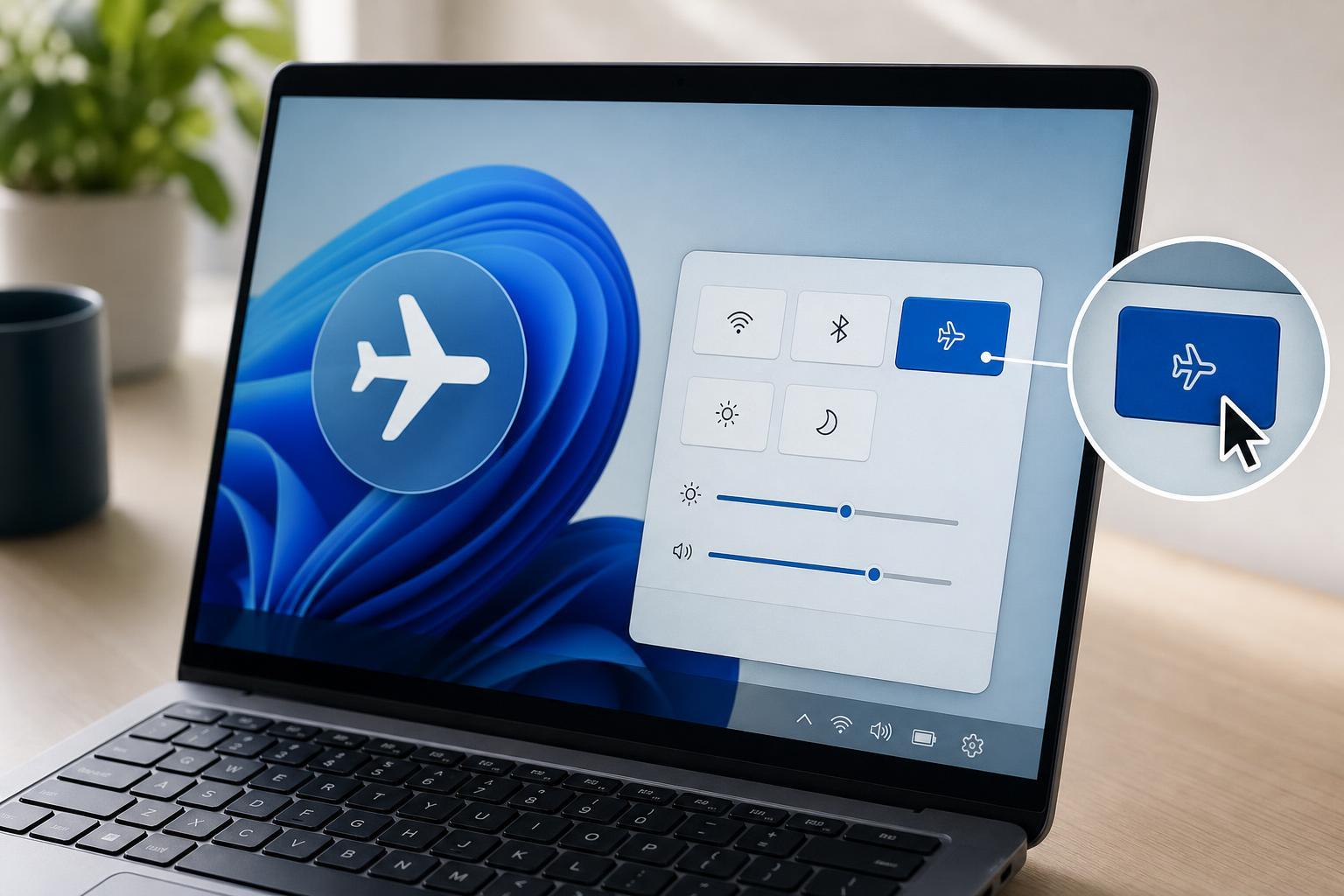
1. Check for a Physical Wireless or Airplane Mode Switch
Some laptops have a physical wireless switch or a dedicated function key that can disable radios at the hardware level. If that switch is off, Windows may show Airplane Mode as enabled or make it seem unavailable.
- Look for a side switch or keyboard key with an airplane, antenna, or wireless icon.
- Try the Fn key combination used by your laptop brand, such as Fn + a function key with a wireless symbol.
- If your laptop has a keyboard shortcut screen or utility app from the manufacturer, check whether wireless radios are disabled there as well.
2. Turn Off Airplane Mode from Windows Settings
Sometimes the quick toggle in the taskbar gets out of sync, but the main Settings app still works. Checking the full network settings screen helps confirm whether Windows is actually trying to keep radios disabled.
- Open Settings.
- Go to Network & internet.
- Select Airplane mode.
- Turn Airplane mode off, then check whether Wi‑Fi and Bluetooth become available.
If the toggle switches off but turns itself back on, that often means another setting, driver, or service is forcing the state back.
3. Re-enable the Wireless Adapter
Your Wi‑Fi adapter may have been disabled inside Windows. When that happens, Airplane Mode and wireless connectivity can behave strangely even if the hardware itself is fine.
- Right-click the Start button and open Device Manager.
- Expand Network adapters.
- Find your wireless adapter, usually containing words like Wi‑Fi, Wireless, or WLAN.
- If it is disabled, right-click it and choose Enable device.
- If it is already enabled, right-click it and choose Disable device, then Enable device again to refresh it.
4. Update or Reinstall the Wireless Driver
A bad, outdated, or corrupted wireless driver is a common reason Airplane Mode gets stuck. The wireless radio may still be present, but Windows cannot control it correctly.
- Open Device Manager and expand Network adapters.
- Right-click your wireless adapter and select Update driver.
- Choose Search automatically for drivers first.
- If that does not help, open the adapter again and choose Uninstall device.
- Restart the computer so Windows can reinstall the driver automatically, or install the latest driver from your laptop or motherboard manufacturer’s support page.
5. Check the Radio Management and Network Services
Windows uses background services to manage networking features. If one of those services is stopped or misconfigured, Airplane Mode can become stuck or ignore changes.
- Press Windows + R, type services.msc, and press Enter.
- Look for Radio Management Service and WLAN AutoConfig.
- Make sure the relevant services are running.
- If a service is stopped, start it and set its startup type to Automatic if available.
- Apply the changes and test Airplane Mode again.
Some systems do not show every service with the exact same name, so the wording may vary slightly depending on your Windows version and device manufacturer.
Other Things That Can Keep Airplane Mode Stuck
If the five fixes above do not solve it, the issue may be tied to the system itself rather than the setting you are clicking.
- Windows updates that broke a wireless driver or power setting
- Laptop manufacturer utility software that controls radio buttons
- Corrupted network settings in Windows
- BIOS or UEFI settings that disable the wireless adapter
- Hardware failure in the Wi‑Fi card or its internal connection
When to Suspect Hardware
If Windows cannot detect the wireless adapter, the adapter keeps disappearing after reboots, or no driver fix makes any difference, the Wi‑Fi hardware may be faulty or disabled in firmware. That is more common on older laptops or devices that have been dropped or opened for repairs.
Which Fix Should You Try First?
- Check for a physical wireless key or switch.
- Turn Airplane Mode off in Windows Settings.
- Enable the wireless adapter in Device Manager.
- Update or reinstall the wireless driver.
- Check the wireless-related services in Windows.
For most users, the problem is solved by the Settings screen, the adapter in Device Manager, or the driver. If those do not work, the cause is usually more specific, such as a manufacturer utility or a hardware issue.





