
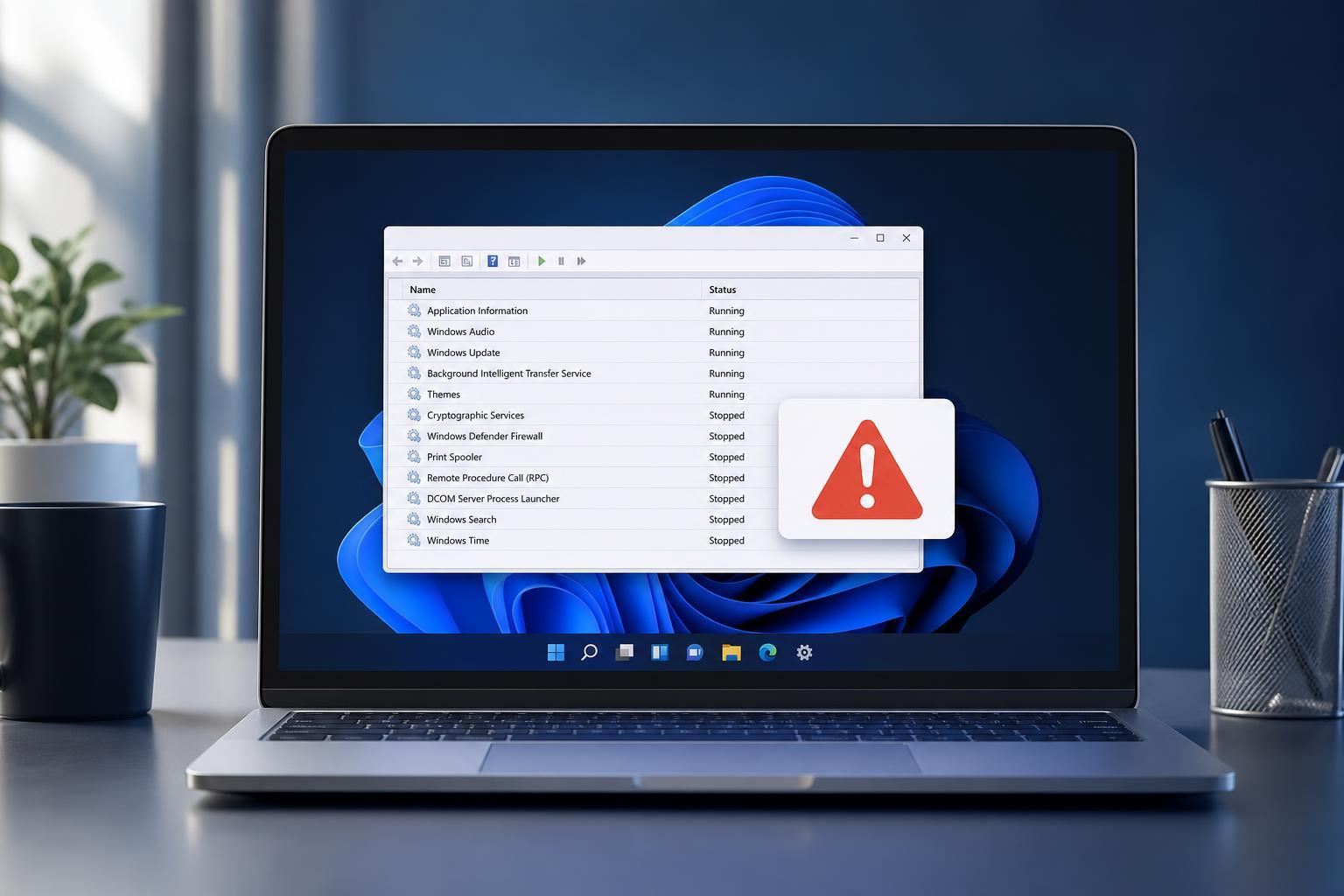
The Services app in Windows 11 is where you manage background services that keep Windows and many programs working properly. If it will not open, the issue can come from a damaged system file, a permissions problem, or a Windows component that is not responding correctly.
The fixes below start with the simplest checks and move toward more involved repairs so you can narrow down the cause without wasting time.
1. Open Services the Right Way
Before assuming something is broken, make sure you are opening the correct tool. Windows has several system management utilities, and it is easy to launch the wrong one or type the command incorrectly.
- Press Windows + R to open the Run dialog.
- Type services.msc and press Enter.
- If that does not work, open the Start menu and search for Services.
- You can also open Task Manager, choose Run new task, type services.msc, and check Create this task with administrative privileges if available.
2. Repair Corrupted System Files
If Services should open but closes immediately, freezes, or shows no response, Windows system files may be damaged. The built-in repair tools can fix missing or corrupted files that the Services console depends on.
- Open Start, search for Command Prompt, and choose Run as administrator.
- Run this command: sfc /scannow
- Wait for the scan to finish and follow any on-screen instructions.
- If problems remain, run: DISM /Online /Cleanup-Image /RestoreHealth
- Restart Windows after the repair completes.
3. Check Whether the Services Console Is Being Blocked
In some cases, Services is not failing because of Windows itself, but because security software, restrictive policies, or a broken user profile is preventing it from loading properly.
- Temporarily disable third-party antivirus or system-tweaking tools if you recently installed one.
- Try opening Services from a different local administrator account if one is available.
- If you use a work or school PC, group policy settings may be restricting access to management tools.
- If the problem started after a recent cleanup or optimization tool ran, that tool may have changed service-related permissions or settings.
4. Use an Alternate Management Tool to Find the Broken Service
If the Services app will not open, but you need to inspect a specific service, you may still be able to work around the problem with other Windows tools.
- Use Task Manager to check whether a service-related program is hanging.
- Open Command Prompt as administrator and use sc query to inspect service status.
- Use PowerShell with Get-Service to list services and identify whether a specific service is stopped or failing.
- If you can open Computer Management, sometimes the Services list is still accessible there.
5. Perform a Clean Boot if a Third-Party Program Is Interfering
Some startup programs, shell extensions, and service managers can interfere with Windows administrative tools. A clean boot helps you test whether another program is causing Services to stop opening.
- Press Windows + R, type msconfig, and press Enter.
- On the Services tab, hide Microsoft services, then disable the remaining third-party services.
- Open Task Manager and disable startup items.
- Restart the PC and try opening Services again.
- If it works, re-enable items in small groups to find the culprit.
When to Use More Advanced Fixes
If none of the five methods work, the problem may be deeper than the Services console. At that point, repairing Windows with an in-place upgrade or creating a new user profile may be more effective than chasing individual settings.
- The Services window never opens, even after system file repairs
- Other administrative tools also fail or behave strangely
- The issue began after a major Windows update or account change
- You suspect your user profile is damaged
Which Fix Should You Try First?
Start with the launch check, then move to system file repair if Services still will not open. If the issue appears tied to software you installed or a recent settings change, clean boot testing is often the fastest way to isolate it. For stubborn cases, an in-place repair of Windows may be the most reliable solution.





