
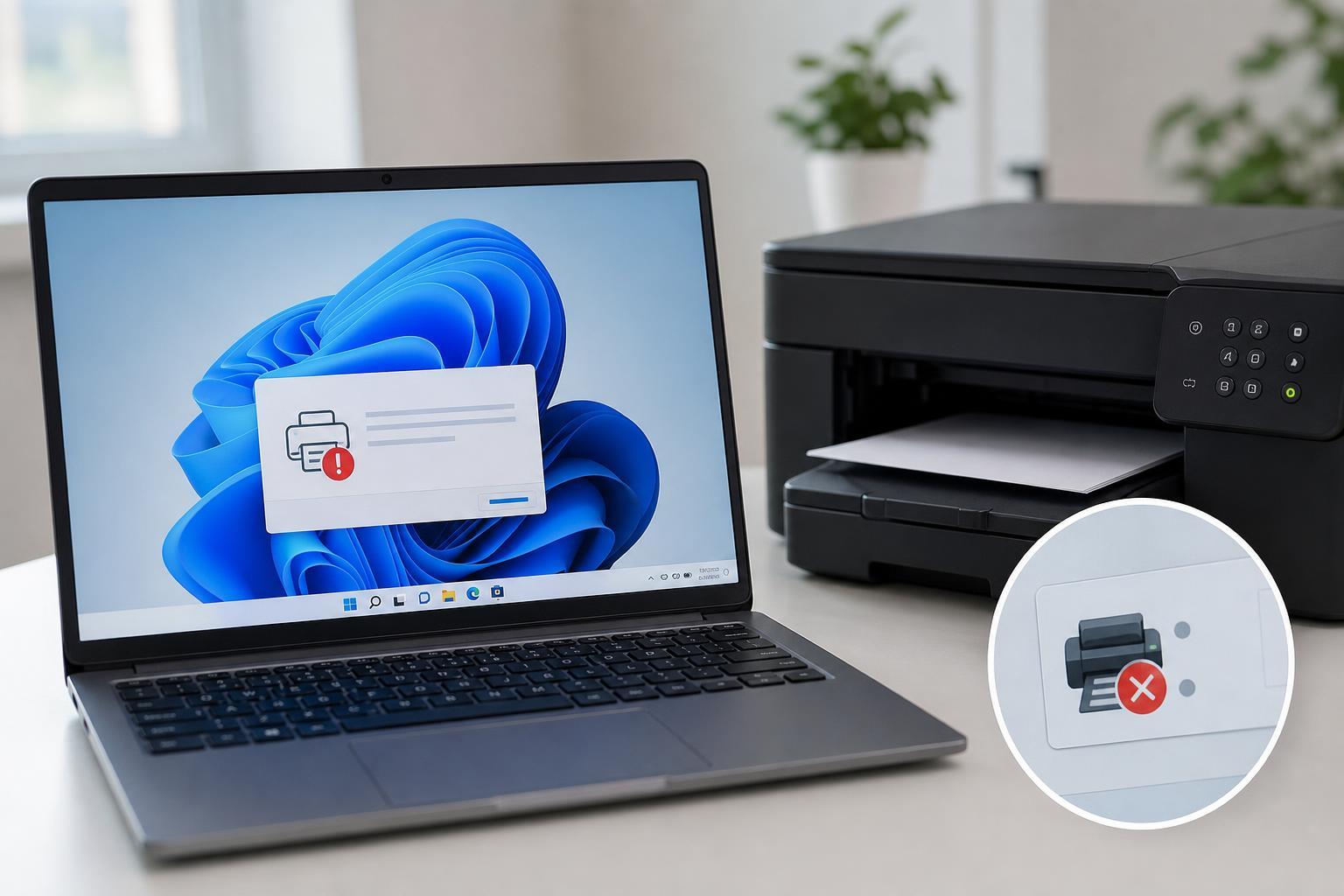
The “Printer driver is unavailable” error in Windows 11 usually means the system can see your printer, but it cannot use the correct driver to communicate with it. That can stop printing completely or leave the printer stuck offline even when the hardware itself is fine.
In many cases, the problem comes down to a damaged driver, an outdated Windows update, or a bad printer installation. The fixes below start with the simplest checks and move toward more complete repairs.
1. Check Whether Windows Is Using the Right Printer Driver
A wrong or generic driver is one of the most common reasons this error appears. Windows may install a basic driver automatically, but that driver may not fully match your printer model.
- Open Settings and go to Bluetooth & devices > Printers & scanners.
- Select your printer and open Printer properties or Device properties.
- Look for the driver name and compare it with your printer model.
- If Windows is using a basic, universal, or incorrect driver, download the correct one from the printer manufacturer’s support page.
If the manufacturer offers both a full software package and a driver-only download, the driver-only package is often easier to test first. It avoids extra printer utilities that are not always needed.
2. Remove the Printer and Add It Again
A fresh printer installation can clear out a broken device entry and force Windows 11 to rebuild the connection with the right driver.
- Open Settings > Bluetooth & devices > Printers & scanners.
- Select the printer and choose Remove.
- Disconnect the printer if it is USB-connected, then reconnect it after removal.
- Click Add device or Add a printer or scanner and let Windows detect it again.
- If Windows does not find it automatically, choose the manual add option and select the printer model yourself.
This is especially helpful after a major Windows update, a printer firmware update, or a long period of not using the device.
3. Update or Reinstall the Printer Driver in Device Manager
If the printer was working before and then suddenly started showing this error, the installed driver may be corrupted or incompatible with a recent change in Windows.
- Right-click the Start button and open Device Manager.
- Expand Print queues or Printers.
- Right-click your printer and select Update driver.
- Choose Search automatically for drivers first.
- If that does not help, right-click the printer again and select Uninstall device, then restart the printer connection and reinstall the manufacturer driver.
4. Run the Printer Troubleshooter and Check the Print Spooler
Windows 11 includes a printer troubleshooter that can catch common configuration problems. It also helps when the print spooler service has stopped or is behaving incorrectly.
- Open Settings > System > Troubleshoot > Other troubleshooters.
- Find Printer and select Run.
- Follow the prompts and apply any recommended fixes.
- If the problem continues, open Services from the Start menu.
- Find Print Spooler and make sure it is running. If it is stopped, start it. If it is already running, restart it through the service controls.
The print spooler handles print jobs between Windows and the printer. If it is stuck, even a healthy printer and driver may fail to work properly.
5. Install the Latest Windows Updates and Printer Software
Sometimes the error is not caused by the printer at all, but by an outdated Windows component that no longer works correctly with the installed driver.
- Open Settings > Windows Update.
- Check for updates and install any pending updates.
- Restart if Windows asks you to do so.
- Then visit the printer manufacturer’s support page and install the latest driver or full software package for Windows 11.
- If the manufacturer offers a firmware update for the printer, install that only if the instructions specifically match your model.
This step is worth trying if the error started after a system update, or if the printer model is older and has not been serviced in a while.
How to Narrow Down the Cause
If you are not sure which fix to try first, these clues can help:
- If the printer works on another PC, the problem is likely on the Windows 11 system, not the printer hardware.
- If the error appeared after a Windows update, the driver may need to be updated or reinstalled.
- If Windows shows the printer but will not print, the spooler or device entry may be the issue.
- If the printer is USB-connected and is not detected consistently, try a different USB port or cable before replacing the printer.
When You May Need a Manufacturer Driver Instead of Windows' Built-In One
Windows can often print using a built-in driver, but not every printer works well with it. Features such as duplex printing, advanced paper handling, ink status, or scanning may require the manufacturer’s software.
If basic printing works but special features do not, install the printer maker’s full Windows 11 package instead of relying on the default driver alone.
If the Error Still Will Not Go Away
If none of the five fixes works, the issue may be deeper than a simple driver mismatch. At that point, check whether the printer has a firmware update, test the printer on another Windows account, or remove any old printer software from previous installations before trying again.
For network printers, it may also help to clear and re-add the printer using its IP address rather than letting Windows rediscover it automatically. That can avoid confusion caused by duplicate printer entries or outdated network discovery data.





