
Phone Link can be very handy for reading texts, checking notifications, making calls, and moving photos between your Android phone and Windows 11 PC. When it stops working, the problem is usually caused by a broken connection, a stale app cache, missing permissions, or a syncing issue between the phone and PC.
This guide walks through five practical fixes, starting with the most common causes first. You do not need to try every step in every case—use the one that best matches the symptom you are seeing.
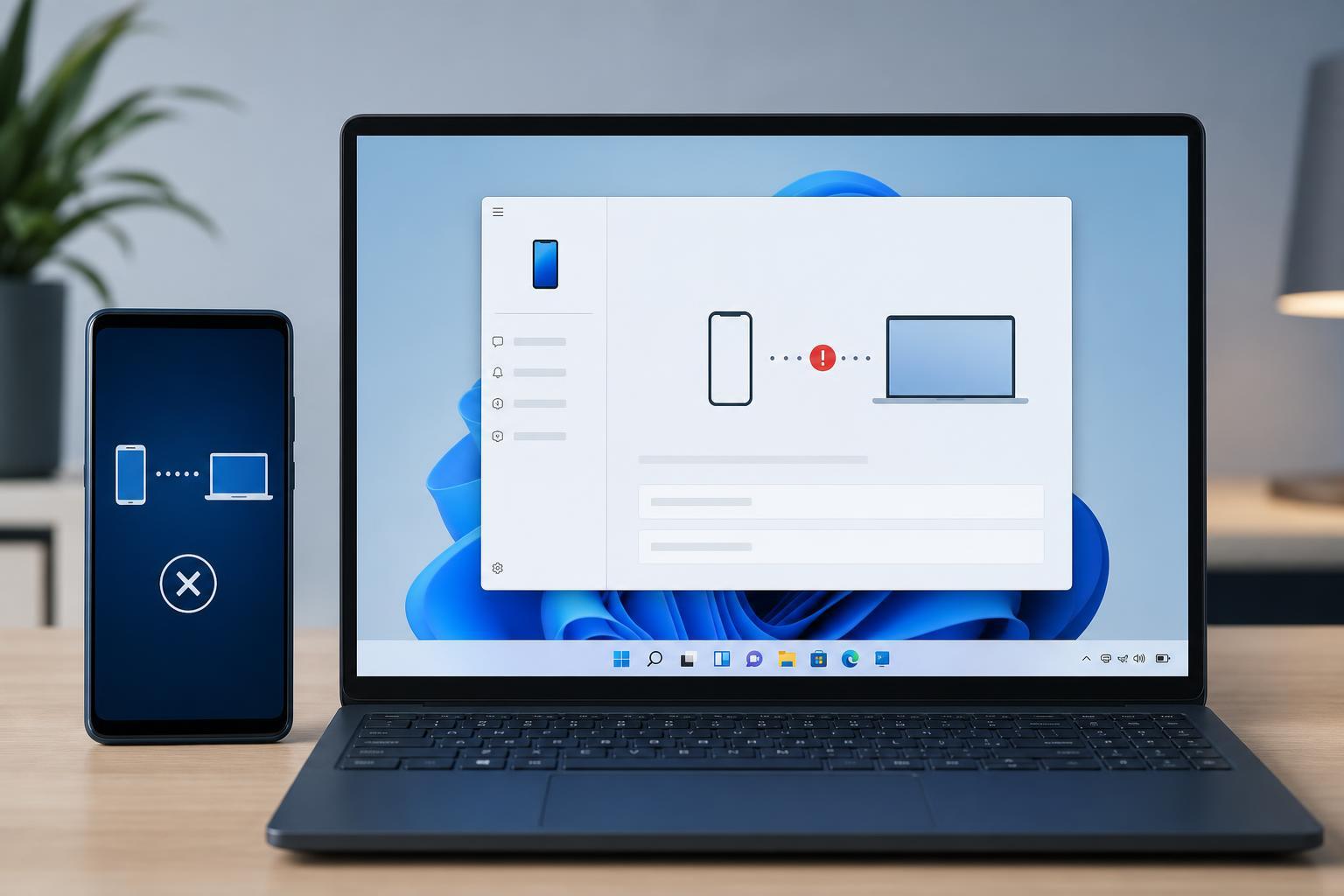
1. Check That Both Devices Are Actually Connected
Phone Link depends on a working connection between your phone and PC. If the app opens but nothing syncs, or your messages and photos never appear, start by checking the connection status on both devices.
- On your Windows 11 PC, open Phone Link and look for any sign that the phone is disconnected, paused, or needs attention.
- On your Android phone, open the Link to Windows app, or check the Phone Link companion settings if your device uses built-in linking.
- Make sure both devices are signed in to the same Microsoft account where required.
- Confirm that Bluetooth and Wi-Fi are turned on if your setup uses them for pairing and sync.
- If the app says it is connected but nothing updates, turn the connection off and on inside the app rather than changing unrelated system settings first.
2. Make Sure Phone Link Has the Right Permissions
Phone Link needs permission to access notifications, contacts, messages, and sometimes photos or call features. If one feature works but another does not, a permission problem is often the reason.
- On your Android phone, open the system settings for the Link to Windows app or Phone Link companion.
- Check permissions for notifications, contacts, phone calls, photos, and nearby device access if available.
- Allow battery optimization exceptions for the app if your phone tends to close background apps aggressively.
- On Windows 11, open Settings, then Apps, then Installed apps, and look for Phone Link options if the app appears restricted.
- If your phone shows a permission prompt that you dismissed earlier, return to the permission screen and enable it manually.
If notifications appear on your PC but calls do not work, or photos sync but messages do not, focus on the permission tied to the missing feature rather than reinstalling everything immediately.
3. Repair or Reset the Phone Link App on Windows 11
If the app opens but behaves strangely, such as not loading your phone, freezing, or showing old data, Windows may be dealing with a damaged app cache. The built-in repair and reset tools are often the fastest fix.
- Open Windows 11 Settings.
- Go to Apps, then Installed apps.
- Find Phone Link in the list.
- Open its advanced options if available.
- Try Repair first. This fixes app files without removing your data.
- If Repair does not help, use Reset. This clears the app’s local data and forces it to set up again.
After resetting, open Phone Link again and sign back in if prompted. You may need to re-pair the phone, depending on how much local data was cleared.
4. Update Windows, Phone Link, and the Companion App
A version mismatch between Windows, Phone Link, and the app on your phone can cause sync failures, missing features, or connection errors. Updating all three is one of the most reliable fixes, especially after a recent Windows update or phone software change.
- Open the Microsoft Store on Windows 11 and check for updates to Phone Link.
- Open Windows Update in Settings and install any pending system updates.
- On your phone, update the Link to Windows app or the built-in companion component if your device uses one.
- After updating, reopen both apps and let them fully refresh before testing again.
5. Reconnect the Phone From Scratch
If the app still fails after the basic fixes, the pairing itself may be corrupted. Removing the phone and pairing it again often solves issues that simple app repair cannot.
- In Phone Link on Windows 11, remove or unpair the current phone.
- On your Android phone, remove the Windows connection from the Link to Windows app or its settings.
- Restart the pairing process from the beginning using the QR code or sign-in method provided by Microsoft.
- Follow the prompts carefully and allow all requested permissions when they appear.
- Test messages, notifications, and photos again before changing any other settings.
How to Narrow Down the Real Cause
The symptom usually tells you which fix to try first. A feature-specific problem, such as no calls or no notifications, often points to permissions. A totally broken connection after an update often points to version mismatch or corrupted pairing. A blank or frozen app window is more likely to need a repair or reset.
- App opens but shows old data: repair or reset Phone Link
- Messages work but photos do not: check permissions and sync settings
- Nothing connects at all: verify pairing, sign-in, and device compatibility
- Problem started after an update: update both sides again or reconnect from scratch
- Phone battery saver is aggressive: allow background activity for the companion app
When Phone Link May Not Be the Problem
Sometimes Phone Link is working correctly, but the phone itself is preventing sync. Battery saver mode, restricted background activity, disabled notifications, or account changes can make the app appear broken even when the Windows side is fine.
If you have tried the five fixes above and the app still refuses to work, check whether your phone brand has its own battery management tools or extra security settings that may be closing the companion app in the background.
What This Means for Most Users
In most cases, Phone Link problems on Windows 11 come down to a lost connection, a missing permission, or a pairing that needs to be rebuilt. Start with connection checks, then permissions, then repair or reset the app, and only move to a full re-pairing if the earlier steps do not help. That approach solves most issues without wasting time on unnecessary changes.





