
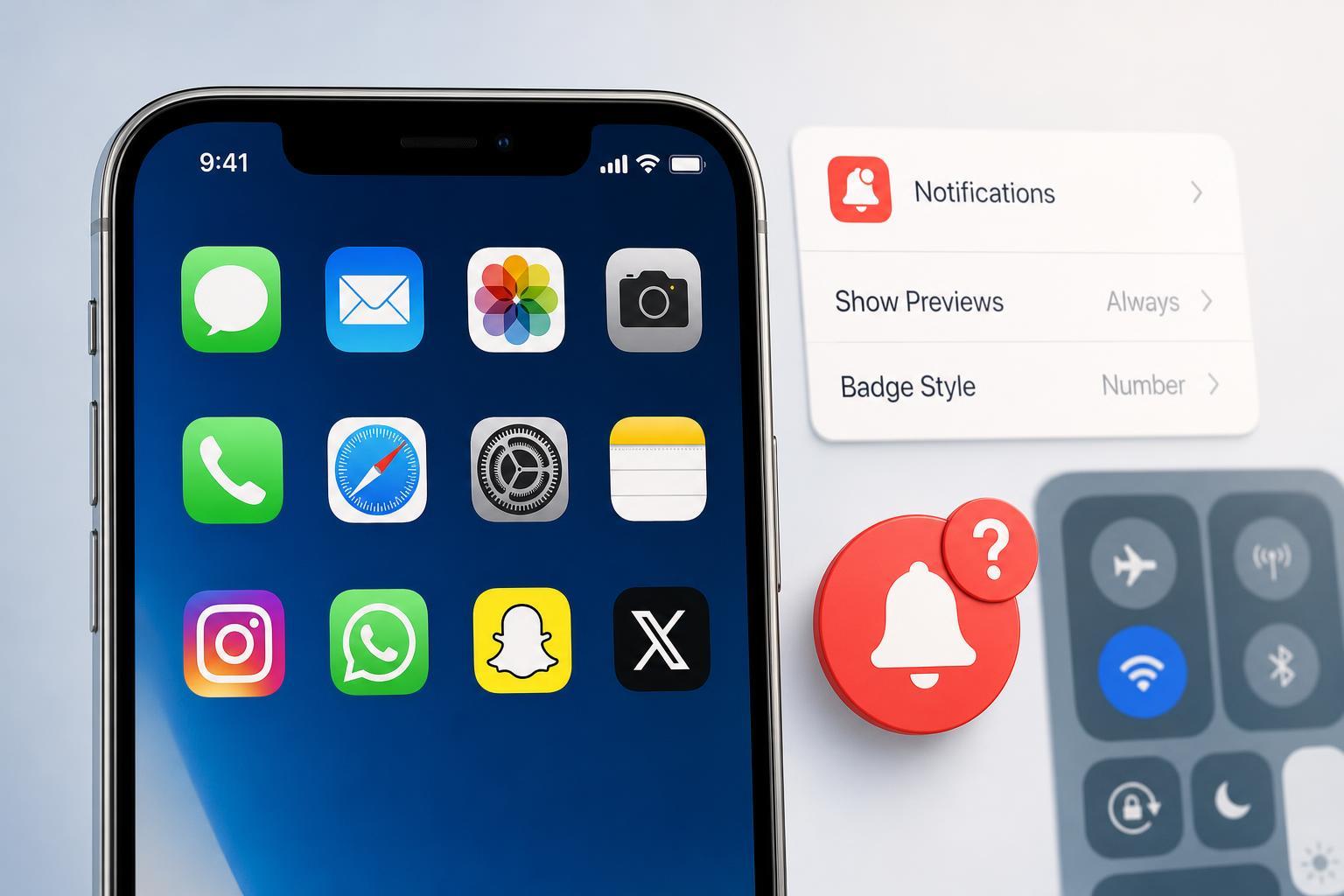
If app icons on your iPhone are not showing red notification badges, the issue is usually caused by a settings change rather than a hardware problem. Badges can be turned off globally, disabled for a specific app, blocked by Focus modes, or affected by notification delivery settings.
This guide walks through five useful fixes, starting with the most likely causes first. You can use it to restore badge counts for Mail, Messages, social apps, and other apps that support them.
1. Make Sure Badges Are Enabled for the App
The most common reason badges disappear is that the app no longer has permission to show them. Each app can have its own notification settings, and badges can be turned off even if alerts are still working.
- Open Settings on your iPhone.
- Tap Notifications.
- Select the app that is missing badges.
- Turn on Allow Notifications if it is off.
- Make sure Badges is enabled.
- Check whether the app is set to deliver notifications in a way that still makes sense for your use case, such as Lock Screen, Notification Center, or banners.
2. Check Your iPhone’s Global Badge Settings
iPhone also has a system-wide badge setting that can affect how icons appear on the Home Screen. If this setting is off, many apps will stop showing badge counts even when their individual settings are correct.
- Open Settings.
- Tap Notifications.
- Look for the Badges option near the top of the screen.
- Turn Badges on if it is disabled.
3. Review Focus Mode and Do Not Disturb
Focus modes do not always stop badges completely, but they can change when and how notifications appear. If you have a Focus mode enabled, it may be hiding the alerts that normally help badge counts update, especially for apps that rely on notification delivery to refresh counts.
- Open Control Center by swiping down from the top-right corner.
- Check whether Do Not Disturb or another Focus mode is active.
- If one is on, turn it off temporarily and test whether badges return.
- Go to Settings > Focus to review which apps and people are allowed to notify you during each Focus mode.
4. Update or Reopen the App That Is Missing Badges
Some apps show badge counts only after they fully refresh. If the app is outdated, stuck in the background, or not syncing properly, the badge number may stop updating.
- Open the App Store and check whether the app has an update available.
- Install any available update.
- Force close the app from the app switcher, then open it again.
- If the app still does not show badges, sign out and back in if the app has an account-based login and you are comfortable doing so.
5. Reset Notification Settings for the Problem App
If the badge setting looks correct but the app still does not behave properly, resetting that app’s notification permission and re-enabling it can clear a stuck configuration.
- Open Settings > Notifications.
- Tap the app that is having the problem.
- Turn Allow Notifications off.
- Restarting the app is not required here, but wait a moment after turning the setting off.
- Turn Allow Notifications back on.
- Re-enable Badges and any other notification options you want to use.
If that does not help, you can also remove the app and reinstall it, but only do this if you are sure your data is backed up or tied to an account. Reinstalling can clear local settings that are causing the badge problem.
If Badges Still Do Not Appear
If you have checked app settings, system-wide badge settings, Focus mode, and app updates, the remaining cause is often specific to the app itself. Some apps do not support badges consistently, while others may only show them for certain account types or notification categories.
- Confirm the app actually supports badge icons on iPhone.
- Check whether the app has its own in-app notification settings.
- Look for account sync issues inside the app.
- Test another app, such as Mail or Messages, to see whether badges work elsewhere.
- If multiple apps are affected, consider checking for an iOS update.
Which Fix Should You Try First?
Start with the app-specific badge setting, then check the global Badges switch in Settings. If the problem affects several apps, review Focus mode and system notification settings next. For a single app that still behaves strangely, updating or resetting that app’s notification permissions is usually the most effective final step.





