
If your Memoji disappeared after updating your iPhone to iOS 17, the problem is usually related to keyboard settings, Messages options, or a temporary syncing issue rather than permanent data loss. In most cases, your Memoji is still on the device or tied to your Apple ID — it just is not showing where you expect it to.
This guide walks through five practical fixes, starting with the most common causes and moving to deeper troubleshooting if your Memoji still does not appear.
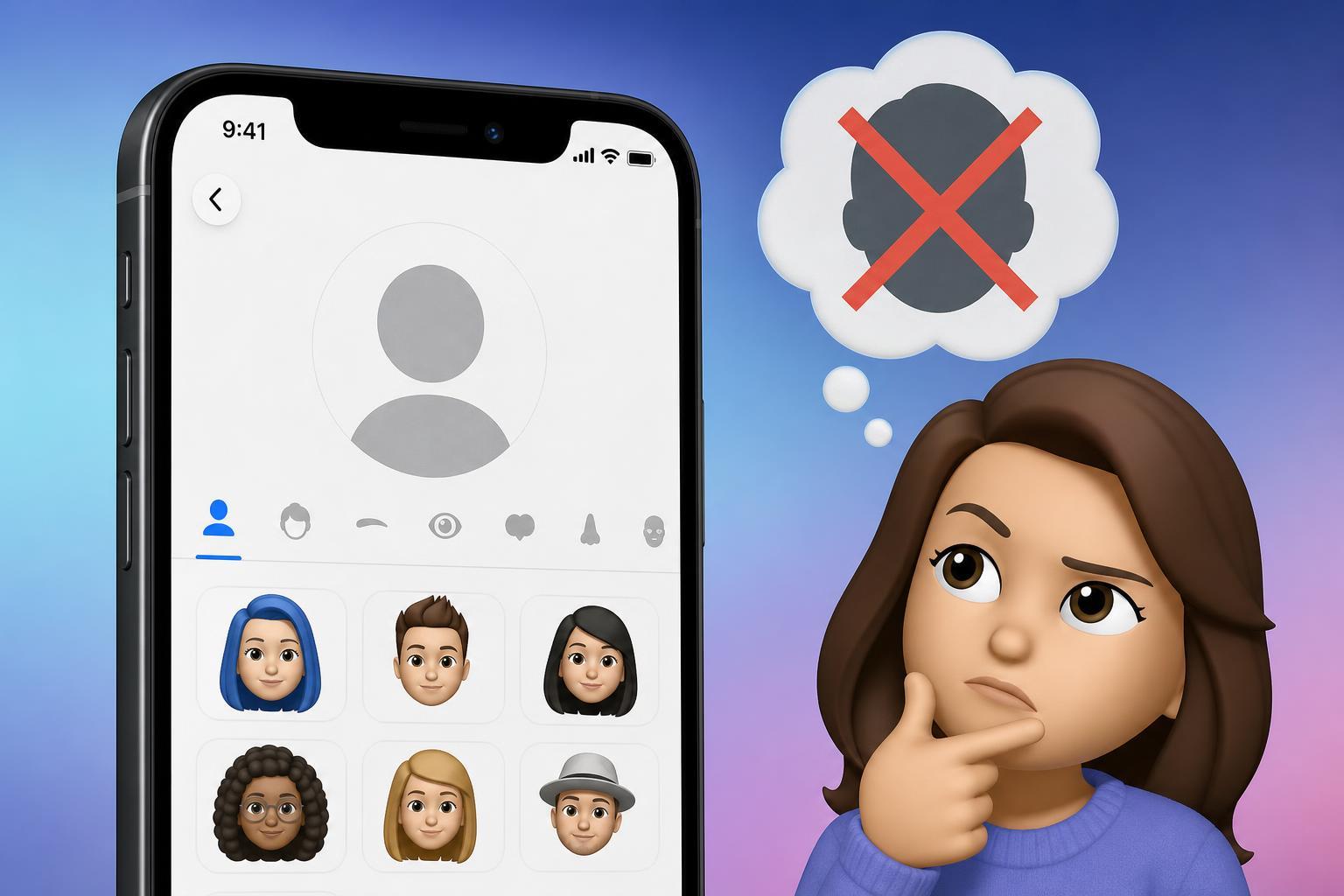
1. Check Whether the Memoji Keyboard Is Still Enabled
After an iOS update, the Memoji sticker panel may stop showing if the iPhone keyboard settings changed. Start by checking that the emoji keyboard is still available, since Memoji depends on it in Messages and other apps.
- Open Settings on your iPhone.
- Tap General, then Keyboard.
- Tap Keyboards and confirm that Emoji is listed.
- If Emoji is missing, tap Add New Keyboard and add it back.
- Open Messages and tap the emoji key on the keyboard to check whether Memoji appears again.
2. Make Sure Memoji Is Enabled in Messages
In iOS 17, the Messages app can hide or reduce access to sticker features if the related options are turned off. Check the Messages settings to make sure Memoji content is allowed to show up.
- Open Settings and tap Messages.
- Look for any option related to iMessage apps, stickers, or Memoji features.
- If you see a Memoji-related switch, turn it on.
- Open a conversation in Messages and tap the app drawer or emoji area to see whether your Memoji is back.
3. Verify That Your Memoji Is Still on the Device
Sometimes Memoji does not disappear completely — it is just not being shown in the sticker picker. You can check whether your avatar is still saved by opening the Memoji editor.
- Open Messages and start a conversation.
- Tap the emoji button or sticker area near the keyboard.
- Look for the Memoji section and see whether your existing characters appear.
- If needed, open the Messages app profile or use the Memoji editor from the keyboard to inspect the saved avatars.
4. Update iPhone Settings That Affect Stickers and Syncing
If your Memoji still does not show up, iOS may need a refresh of account-related settings. Problems with Apple ID sync, iCloud, or a partially completed update can interfere with where your Memoji appears.
- Go to Settings and open your Apple ID profile at the top.
- Check whether you are signed in correctly and whether iCloud is enabled for the services you use.
- Make sure your iPhone has completed the iOS 17 update fully by checking Settings > General > Software Update.
- If another update is available, install it, since minor iOS updates often fix missing feature issues.
- After updating, return to Messages and check the sticker and Memoji menus again.
5. Reset the Keyboard or Recreate the Memoji If Needed
If the keyboard and Messages settings are correct but the Memoji area is still blank, the keyboard data may be stuck. At that point, try a more direct reset of the keyboard-related settings or recreate the Memoji if the originals are no longer available.
- Go to Settings > General > Transfer or Reset iPhone > Reset.
- Choose Reset Keyboard Dictionary only if you are comfortable clearing custom typing data.
- If the Memoji characters still do not appear, create a new Memoji in Messages to confirm the feature is working again.
- If a previous Memoji was lost permanently, recreate it manually using the saved look or screenshots if you have them.
When Memoji Disappears Only in One App
If your Memoji shows up in Messages but not in another app, the issue is likely app-specific rather than an iPhone-wide problem. Some apps support only certain sticker or emoji features, and iOS 17 may handle them differently depending on the app.
- Works in Messages but not in another app: the other app may not support Memoji stickers fully.
- Missing only in one chat: the conversation may be using a different message format or app view.
- Missing after editing the keyboard: the Emoji keyboard may need to be re-added.
What to Do If Nothing Brings It Back
If none of the fixes work, your next best step is to check for another iOS update, then sign out and back into Apple ID only if you are comfortable doing so and you understand the effect on your data. In rare cases, the problem may be tied to a profile, a sync fault, or a deeper iOS issue that Apple addresses in a later update.





