
If your iPhone alarm is too quiet, it may not wake you up. If it is too loud, it can be unpleasant or disruptive. The tricky part is that the Alarm sound on iPhone does not always follow the same volume rules as music, videos, or ringtones.
The good news is that most alarm volume problems come down to a small set of settings. Here are five practical ways to fix low or loud alarm volume on iPhone.
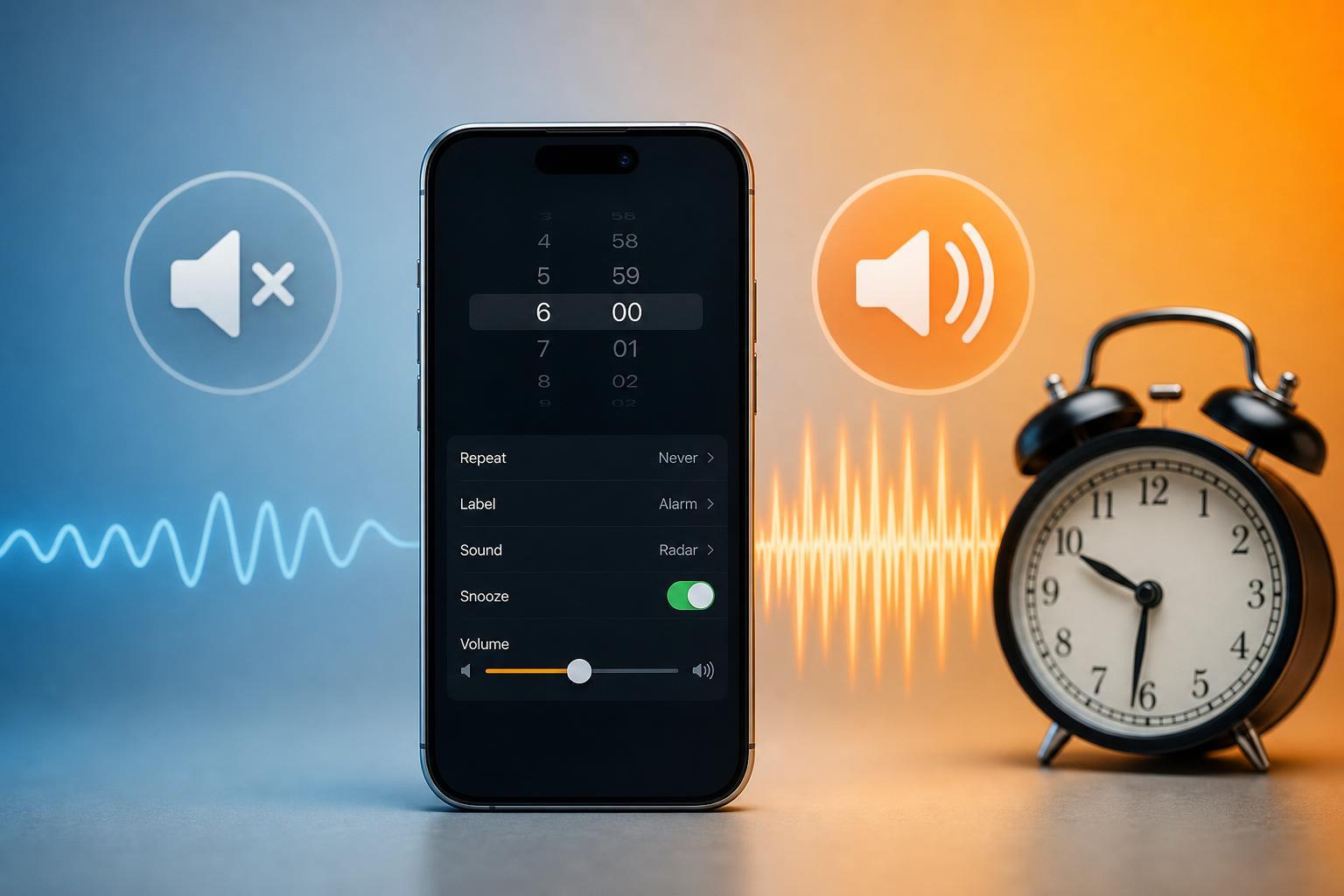
1. Check the alarm’s own sound and volume
Start in the Clock app, because the alarm may be using a different sound than you expect. Some alarm tones are naturally quieter or sharper than others, and a different tone can make the alarm seem broken when it is only set to a weak sound.
- Open the Clock app and tap Alarm.
- Tap Edit, then choose the alarm you want to change.
- Tap Sound.
- Pick a different alarm tone and preview it.
- Save the alarm and test the sound at a comfortable distance from the phone.
2. Adjust the ringer and alert volume
On iPhone, alarm volume is tied to the ringer and alert volume rather than media volume in many situations. If the ringer volume is set too low, your alarm may also be too quiet.
- Open Settings.
- Tap Sounds & Haptics.
- Under Ringer and Alerts, move the slider up or down to the level you want.
- If you want the volume buttons to change this setting, turn on Change with Buttons.
- Set an alarm and test it once you have chosen a volume.
3. Check whether a Focus mode or silent setup is affecting what you hear
Focus modes do not usually stop the built-in Alarm from sounding, but they can make it seem quieter or less noticeable if your phone is using vibration, another audio route, or a routine that changes how you notice alerts. Silent mode can also confuse the situation, even though alarms should still ring.
- Make sure the Ring/Silent switch is not causing confusion about whether sound is enabled.
- Check whether vibration is on for alarms, since vibration can make a quiet alarm easier to miss.
- Review any automation or third-party alarm app that may change sound behavior.
- If you use a sleep schedule or other alarm method, verify that it is using the sound you expect.
4. Disconnect Bluetooth devices and check your audio output
Sometimes an alarm seems low because the iPhone is sending sound to a Bluetooth speaker, earbuds, or car audio system instead of the phone’s own speaker. If that connected device is quiet, out of range, or turned down, the alarm may be hard to hear.
- Open Control Center and turn off Bluetooth temporarily.
- Unplug any wired headphones or adapters.
- Check whether sound is coming from an external speaker or car system.
- Test the alarm again using the iPhone speaker alone.
- If you want the alarm on a specific device, confirm that device’s volume is turned up and working correctly.
5. Test the speaker and update iPhone if the problem keeps happening
If alarms are still too quiet or too loud after adjusting settings, the iPhone speaker itself may be the issue. Dirt, lint, damage, or software bugs can all affect how alarm sound behaves.
- Play a song, video, or ringtone to confirm the speaker sounds normal.
- Check whether the bottom speaker grille looks blocked or dirty.
- Clean the speaker area gently with a soft, dry brush if needed.
- Install the latest iOS update if one is available.
- If the speaker sounds distorted, unusually quiet, or cuts out, contact Apple Support or a repair provider.
How to narrow down the cause quickly
If you are not sure which fix to try first, use the behavior of the alarm as a clue. A repeatable pattern usually points to a specific setting rather than a random glitch.
- Too quiet every time: check alarm sound, ringer volume, and connected Bluetooth devices.
- Too loud every time: lower Ringer and Alerts volume and choose a gentler alarm tone.
- Quiet only with headphones or a speaker connected: disconnect audio devices and retest.
- Problem started after an update or app change: check iOS updates and any third-party alarm app settings.
- Alarm sound changes unexpectedly: review the alarm entry itself in the Clock app.
What to do if nothing fixes it
If the alarm volume still behaves badly after checking the steps above, back up your iPhone and consider resetting only the relevant settings first. In many cases, though, the issue is one of the five checks above rather than a serious hardware failure.
For most people, the fastest solution is to verify the alarm tone, adjust Ringer and Alerts volume, and disconnect any Bluetooth audio device before bedtime. That usually solves low or loud alarm volume on iPhone without any deeper troubleshooting.





