
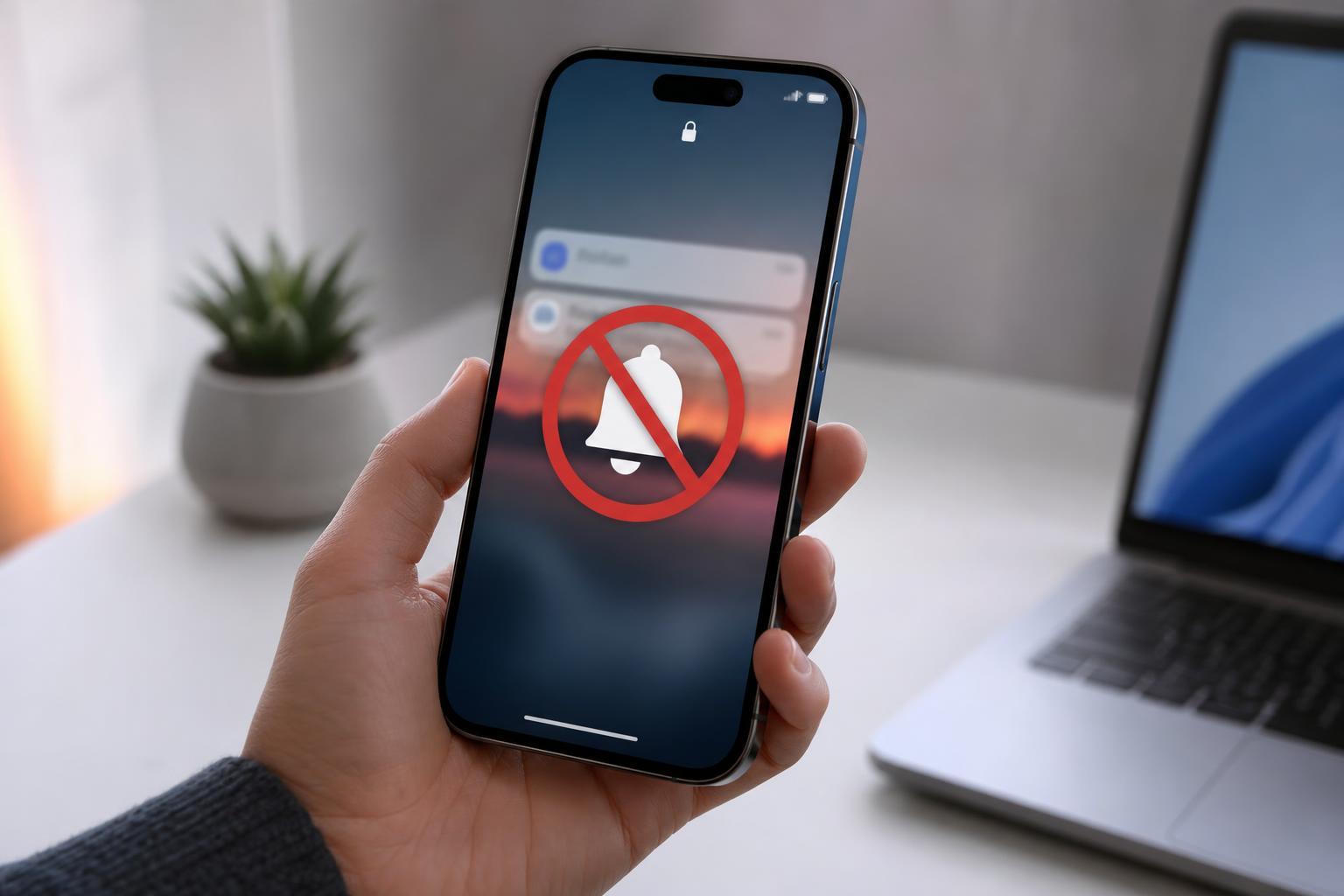
If notifications are arriving on your iPhone but not appearing on the lock screen, the problem is usually caused by a setting rather than a hardware fault. The most common culprits are notification delivery options, Focus mode, lock screen preview settings, or an app-specific notification rule.
Here are five reliable ways to narrow down the cause and get lock screen notifications working again.
1. Check the App’s Notification Settings
Start with the app that is missing alerts. An app can be allowed to notify you, but still be set to send alerts only to Notification Center or as banners instead of the lock screen.
- Open Settings and tap Notifications.
- Select the app that is not showing alerts.
- Make sure Allow Notifications is turned on.
- Under Alerts, enable Lock Screen.
- If needed, also enable Sounds and Badges so the app is easier to notice.
2. Make Sure Focus Mode Is Not Blocking Alerts
Focus modes such as Do Not Disturb, Sleep, or a custom Focus can hide notifications from the lock screen. This is one of the most common reasons alerts seem to disappear even though they are still being delivered.
- Swipe down from the top-right corner to open Control Center.
- Check whether a Focus mode is active.
- If it is, tap the Focus button and turn it off temporarily.
- If you want to keep the Focus mode on, go to Settings > Focus and review which apps and people are allowed to interrupt you.
3. Turn On Lock Screen Notifications and Previews
iPhone can hide the content of notifications, and in some cases the alerts themselves may seem less obvious if lock screen presentation settings are too restrictive.
- Open Settings > Notifications.
- Tap Show Previews.
- Choose Always or When Unlocked, depending on how much detail you want visible.
- Go back and confirm the app is allowed to show on the Lock Screen.
- If the notification appears but is hard to notice, check whether the app’s alert style is set to banners or alerts.
4. Check Whether Scheduled Summary Is Delaying Notifications
Scheduled Summary can bundle less urgent notifications and deliver them at set times instead of showing them immediately on the lock screen. This feature is useful for reducing distractions, but it can make it look as if notifications are missing.
- Open Settings > Notifications.
- Tap Scheduled Summary.
- Check whether it is turned on.
- If it is, review which apps are included and whether the delivery times match your expectations.
- Turn it off temporarily if you want to test whether it is affecting the missing alerts.
5. Update iOS and Restart Notification Delivery
If your settings look correct but lock screen notifications still do not appear, the issue may be caused by a temporary iOS bug or a notification service problem.
- Go to Settings > General > Software Update and install any available update.
- After updating, test the app again with a new notification.
- If the problem continues, toggle the app’s notification permission off and back on in Settings > Notifications.
- If needed, remove and reinstall the app to refresh its notification permissions and data.
If the Problem Affects Every App
When no lock screen notifications appear from any app, the issue is usually broader than a single app setting. In that case, Focus settings, notification permissions, or an iOS system problem are the most likely causes.
- Confirm that Focus modes are not enabled
- Check that notifications are allowed for several apps, not just one
- Review Screen Time restrictions if a child account or managed device is involved
- Make sure the phone is not in a low-power or restricted state that affects background activity
- Test with a new notification after changing each setting so you know which fix worked
What to Try First
The fastest fixes are usually checking the app’s Lock Screen alert setting and making sure Focus mode is off. If those are correct, move on to Show Previews, Scheduled Summary, and then an iOS update. That sequence covers the most common causes without wasting time on less likely ones.





