
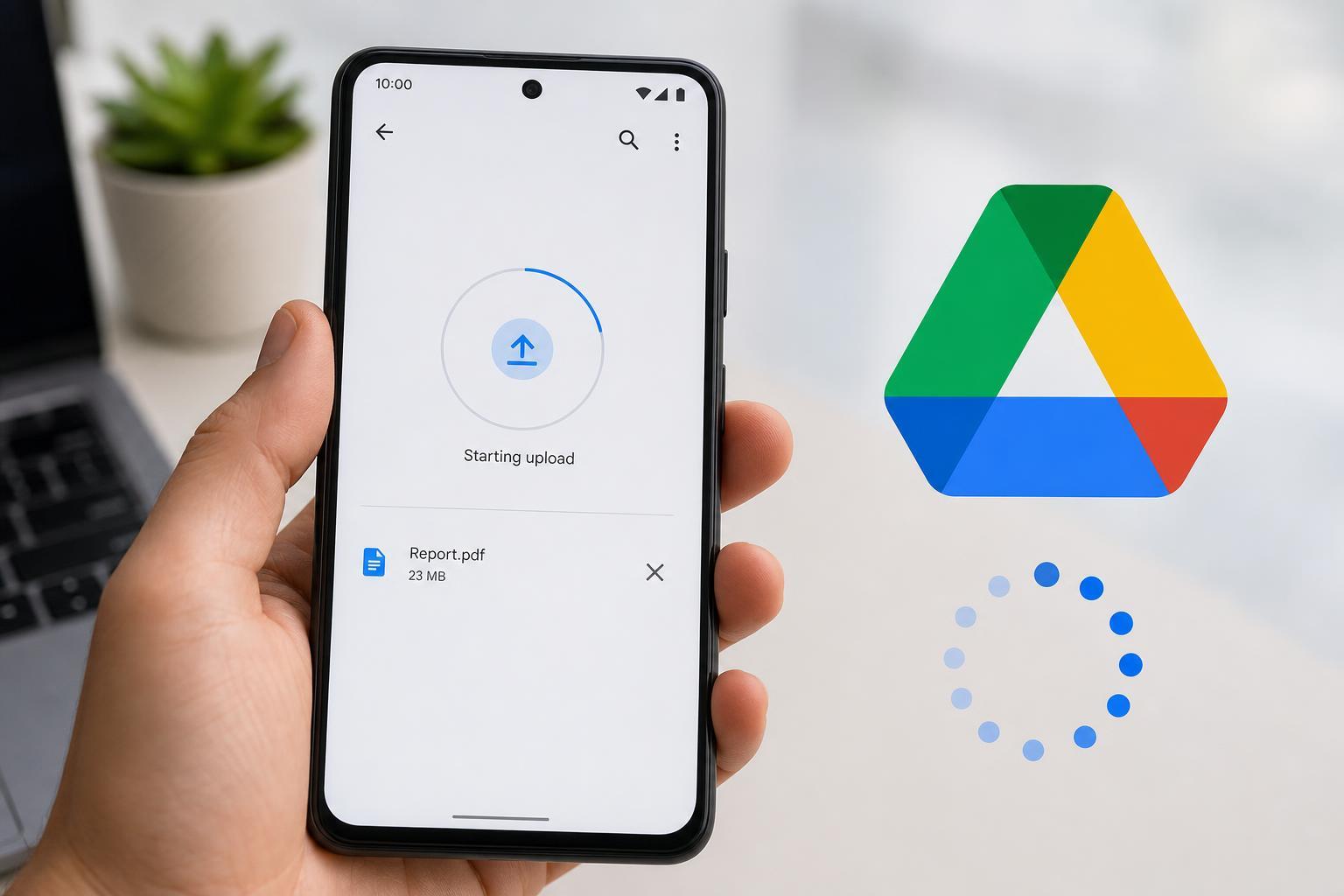
If Google Drive keeps showing “Starting upload” on Android, the file usually is not actually uploading yet. The problem is often caused by a bad connection, an app permission issue, limited storage, or Google Drive getting stuck in the background.
The good news is that this is usually fixable without losing your file. Start with the simplest checks first, then move on to more targeted fixes if the upload still will not begin.
1. Check Your Connection and Switch Networks
Google Drive needs a stable connection to begin uploading. If the upload stays at “Starting upload” for a long time, the app may be struggling to reach Google’s servers or may be waiting for a better connection.
- Turn Wi-Fi off and try mobile data, or do the opposite if you are already on mobile data.
- Move closer to your Wi-Fi router if the signal is weak.
- Disable VPNs, ad blockers, or private DNS tools temporarily, since they can interfere with uploads.
- Try uploading a different small file to see whether the problem affects only one file or all uploads.
2. Make Sure Google Drive Has the Right Permissions
Android may block Drive from reading the file if the app does not have the right access. This is especially common after app updates, permission changes, or when a file was saved by another app such as Files, WhatsApp, or a gallery app.
- Open Settings on your Android phone.
- Tap Apps or Apps & notifications, then open Google Drive.
- Tap Permissions.
- Make sure Drive is allowed to access files and media, or photos and videos if that is the file type you are uploading.
- If the file is in a folder managed by another app, open that app once and confirm it can access the file too.
3. Clear the App Cache and Try the Upload Again
A corrupted cache can make Google Drive behave as if it is trying to upload, even when the app is stuck on outdated temporary data. Clearing the cache removes only temporary files, not your Drive content or local files.
- Open Settings.
- Go to Apps and select Google Drive.
- Tap Storage & cache.
- Choose Clear cache.
- Open Drive again and retry the upload.
4. Check the File Itself and Reduce Upload Load
Sometimes the issue is not Google Drive or your internet connection. The file may be too large, partially damaged, or stored in a location Android is having trouble reading from. Large videos and very high-resolution media are common troublemakers.
- Try renaming the file to something simple with no special characters.
- Move the file to a different folder, such as Downloads or a local folder you control.
- If it is a video or large archive, try uploading a smaller test file first.
- If the file was created by another app, export or save a fresh copy and upload that instead.
- Make sure the file is fully downloaded to the device before uploading it.
5. Update or Reset Google Drive
If the app itself is buggy, outdated, or stuck after a bad update, reinstalling or updating it can fix the upload queue. This is often the best next step after permissions and cache have been ruled out.
- Open the Google Play Store and search for Google Drive.
- Install any available update.
- If Drive is already up to date, go to Settings > Apps > Google Drive.
- Tap Force stop, then reopen the app and try again.
- If the problem continues, uninstall Drive updates only if your phone allows it, or remove and reinstall the app from the Play Store.
Other Things Worth Checking
If none of the five fixes works, a few device-wide issues may still be blocking uploads.
- Battery Saver or background restrictions may be stopping Drive from working in the background.
- Low storage on the phone can prevent Android from handling temporary upload files.
- Date and time settings that are incorrect can sometimes interfere with Google services.
- Google account sync problems may affect Drive even if the app opens normally.
Which Fix Should You Try First?
Start with the network check, then confirm app permissions and clear the cache. If the upload is still stuck, inspect the file itself and then update or reset Google Drive. In most cases, one of those steps will get the upload moving again without needing more advanced troubleshooting.





