
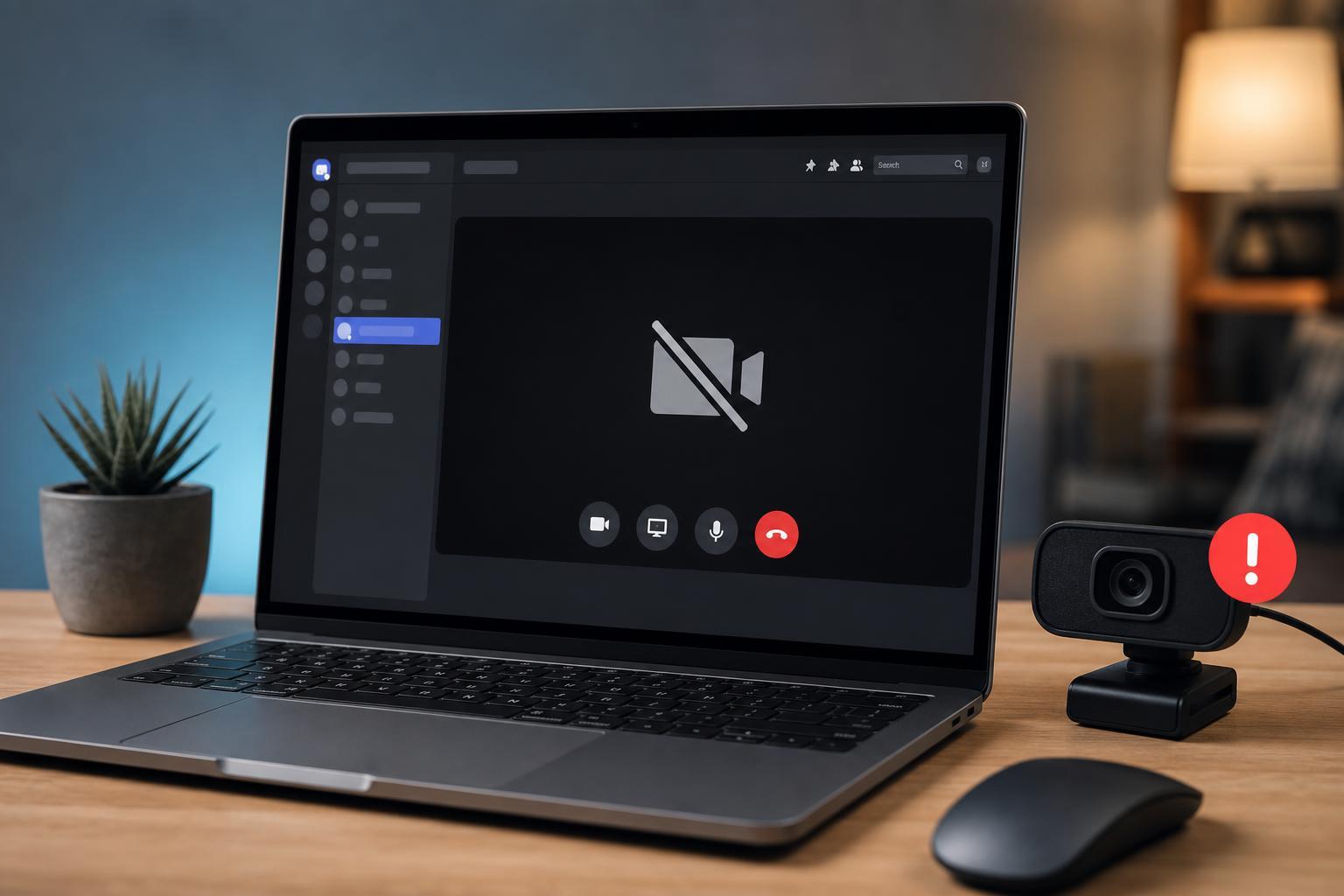
If your camera works in other apps but not in Discord, the problem is usually a permission, device selection, driver, or app issue rather than a broken webcam. The good news is that most Discord camera problems can be fixed quickly without replacing any hardware.
This guide walks through five practical fixes, starting with the most common causes and moving to more advanced troubleshooting if Discord still will not detect or use your camera.
1. Check Discord’s Camera Permissions
Discord cannot access your webcam if your operating system has blocked camera access. This is one of the most common reasons a camera works elsewhere but not inside Discord.
- Open your system’s privacy settings.
- Make sure camera access is turned on for the device.
- Allow desktop apps to access the camera if that option is available.
- Open Discord again and try a video call or test video feed.
2. Make Sure Discord Is Using the Right Camera
If you have more than one camera connected, Discord may be trying to use the wrong one. This happens often with laptops that have built-in webcams plus an external USB camera.
- Open Discord and go to User Settings.
- Select Voice & Video.
- Find the camera or video device setting.
- Choose the correct webcam from the list.
- Test the camera again in a call or preview window.
3. Close Other Apps That May Be Using the Webcam
Only one app can usually use the camera at a time. If Zoom, Teams, OBS, a browser tab, or another video app is already using the webcam, Discord may fail to open it.
- Close video conferencing apps you are not using
- Exit browser tabs that might be accessing the camera
- Shut down recording software such as OBS or camera utilities
- Check Task Manager on Windows if an app does not close normally
4. Update or Reinstall the Camera Driver
A damaged or outdated camera driver can stop Discord from detecting your webcam properly. This is especially common after a Windows update or when using an external USB camera.
- Open Device Manager.
- Expand Cameras or Imaging devices.
- Right-click your webcam and choose Update driver.
- If updating does not help, uninstall the device and restart your computer so Windows can reinstall it.
- For external webcams, also try a different USB port.
5. Repair or Reset Discord
If the camera works in other apps and the correct device is selected, Discord itself may be corrupted or stuck with bad app data. Repairing or resetting the app can clear those issues.
- Sign out of Discord and close it completely.
- Reopen the app and test the camera again.
- If that fails, clear Discord cache or reinstall the app.
- Install the latest Discord version from the official website.
How to Narrow Down the Problem
If you are not sure whether the issue is Discord, Windows, or the webcam itself, test the camera in another app first. If it fails everywhere, the problem is likely with the device, cable, port, or driver. If it works everywhere except Discord, focus on permissions, device selection, and Discord settings.
- Works in other apps but not Discord: likely a Discord setting or app issue
- Does not work anywhere: likely a camera, cable, port, or driver problem
- Works only sometimes: often caused by another app using the camera or a loose connection
When the Webcam Still Will Not Work
If none of these fixes solve the issue, the webcam itself may be faulty, the USB connection may be unstable, or your device’s privacy settings may be controlled by system software or security tools. In that case, test the webcam on another computer if possible, or try a different camera to confirm whether the problem is with Discord or the hardware.





