
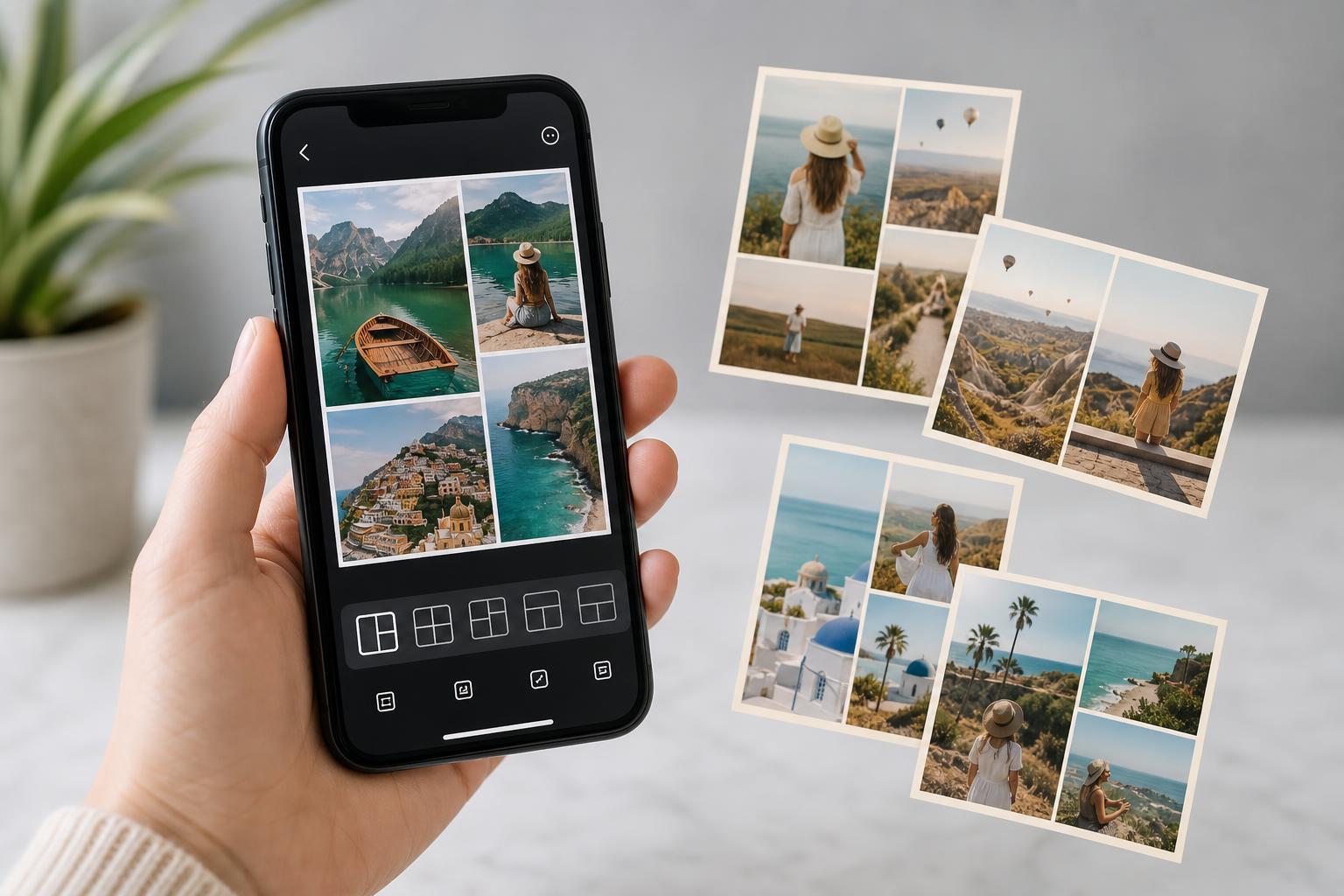
Making a collage on iPhone is easier than many people expect, but the best method depends on how much control you want over the layout. Some options are quick and simple, while others give you more freedom to arrange photos, add text, and create a more polished result.
Below are five reliable ways to make a collage on iPhone, from fast built-in methods to dedicated collage apps.
1. Use the Shortcuts app to build a quick collage
If you want a fast way to combine several photos without installing a separate collage app, the Shortcuts app is one of the best options. It can automatically place photos into a grid and save the finished result to your Photos library.
- Open the Shortcuts app on your iPhone.
- Tap the plus button to create a new shortcut.
- Search for and add the actions Select Photos, Combine Images, and Save to Photo Album.
- Set Combine Images to arrange images in a grid or another layout.
- Run the shortcut and choose the photos you want to include.
2. Make a collage with Google Photos
Google Photos includes a built-in collage feature that is very easy to use. If your photos are already backed up there, this is one of the quickest ways to create a clean collage without much setup.
- Open Google Photos on your iPhone.
- Select the photos you want to use.
- Tap the plus or create button.
- Choose Collage.
- Wait for the app to generate the collage, then save or share it.
3. Use Canva for more design control
Canva is a stronger choice if you want your collage to look more polished. It gives you templates, text tools, backgrounds, borders, and drag-and-drop editing, which makes it ideal for social media posts, posters, and scrapbooking-style layouts.
- Install and open Canva on your iPhone.
- Create a new design or search for a collage template.
- Add your photos from the Photos app.
- Resize and position the images in the layout.
- Customize the design with text, colors, or decorative elements.
- Export the finished collage to your camera roll.
4. Try Pic Collage for easy drag-and-drop layouts
Pic Collage is a dedicated collage app made for quick editing on mobile. It is a good middle ground between simple automatic tools and more advanced design apps, with easy drag-and-drop controls and many prebuilt layouts.
- Install Pic Collage from the App Store.
- Open the app and choose a blank collage or template.
- Select the photos you want to use.
- Drag photos into place and adjust spacing or borders.
- Add stickers, text, or backgrounds if needed.
- Save the collage to Photos or share it directly.
5. Use Instagram Stories or Notes for a simple photo layout
If you only need a quick visual arrangement and do not want to create a formal collage file, iPhone apps like Instagram Stories or Apple Notes can help you assemble photos in a simple layout. This is not as flexible as a dedicated collage maker, but it can be enough for a casual post or shareable image.
- Open Instagram Stories, Notes, or another app that supports photo placement.
- Insert multiple photos into the page or story.
- Arrange the images using the app’s available layout tools.
- Add text or other elements if desired.
- Save or share the result.
Which method should you choose?
- Use Shortcuts if you want a free built-in method and do not mind a one-time setup.
- Use Google Photos if your pictures are already there and you want a fast collage.
- Use Canva if you want the most polished result and extra design options.
- Use Pic Collage if you want a dedicated collage app with easy editing.
- Use Instagram Stories or Notes if you only need a quick, simple arrangement for casual sharing.
Tips for better iPhone collages
- Use photos with similar lighting or color tones so the collage looks more balanced.
- Choose a grid layout for clean, simple designs and a free-form layout for more creative collages.
- Crop distracting edges before adding photos to the collage.
- Keep text short if you add captions, since crowded layouts are harder to read.
- Save the original images first in case you want to make a different version later.
A simple workflow for most people
If you just want the easiest possible route, start with Google Photos or a dedicated collage app like Pic Collage. If you want more control and a design that looks more intentional, Canva is usually the strongest choice. For users who prefer built-in iPhone tools, Shortcuts is the most flexible native option once it is set up.





