
Formatting an SD card in Windows 11 is usually quick, but the best method depends on whether you want a simple wipe, need to fix file system errors, or are dealing with a card that Windows does not recognize properly. This guide walks through five practical ways to format an SD card and explains when to use each one.
Before You Start
Make sure the SD card is inserted correctly. If your computer does not have a built-in card reader, use a reliable USB card reader. Also check that the card is not physically write-protected, since many full-size SD cards have a small lock switch on the side of the adapter.
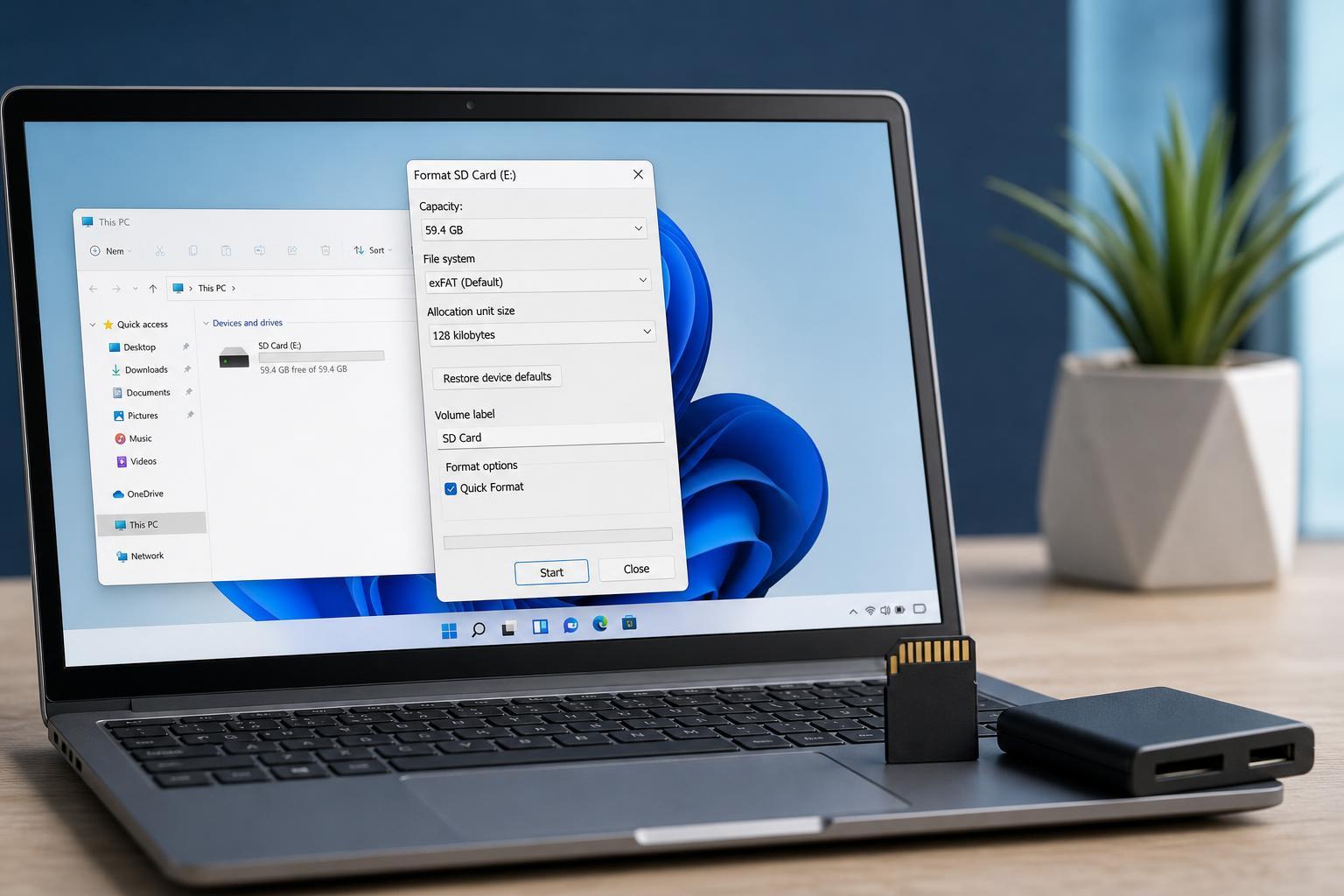
1. Format the SD Card in File Explorer
This is the easiest method and works well for most everyday formatting tasks.
- Open File Explorer and select This PC.
- Right-click the SD card drive.
- Choose Format.
- Select the file system you want to use, such as exFAT or FAT32 if available.
- Leave Allocation unit size on Default unless you have a specific reason to change it.
- Optionally type a volume label for the card.
- Keep Quick Format checked for a fast format, or clear it if you want Windows to scan the card more thoroughly.
- Click Start and confirm the warning.
2. Format the SD Card with Disk Management
Disk Management is useful when the SD card appears in Windows but does not behave properly in File Explorer.
- Right-click the Start button and choose Disk Management.
- Find the SD card in the lower pane and confirm you have selected the correct drive.
- If the card has existing partitions, right-click each one and choose Delete Volume if needed.
- Right-click the unallocated or existing partition space and choose Format.
- Choose a file system and allocation unit size.
- Assign a volume label if you want one.
- Click OK to begin the format.
3. Use the Settings App for a Quick Cleanup
Windows 11 Settings is not the most direct formatting tool for SD cards, but it can help if you are working with removable storage and want to inspect how the drive is being used first.
- Open Settings.
- Go to System, then Storage.
- Select Advanced storage settings if needed.
- Look for the removable drive or related storage entry.
- If the card is being used in a way that allows it, open its management or formatting options from there.
This method is less universal than the others because the exact options can vary depending on the device, card reader, and installed Windows version. If Settings does not offer a clear format option, use File Explorer or Disk Management instead.
4. Format the Card with Diskpart
Diskpart is a command-line tool that gives you more control and can help when a card refuses to format normally.
- Open the Start menu, type cmd, then choose Run as administrator.
- Type diskpart and press Enter.
- Type list disk and identify the SD card by its size.
- Type select disk X, replacing X with the SD card number.
- Type clean to remove existing partition data.
- Type create partition primary.
- Type format fs=exfat quick and press Enter.
- Type assign and then exit.
5. Use a Third-Party Formatting Tool
Some SD card manufacturers and storage utilities provide their own formatting tools. These can be helpful when Windows cannot format the card properly or when you want a tool designed specifically for removable flash media.
- Manufacturer utilities may include SD card-specific checks
- Some tools can restore a card with unusual partition issues
- A third-party formatter may offer a simpler interface for advanced options
- Always download utilities from the official manufacturer or a trusted source
Which Format Should You Choose?
- exFAT: best for most SD cards used in Windows 11, cameras, and mixed-device workflows
- FAT32: useful for older devices, but limited to smaller individual files
- NTFS: mainly useful for Windows-only storage, not the best choice for cameras or portable devices
How to Pick the Right Method
- Use File Explorer if you just want the quickest normal format.
- Use Disk Management if the card needs partition cleanup.
- Use Diskpart if the card is stubborn or Windows formatting fails.
- Use a third-party tool if the manufacturer recommends it or the card is behaving oddly.
- Use Settings only if it offers a clear storage formatting option on your device.
If Windows 11 Still Will Not Format the SD Card
If none of these methods works, the card may be write-protected, physically damaged, counterfeit, or near the end of its life. Try a different card reader or another PC to rule out hardware problems. If the card appears as read-only, a Windows tool may not be enough to recover it.





