
When File Explorer takes a long time to open folders, show context menus, or load network locations, it can make everyday Windows use feel sluggish. The cause is often a slow folder shortcut, a bad extension, a cloud sync issue, or an indexing problem rather than a full system failure.
This guide covers five practical fixes that address the most common reasons Windows Explorer, now called File Explorer, loads slowly.
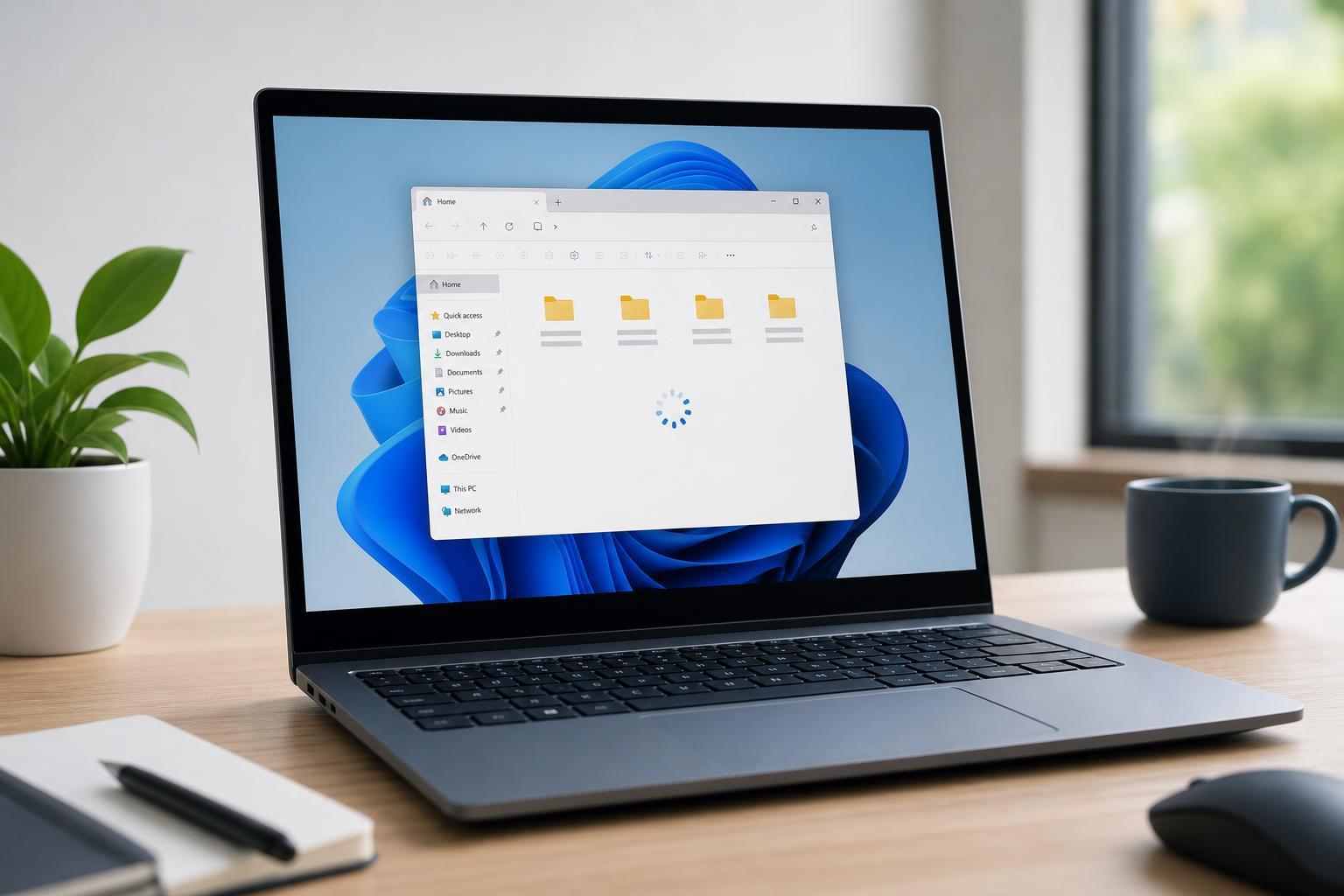
1. Clear Out Slow or Broken Quick Access Items
File Explorer often feels slow when it tries to load pinned folders, recent files, or network locations that no longer respond. Quick Access can be especially problematic if it contains disconnected drives or unavailable folders.
- Open File Explorer.
- Right-click any folder or location in Quick Access that you no longer need.
- Choose Unpin from Quick access.
- If the delay happens when opening File Explorer, open Folder Options from the three-dot menu or View menu, then clear File Explorer history if available.
- Remove any network paths or cloud folders that are no longer reachable.
2. Change File Explorer to Open This PC Instead of Quick Access
If File Explorer always opens to Quick Access, Windows may spend time loading recent activity and pinned locations. Opening to This PC can be faster because it shows your drives and standard folders directly.
- Open File Explorer.
- Select the three-dot menu and open Options, or open Folder Options from the View tab in older versions of Windows.
- Under the General tab, find Open File Explorer to.
- Change the setting from Quick access to This PC.
- Click Apply, then OK.
3. Disable Problematic Shell Extensions and Startup Integrations
Many apps add context-menu items, preview handlers, or cloud hooks to File Explorer. If one of those extensions is buggy, Explorer can pause every time you right-click, open a folder, or browse certain file types.
- Cloud storage clients that sync folders or add status icons
- Archiving tools that add right-click menu entries
- Antivirus tools with deep Explorer integration
- File preview handlers for unusual document or media types
- Version control tools and developer utilities
If the slowdown happens mainly when right-clicking files or opening specific folders, a shell extension is a likely cause. Disabling recently added file-management software is often the fastest way to narrow it down.
4. Rebuild Search Indexing or Reduce Slow Folder Searches
Windows Search indexing helps File Explorer find files faster, but a damaged or overloaded index can have the opposite effect. Slow folder searches, freezes while typing in the search box, or delays when browsing large libraries can all point to an indexing issue.
- Open Settings and go to Privacy & security, then Searching Windows, or open Indexing Options from Control Panel on older versions.
- Check whether important locations such as Documents, Pictures, or a large work folder are indexed.
- If searches are slow or inaccurate, use Advanced options to rebuild the index.
- Let Windows finish rebuilding before testing File Explorer again.
- If one folder causes repeated delays, consider excluding it from indexing if you do not need instant search there.
5. Check Folder View Settings, Network Drives, and Cloud Sync
File Explorer can slow down when it tries to load folder thumbnails, network locations, or cloud-synced content. Large media folders, unavailable NAS shares, and paused sync clients are all common triggers.
- Switch a slow folder to a simpler view such as Details if thumbnail loading is the problem.
- Disconnect old mapped drives or network locations that no longer exist.
- Pause and resume cloud sync if OneDrive or another sync tool is hanging in Explorer.
- Test whether the delay happens only in one folder, which often points to a bad drive or problematic content type.
- Make sure external drives are connected properly and waking up normally.
When File Explorer Is Still Slow
If these fixes do not help, the problem may be coming from a damaged user profile, storage errors, or Windows system file corruption. At that point, it is worth checking the drive with Windows error-checking tools, reviewing Task Manager for heavy disk usage, and testing File Explorer in another user account.





