
Instagram lag can show up as slow scrolling, delayed story loading, frozen reels, or taps that seem to do nothing. The cause is often a mix of app clutter, weak network performance, low storage, or a temporary app glitch rather than a major phone problem.
The good news is that you can usually narrow it down quickly. Start with the simplest fixes first, then move on to the options that are more likely to help if Instagram is still stuttering.
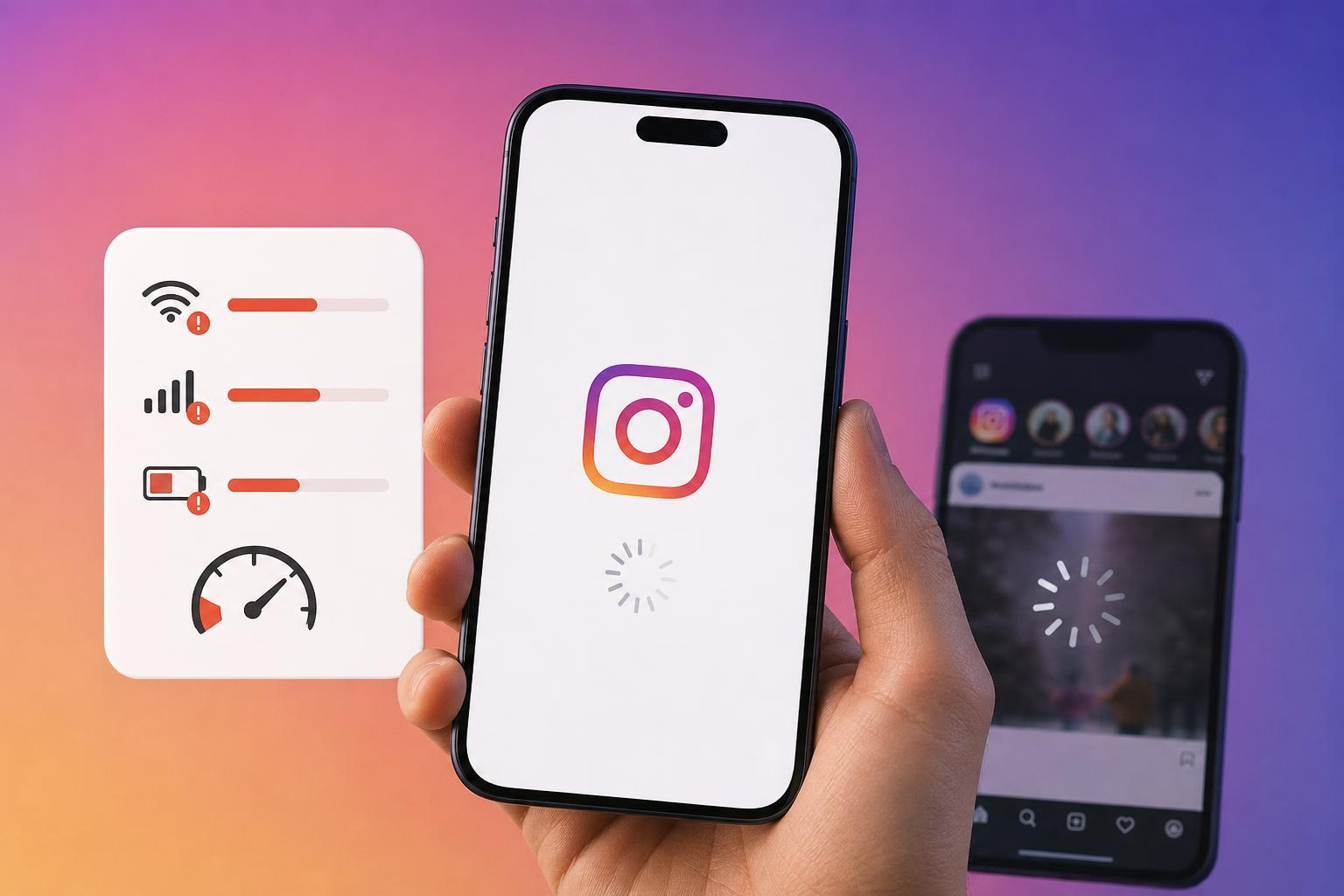
1. Check Whether the Problem Is Instagram or Your Connection
Before changing phone settings, make sure the lag is not coming from your internet connection. Instagram may feel slow when videos buffer, stories take a long time to load, or comments do not appear right away.
- Try opening another app that uses the internet, such as YouTube, a browser, or a messaging app.
- Switch between Wi-Fi and mobile data to see whether one connection feels noticeably faster.
- Move closer to your Wi-Fi router if the signal is weak.
- If other apps are also slow, the issue is more likely your connection than Instagram itself.
2. Close Instagram and Open It Again
If Instagram suddenly starts lagging after working normally, the app may simply be stuck in a bad state. Fully closing the app and reopening it can clear a temporary issue without changing any settings.
- On iPhone, swipe up from the bottom and pause, then swipe Instagram away from the app switcher.
- On Android, open the recent apps screen and dismiss Instagram, or force stop it from the app info page if needed.
- Reopen Instagram and test scrolling, Reels, and Stories again.
3. Clear Instagram’s Cache or Remove Temporary App Data
Instagram stores temporary files so it can load content faster, but those files can sometimes become bloated or corrupted. Clearing them can improve performance, especially if the app has been installed for a long time.
- On Android, go to Settings > Apps > Instagram > Storage and cache.
- Tap Clear cache first.
- Open Instagram again and check whether it feels smoother.
- If the problem continues and your phone allows it, you can also clear storage or reinstall the app, but this will sign you out.
On iPhone, Instagram does not offer a direct cache-clear button. The usual way to refresh the app is to delete it and reinstall it, which removes temporary files and installs a clean copy.
4. Free Up Storage and Reduce Background Pressure
When a phone is nearly full, apps can become sluggish. Instagram may lag because the system does not have enough free space or memory to handle photos, videos, and background tasks efficiently.
- Check your free storage in iPhone or Android settings.
- Delete unused apps, old downloads, large videos, or duplicate photos you no longer need.
- Close apps you are not using, especially games, video editors, and browsers with many tabs.
- If your phone is very low on storage, aim to free up several gigabytes before testing Instagram again.
5. Update Instagram and Your Phone
Outdated app versions can cause lag, crashes, or problems loading new features. The same is true for older operating system builds that no longer match the app well.
- Open the App Store or Google Play Store and check for an Instagram update.
- Install any available update and reopen the app.
- Then check for iPhone or Android system updates in Settings.
- After updating, test Instagram again, especially Reels, Stories, and camera features.
Other Fixes Worth Trying If Instagram Is Still Slow
If the five main fixes do not solve the issue, the slowdown may be tied to a specific setting, an account problem, or a broader device issue.
- Disable battery saver or low power mode temporarily and test Instagram again.
- Turn off data saver settings inside Instagram if photos and videos are loading in low quality or slowly.
- Log out and back into Instagram if the app seems stuck on one screen or repeatedly fails to load content.
- Reinstall Instagram if the app remains slow after clearing cache and updating.
- Check whether Instagram is having an outage by testing on another device or asking someone else to open the app.
When the Problem Is Probably Your Phone
If Instagram only lags on an older phone, the issue may be hardware-related rather than app-related. Older devices often have less memory, slower storage, and weaker processors, which can make modern social apps feel heavy.
- The app is sluggish even after updates and cache cleanup.
- Other apps also feel slow or freeze.
- The phone gets hot while using Instagram.
- Scrolling stutters most when loading Reels or switching between Stories and the feed.
How to Narrow Down the Cause Quickly
If you want the fastest route to a fix, use this order: test the connection, close Instagram, clear cache or reinstall, free storage, and then update the app and phone. That sequence covers the most common causes without wasting time on less likely ones first.
- Connection problem: other apps are also slow.
- Temporary app glitch: Instagram suddenly started lagging.
- App clutter or corruption: clearing cache or reinstalling helps.
- Device strain: low storage, too many background apps, or an older phone.
- Software mismatch: updates are available for Instagram or your phone.





