
The Intel Wi‑Fi 6 AX201 is a common wireless adapter in laptops and small-form-factor PCs, but it can stop working for two very different reasons: a driver problem or a hardware problem. The symptoms can look similar at first—missing Wi‑Fi, frequent disconnects, slow speeds, or the adapter disappearing from Device Manager—but the best fix depends on what is actually causing the issue.
This guide walks through five useful ways to troubleshoot the AX201, starting with the most likely software fixes and moving toward checks that can reveal a failing adapter or a deeper system problem.
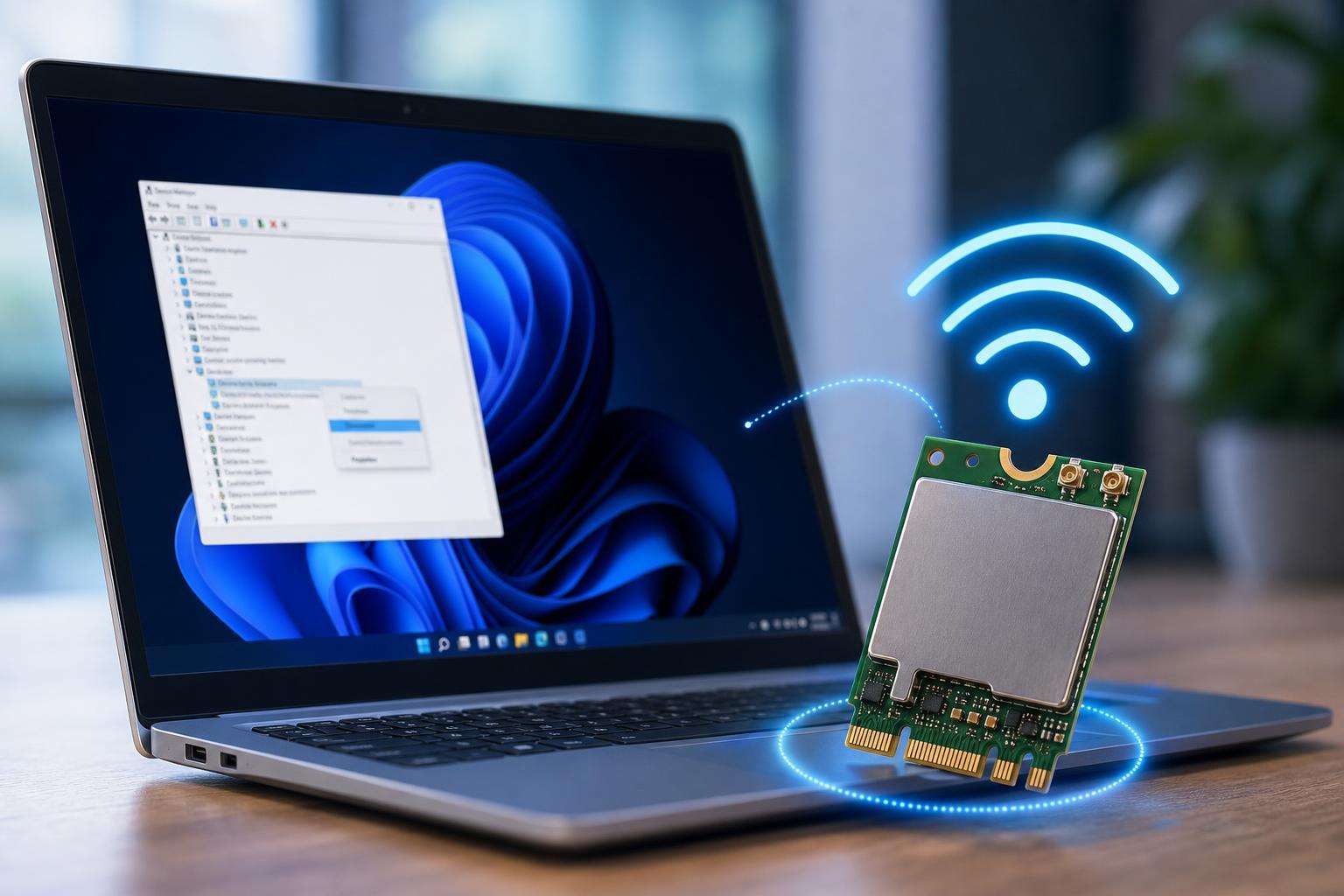
1. Reinstall or Update the Intel AX201 Driver
Driver corruption is one of the most common causes of AX201 trouble. If Windows installed a bad update, the adapter may still appear in Device Manager but fail to connect properly, drop out under load, or show a warning symbol.
- Right-click the Start button and open Device Manager.
- Expand Network adapters and find Intel Wi‑Fi 6 AX201.
- Right-click it and choose Uninstall device.
- If you see a checkbox for deleting the driver software, use it only if you plan to install a fresh driver afterward.
- Restart the computer, then install the latest Wi‑Fi driver from your laptop maker’s support page or from Intel’s support page if your system allows it.
If the adapter is still present but unstable, a clean reinstall often works better than simply updating over the top of the existing driver. A fresh installation removes damaged files and resets the driver’s configuration.
2. Check Whether Windows Is Disabling the Adapter
Windows power management can put the wireless adapter into a low-power state too aggressively, especially on laptops. That can make the AX201 appear to fail randomly when it is actually being suspended or throttled.
- Open Device Manager and open the Intel Wi‑Fi 6 AX201 properties.
- On the Power Management tab, clear the option that allows the computer to turn off the device to save power.
- Open Control Panel or Settings and check your power plan or power mode.
- Use a balanced or performance-oriented power mode if wireless stability matters more than battery life.
- If your laptop has vendor-specific power software, check whether it is applying its own wireless or battery-saving profile.
3. Reset the Network Stack in Windows
If the AX201 driver is installed correctly but Windows networking components are stuck, the adapter may show as connected while internet access still fails. In that case, resetting the network stack can clear broken TCP/IP, DNS, or Winsock settings.
- Open Settings and go to Network & internet.
- Find the Advanced network settings or Network reset option.
- Use Network reset to reinstall network adapters and restore networking components.
- After the reset, reconnect to your Wi‑Fi network and re-enter the password.
- If you prefer a more targeted approach, use Command Prompt as administrator and run the standard IP and Winsock reset commands provided by Windows support documentation.
4. Update BIOS, Chipset, and System Firmware
The AX201 is not just a standalone driver issue in many laptops. It can also be influenced by the motherboard firmware, chipset drivers, and OEM power or wireless controls. If the adapter disappears from Device Manager, shows Code 10 or Code 43, or fails after a system update, firmware may be part of the problem.
- Check your laptop or motherboard support page for the latest BIOS or UEFI update.
- Install the newest chipset and platform drivers offered by the manufacturer.
- Look for wireless, ME, or system management firmware updates if they are listed for your device.
- After updating, test Wi‑Fi again before changing several other settings at once.
- If the adapter started failing after a BIOS update, check the vendor’s release notes for known wireless-related fixes or reversions.
5. Determine Whether the Problem Is Hardware-Related
If the Intel AX201 still fails after driver, power, network, and firmware checks, the adapter may have a physical fault—or the motherboard slot, antenna connections, or related circuitry may be damaged. This is more likely if the device vanishes entirely, works only intermittently when the laptop is moved, or fails in more than one operating system.
- The adapter does not appear in Device Manager at all
- Wi‑Fi works briefly and then disappears after movement, heat, or sleep
- The adapter shows up with a hardware error even after a clean driver install
- The problem also occurs in a fresh Windows installation or another operating system
- Bluetooth and Wi‑Fi both fail on systems where they share the same Intel wireless module
- Open Device Manager and look for warning symbols or an unknown network device.
- Check whether the adapter appears in BIOS or hardware diagnostics if your system includes them.
- If the laptop has removable access panels, inspect the antenna leads only if you are comfortable opening the machine and the warranty allows it.
- Test with another known-good wireless device if the system supports one.
- If the adapter is built in and the issue persists across software resets, contact the manufacturer for repair options.
How to Tell Driver Issues from Hardware Failure
A simple pattern can help you narrow the cause. If the AX201 is visible in Windows and starts working again after reinstalling the driver, the problem is usually software-related. If it disappears, returns with error codes, or fails on every operating system, hardware or firmware is more likely.
- Works after driver reinstall: likely driver corruption or Windows configuration
- Fails after sleep or battery use: likely power management settings
- Needs network reset to restore internet: likely Windows networking stack issue
- Fails after BIOS or system updates: likely firmware or compatibility issue
- Never appears or disappears physically: likely hardware, antenna, or motherboard issue
When to Stop Troubleshooting and Get Support
If you have already tried a clean driver install, adjusted power settings, reset networking, and updated system firmware, continuing to change settings usually does not help much. At that point, the best next step is warranty support, a repair shop, or your system manufacturer’s diagnostics.
That is especially true if the AX201 fails in the BIOS, is missing entirely from Device Manager, or shows repeated hardware error codes after a clean Windows installation. Those symptoms point away from a simple driver problem and toward failing hardware or a board-level issue.





