
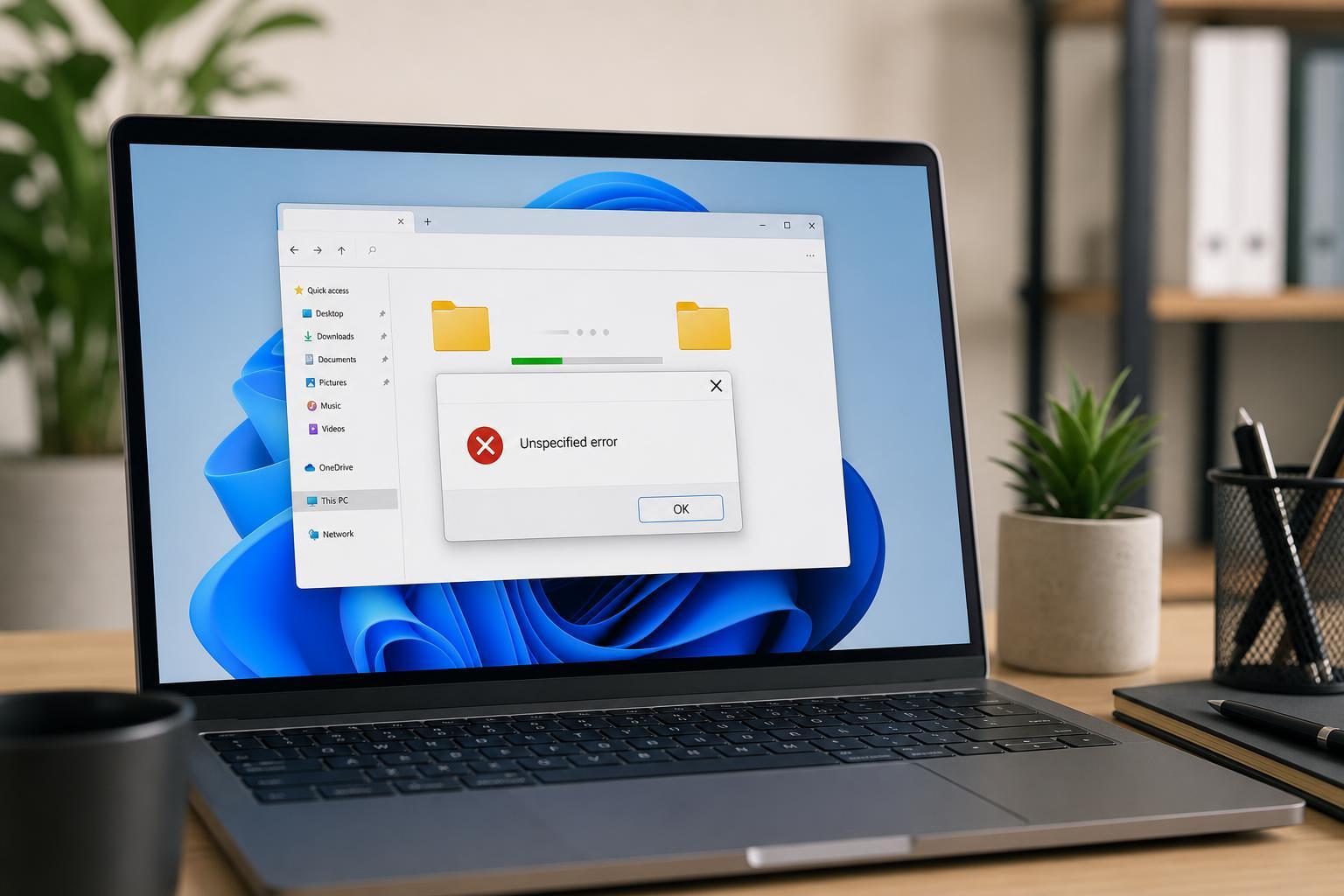
The Windows “Unspecified Error” message during file or folder copying is frustrating because it often gives no obvious clue about what went wrong. It can appear when copying to a USB drive, external disk, network location, or another folder on the same PC.
The good news is that the cause is often something specific, such as permissions, file system corruption, a path limitation, or a problem with the destination drive. These five fixes cover the most common reasons the error appears and the best ways to narrow it down.
1. Check the File or Folder Permissions
If Windows cannot read the source item or write to the destination, it may fail with an unspecified error instead of a more helpful message. This is common when files were copied from another PC, restored from a backup, or saved inside a protected folder.
- Right-click the file or folder and choose Properties.
- Open the Security tab.
- Check whether your Windows account has Full control or at least Modify and Read permissions.
- If needed, click Advanced and review the owner and permission entries.
- If you are trying to copy into a destination folder, make sure you also have write access there.
If the folder belongs to another user account or a previous Windows installation, ownership may need to be taken before the copy will work. Be careful when changing permissions on system folders, because broad permission changes can affect Windows security and stability.
2. Shorten the File Path or Rename Deeply Nested Folders
A very long file path can trigger copy problems, especially when the file is buried several folders deep or has a long file name. Even on modern versions of Windows, some programs and storage devices still struggle with path length limits.
- Move the file or folder closer to the root of the drive, such as C:\Temp or D:\CopyTest.
- Rename the folder or file to something shorter.
- Try the copy again after reducing the total path length.
- If the destination path is also long, shorten that path as well.
3. Repair the Drive with CHKDSK or Error Checking
File system errors on the source or destination drive can cause copying to fail with vague messages. This is especially common on older hard drives, external drives that were unplugged unsafely, or USB sticks that have developed bad sectors or corruption.
- Open File Explorer and right-click the affected drive.
- Choose Properties and open the Tools tab.
- Under Error checking, select Check.
- Follow the prompts to scan and repair the drive if Windows finds issues.
If the problem persists, you can also use CHKDSK from an elevated Command Prompt for a deeper scan. For example, running a check on the destination drive can help if the error happens when copying to that drive. Repairing drive errors may take time, especially on large or damaged disks.
4. Copy the Files in Smaller Batches or Use a Different Method
Sometimes the error is caused by one problematic file inside a large selection. A single damaged item, hidden system file, or unsupported name can stop the whole copy operation. Copying in smaller batches helps you identify the exact item causing trouble.
- Copy a few files at a time instead of the entire folder.
- If the folder is large, copy subfolders separately.
- When the copy fails, narrow it down by halving the selection until you find the problem item.
- Rename suspicious files that have unusual characters or very long names and try again.
If you are copying between drives, trying another method can also help. For example, dragging in File Explorer may fail while using a command-line copy tool or a zip-and-extract workflow succeeds. That does not mean the file is broken; it may just mean one method handles the item better than another.
5. Check the Destination Drive, USB Connection, or Network Location
The destination itself may be the real problem. A nearly full drive, failing USB port, unstable external enclosure, or weak network connection can all cause copy errors that Windows labels as unspecified.
- Make sure the destination drive has enough free space.
- Try a different USB port or cable if copying to an external drive.
- If the drive uses an adapter or enclosure, connect it directly if possible.
- For network copies, confirm the share is reachable and the connection is stable.
- Test the same drive on another computer if you suspect hardware trouble.
If the drive disconnects during copying or appears and disappears in File Explorer, treat that as a hardware warning sign. Back up important data from the drive as soon as possible before troubleshooting further.
When the Error Still Won’t Go Away
If none of these fixes work, the issue may involve a specific file format, a failing drive, or a Windows component problem. At that point, it helps to test whether the error happens only with one file, one folder, one drive, or one user account. That pattern usually reveals where the failure is happening.
The fastest way to narrow it down is to test with a small, normal file such as a text document. If that copies correctly, the issue is probably tied to a specific file, folder structure, or destination device rather than Windows as a whole.





