
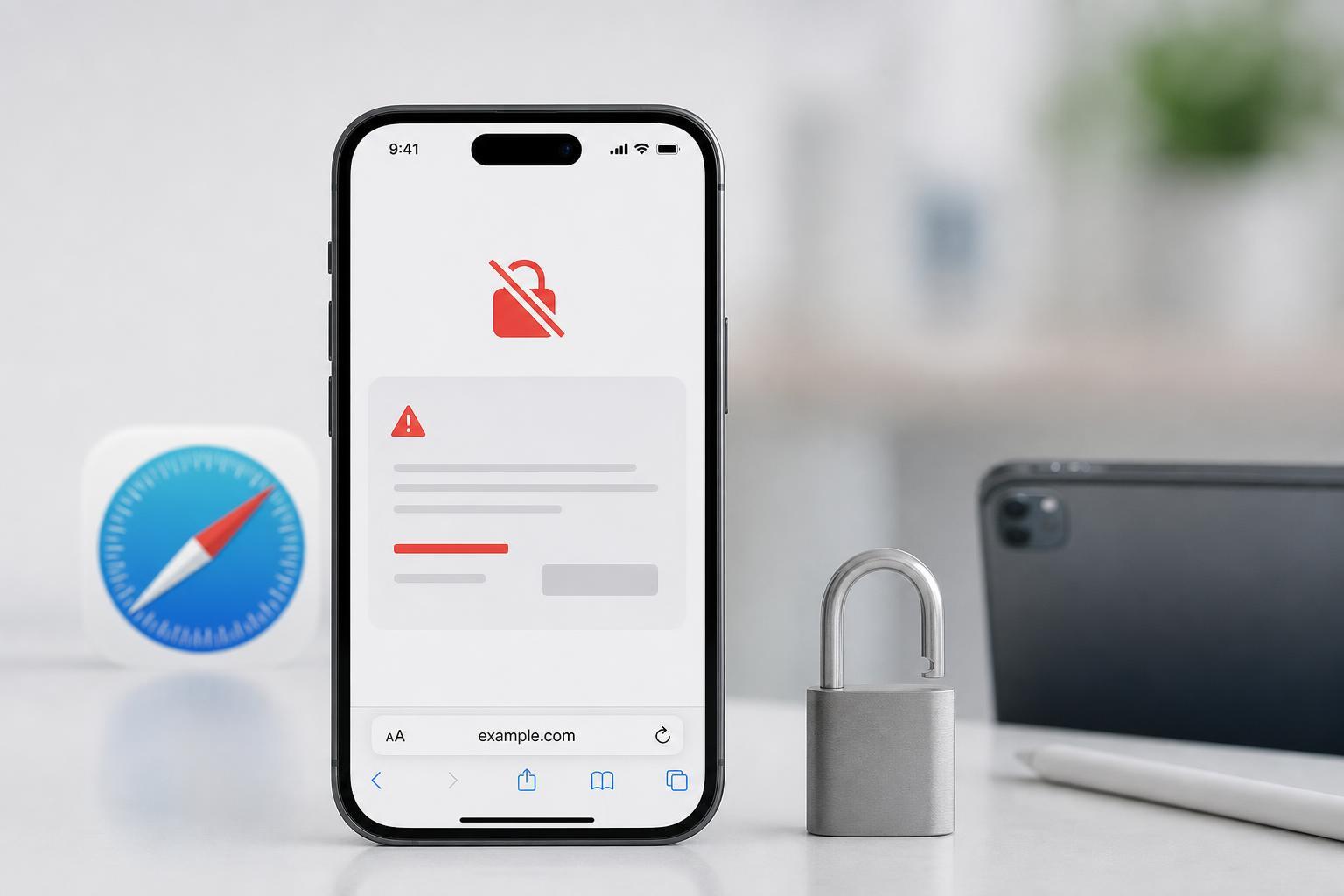
Safari shows “This Connection Is Not Private” when it cannot verify that a website’s certificate is valid and safe. On iPhone and iPad, the warning can be caused by anything from an incorrect date and time to a problem with the site itself.
In many cases, the issue is temporary and you can fix it without changing much on your device. The steps below move from the simplest checks to the more likely Safari and network-related fixes.
1. Check the Website Before You Change Anything
Sometimes the problem is not your iPhone or iPad at all. If only one site shows the warning, the site may have an expired certificate, a certificate mismatch, or another server-side problem.
- Try loading a different secure website to see whether the warning appears everywhere or only on one site.
- If the warning happens only on one site, wait and try again later if the site is normally trustworthy.
- Avoid entering passwords, payment details, or other sensitive information unless you are sure the site is legitimate.
2. Make Sure Date and Time Are Correct
A wrong date or time can make valid certificates look invalid. Safari checks certificate dates against the time on your device, so even a small mismatch can trigger the warning.
- Open Settings on your iPhone or iPad.
- Tap General.
- Tap Date & Time.
- Turn on Set Automatically if it is off.
- If it is already on, turn it off briefly and then back on again if the time looks incorrect.
- Open Safari and try the site again.
3. Try Another Network
Public Wi-Fi, school networks, hotel networks, and some workplace networks can intercept or filter encrypted traffic. That can cause Safari to show a privacy warning even when the website itself is valid.
- Switch from Wi-Fi to mobile data if you have it.
- If you are already using mobile data, try a different trusted Wi-Fi network.
- If the warning disappears on another network, the original network is likely the source of the issue.
- If you must use the original network, contact the network administrator or wait until the network issue is resolved.
4. Clear Safari Data for the Problem Site
Corrupted cached data, stale cookies, or old redirect information can sometimes make Safari behave as if a site’s security is failing. Clearing the site data can force Safari to load a fresh copy of the page and its security information.
- Open Settings.
- Tap Safari.
- Tap Advanced, then Website Data.
- Search for the website name if needed, or tap Remove All Website Data to clear everything.
- Return to Safari and load the site again.
5. Update iOS or iPadOS
An outdated system version can cause certificate-handling problems, especially if Apple has already released a security update or compatibility fix. Updating the device is worth trying when the warning appears on more than one secure site.
- Open Settings.
- Tap General.
- Tap Software Update.
- Install any available update.
- After the update is complete, reopen Safari and test the website again.
When the Warning Still Appears
If none of the fixes above helps, the problem may be with the website’s certificate, a network filter, or a device configuration profile installed on your iPhone or iPad. If the site is important, try opening it on another device and another network to compare the result.
- If the site works elsewhere, your current network or device settings are the likely cause.
- If the site fails everywhere, the website owner needs to fix the certificate.
- If the warning appears only on one managed device, check whether a profile, content filter, or security app is installed.





