
If your iPhone storage still looks crowded after you delete photos, you are probably dealing with more than just the Photos app’s visible library. iPhone keeps deleted photos for a while, syncs with iCloud in the background, and can also store cached data that does not disappear immediately.
The good news is that this is usually fixable. In most cases, the issue comes down to Recently Deleted photos, iCloud sync behavior, or storage that has not been recalculated yet. Here are five practical fixes to free the space properly.
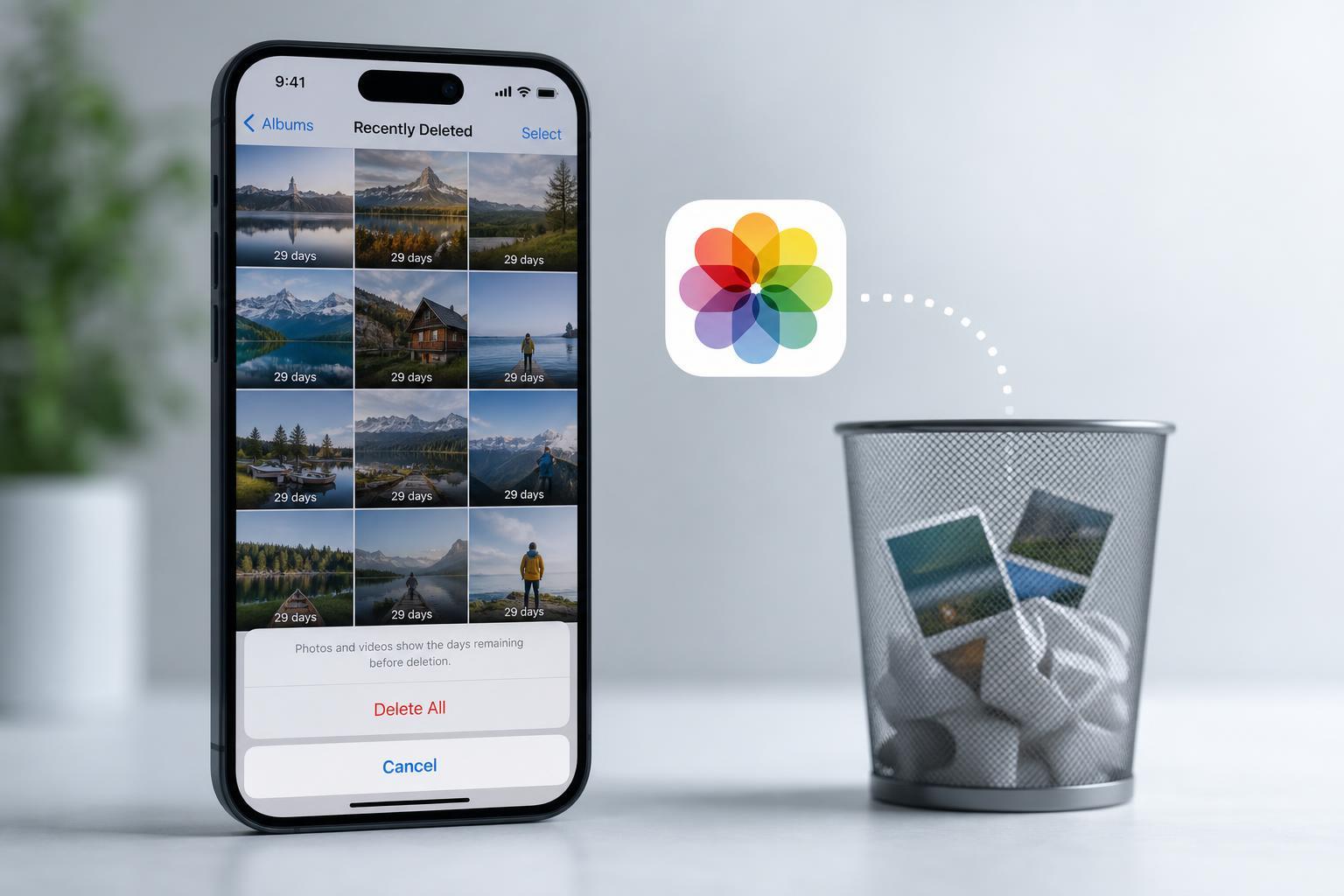
1. Empty the Recently Deleted album
When you delete a photo on iPhone, it usually does not disappear right away. Instead, it moves to the Recently Deleted album and stays there for up to 30 days unless you remove it manually. Those files still count toward your storage usage.
- Open the Photos app.
- Tap Albums, then scroll down to Recently Deleted.
- Unlock the album if prompted with Face ID, Touch ID, or your passcode.
- Tap Select, then choose Delete All or delete individual items.
- Confirm the deletion.
2. Check whether iCloud Photos is still syncing
If iCloud Photos is enabled, deleting photos on your iPhone may not immediately reduce the storage number you expect. Your phone might still be uploading changes, syncing with other devices, or keeping local copies until the sync finishes.
- Open Settings and tap your Apple ID name.
- Tap iCloud, then Photos.
- Check whether iCloud Photos is turned on.
- If syncing is active, keep the iPhone connected to Wi-Fi and power until it finishes.
- Open the Photos app and leave it open for a while if uploads or deletions seem delayed.
3. Give iPhone time to recalculate storage
Sometimes the storage display simply lags behind what you have actually removed. After a large delete, iPhone may take a while to update its storage breakdown, especially if many photos, videos, or shared albums were involved.
- Wait several minutes after deleting a large batch of photos.
- Lock the phone and leave it on Wi-Fi and power if possible.
- Go to Settings > General > iPhone Storage and check again later.
- If the number has not changed, open the Photos app briefly and then recheck storage.
4. Remove photos from other places that still store copies
Deleted photos may still exist in other apps or backups. If another app has copied your images, or if the same media was imported into Messages, Files, or third-party cloud services, the space may remain in use even after deleting them from Photos.
- Messages attachments that still contain large photos or videos
- Files app downloads or saved image copies
- Google Photos, OneDrive, Dropbox, or similar cloud apps
- Shared albums or app-specific media libraries
- Photo editing apps that keep original files or exports
If you are trying to reclaim a noticeable amount of space, check these locations and delete any duplicate copies you no longer need.
5. Restart the Photos process by forcing a refresh of storage data
If the Photos app or storage summary seems stuck, a simple refresh can sometimes help iPhone update what it thinks is stored locally. This is not a cure-all, but it can clear out stale storage reporting after large deletions.
- Close the Photos app from the app switcher.
- Go to Settings > General > iPhone Storage.
- Wait a moment for the storage list to load.
- Open Photos again and check the library and Recently Deleted album.
- If needed, lock the phone and leave it idle on Wi-Fi for a while so background cleanup can finish.
How to tell whether the space is really gone
A quick check in Settings > General > iPhone Storage can help you tell whether the problem is actual leftover data or only delayed reporting. If Photos keeps shrinking over time, the cleanup is probably still in progress. If the number never changes, look again at Recently Deleted, iCloud sync, and other storage locations.
- Recently Deleted is empty but storage still looks high: wait for sync and recalculation.
- Photos storage is still high and Recently Deleted is not empty: clear it manually.
- Storage is high even after both steps: check Messages, Files, and other apps for duplicate copies.
- Storage changes after some time: the deletion likely worked, but iPhone needed time to update.
When you may need to investigate further
If none of these fixes changes the situation, the issue may involve a specific app cache, a stuck iCloud sync, or media stored in an unusual location. In that case, check whether your iPhone is using iCloud Photos, whether you have multiple Apple devices sharing the same library, and whether third-party apps are keeping their own copies of the same images.





