
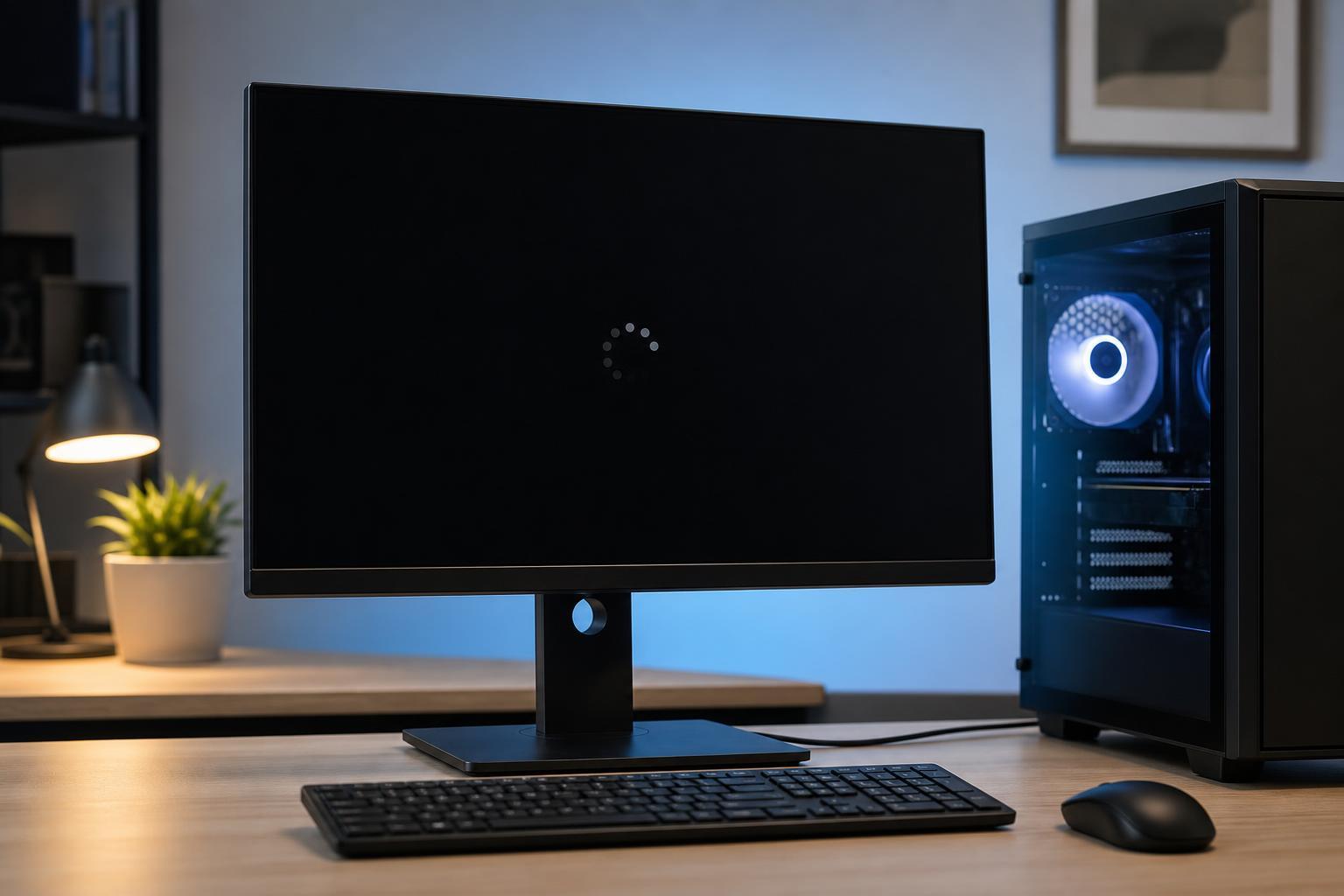
If your monitor goes black randomly on Windows 11, the problem can be caused by anything from a loose cable or faulty connection to power settings, graphics drivers, or the monitor itself. The screen may come back after a few seconds, or it may stay black until you change inputs, reconnect the cable, or restart the PC.
The best fix depends on when the blackout happens. If it happens during gaming or video playback, graphics or cable issues are more likely. If it happens after a period of inactivity, Windows power settings are often the cause.
1. Check the Cable, Port, and Monitor Connection
A weak video signal is one of the most common reasons a monitor cuts out briefly. A loose HDMI, DisplayPort, or power cable can cause the screen to go black even if the computer is still running.
- Turn off the monitor and the PC.
- Unplug the video cable from both the monitor and the computer.
- Check the cable for bent pins, damaged connectors, or obvious wear.
- Reconnect the cable firmly at both ends.
- If available, try a different port on the monitor and on the PC.
- If possible, test with another HDMI or DisplayPort cable.
- Make sure the monitor’s power cable is fully seated and the power brick is not loose.
If the blackout only happens with one cable or one port, you have likely found the problem.
2. Disable Aggressive Power Saving Settings
Windows 11 can turn off the display after a set amount of time, and some power plans can also reduce display or PCIe power in ways that cause brief black screens. This is especially worth checking if the monitor goes black while the computer is idle or when you are not using the mouse and keyboard.
- Open Settings and go to System > Power & battery.
- Expand Screen and sleep.
- Increase the time before the screen turns off, or set it to Never as a test.
- Open Control Panel and go to Power Options if you use a custom power plan.
- Choose High performance or Balanced if you were using a more aggressive plan.
- Click Change plan settings, then Change advanced power settings.
- Look for settings related to PCI Express, display, or adaptive power saving and reduce anything unusually aggressive.
If changing power settings stops the blackouts, the issue was probably not hardware failure. You can then fine-tune the settings instead of leaving everything disabled.
3. Update or Reinstall the Graphics Driver
A buggy or corrupted graphics driver can cause brief signal loss, flickering, or a black screen that returns after a few seconds. This is common after a Windows update, a driver update, or a graphics card change.
- Right-click the Start button and open Device Manager.
- Expand Display adapters.
- Right-click your graphics card and choose Update driver.
- Select Search automatically for drivers.
- If the problem started after a recent driver update, choose Properties and check the Driver tab for a Roll Back Driver option.
- If updating or rolling back does not help, uninstall the driver and install the latest version from NVIDIA, AMD, or Intel directly.
For a cleaner test, some users also use a driver removal tool before reinstalling, but that is not always necessary unless the driver appears badly corrupted.
4. Test the Refresh Rate and Display Settings
If the monitor is set to a refresh rate it does not handle well, the screen can black out or lose signal temporarily. This is more likely with high-refresh monitors, docking stations, adapters, or multi-monitor setups.
- Open Settings and go to System > Display.
- Select Advanced display.
- Choose the monitor that is going black.
- Check the refresh rate and set it to a supported value.
- If you are using HDR, variable refresh rate, or an external adapter, temporarily turn those features off to test stability.
- If the monitor has its own on-screen menu, check whether any gaming, eco, or auto-detect features are interfering with the signal.
If the black screen disappears after lowering the refresh rate, the issue may be the cable, adapter, dock, or the display mode you were using rather than the monitor panel itself.
5. Check for Hardware Overheating or Failing Components
If the monitor still goes black randomly after the easier fixes, the problem may be hardware-related. An overheating graphics card, a failing power supply, or a monitor with an internal power issue can all cause intermittent black screens.
- The blackout happens during games or other GPU-heavy tasks.
- The monitor stays on but loses signal for a few seconds.
- Fans become loud before the screen goes black.
- The problem gets worse as the PC gets warmer.
- The issue happens even after changing cables, ports, and drivers.
- Check whether the graphics card fans are spinning normally and whether the case has good airflow.
- Temporarily remove overclocking settings for the GPU, CPU, or RAM if you use any.
- Test the monitor with another computer to see whether it still blacks out.
- Test the PC with a different monitor to see whether the problem follows the computer or the display.
- If the monitor has an external power adapter, make sure it is not overheating or loose.
How to Narrow Down the Real Cause
A few simple clues can save a lot of time. When the screen goes black, pay attention to whether the monitor says "No signal," whether the PC is still running, and whether the problem happens under load or while idle.
- Black screen after inactivity: check power and sleep settings first.
- Black screen during games: check drivers, temperatures, refresh rate, and cables.
- "No signal" message: focus on cable, port, adapter, or GPU output.
- Only one monitor affected: the issue may be isolated to that display or its cable.
- All monitors affected: the graphics driver, GPU, or system power issue is more likely.
When to Suspect the Monitor Itself
If the same monitor blacks out on multiple computers, the display hardware is probably at fault. Signs include random loss of signal, flickering backlight, failure to wake from sleep, or a power light that changes behavior when the screen goes black.
At that point, the monitor may need service or replacement, especially if it is out of warranty.





