
Sharing a PDF from an iPhone is usually simple, but the best method depends on where the file is stored and who you want to send it to. Some options are fastest for nearby Apple devices, while others are better for emailing documents or sharing a link.
Here are five practical ways to share PDF files from an iPhone, along with when each method makes the most sense.
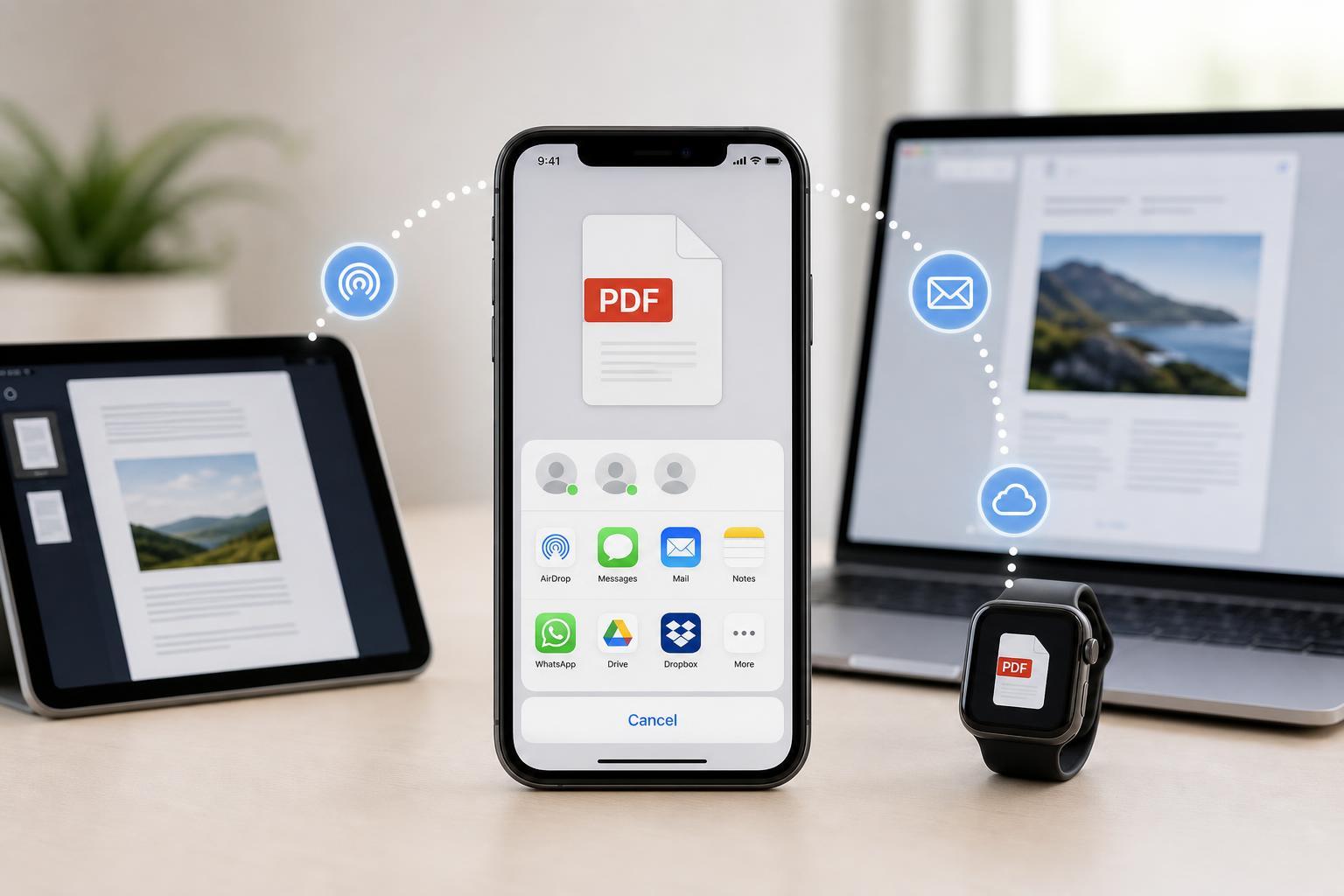
1. Share a PDF with AirDrop
AirDrop is often the quickest way to send a PDF to another Apple device nearby. It works well when you want to transfer a file directly without using email or a cloud service.
- Open the PDF in the Files app, Safari, Mail, or whatever app you used to open it.
- Tap the Share button.
- Choose AirDrop.
- Select the nearby iPhone, iPad, or Mac you want to send it to.
- Have the other person accept the transfer.
2. Send the PDF by Mail
Email is one of the most reliable ways to share a PDF because it works across almost any device or platform. It is a good choice when the recipient may need to save the file, print it, or forward it later.
- Open the PDF.
- Tap the Share button.
- Choose Mail.
- Enter the recipient’s email address.
- Add a subject if needed, then send the message.
3. Share the PDF in Messages
If you are sending a document to a friend, family member, or coworker, Messages is often the fastest option. The file can be sent directly in an iMessage conversation, and the recipient can open it right away.
- Open the PDF.
- Tap the Share button.
- Choose Messages.
- Select the conversation or type a contact name.
- Send the file.
4. Save the PDF to Files and Share a Link
If the PDF is stored in iCloud Drive or another cloud location, you can share a link instead of sending the full file. This is useful when the document is large, needs to stay updated, or you want to control who can access it.
- Open the PDF in the Files app or your cloud storage app.
- Tap the Share button.
- Choose Add People or Copy Link, depending on the app.
- Set sharing permissions if available.
- Send the link through Messages, Mail, or another app.
5. Use a Third-Party App to Share or Export the PDF
Many apps that create, edit, or store PDFs include their own sharing tools. This can be helpful if the PDF is part of a note, scan, or document workflow that lives inside another app.
- Document scanner apps often let you email, message, or upload a PDF right after scanning it.
- Cloud storage apps can generate share links or send copies to other people.
- PDF editor apps may let you flatten, compress, or annotate a file before sharing it.
Which Method Should You Use?
The best sharing method depends on what you need to do.
- Use AirDrop for the fastest nearby transfer between Apple devices.
- Use Mail for formal sharing or when the other person may need a copy outside Apple’s ecosystem.
- Use Messages for quick personal sharing.
- Use a cloud link when the PDF is large or needs to stay synchronized.
- Use a third-party app when the file already lives there or needs extra processing first.
If Your PDF Won’t Share Properly
If the Share button is missing, the PDF may not be fully downloaded yet, or the app you are using may not support direct sharing. Opening the file in Files, Books, Safari, or another app that handles PDFs usually fixes that.
If the file is too large to attach, try compressing it, sharing a cloud link, or sending it through AirDrop instead of email. For AirDrop issues, make sure both devices have Wi-Fi and Bluetooth on and are set to receive AirDrop transfers.





