
If you work on a Windows PC but use an iPad for reading, editing, or sharing files, you do not need a complicated setup to move documents, photos, and other files between them. The best method depends on what kind of file you are transferring, how often you need to do it, and whether you want a wireless or USB-based approach.
Below are four reliable ways to transfer files from a Windows PC to an iPad, along with when each method makes the most sense.
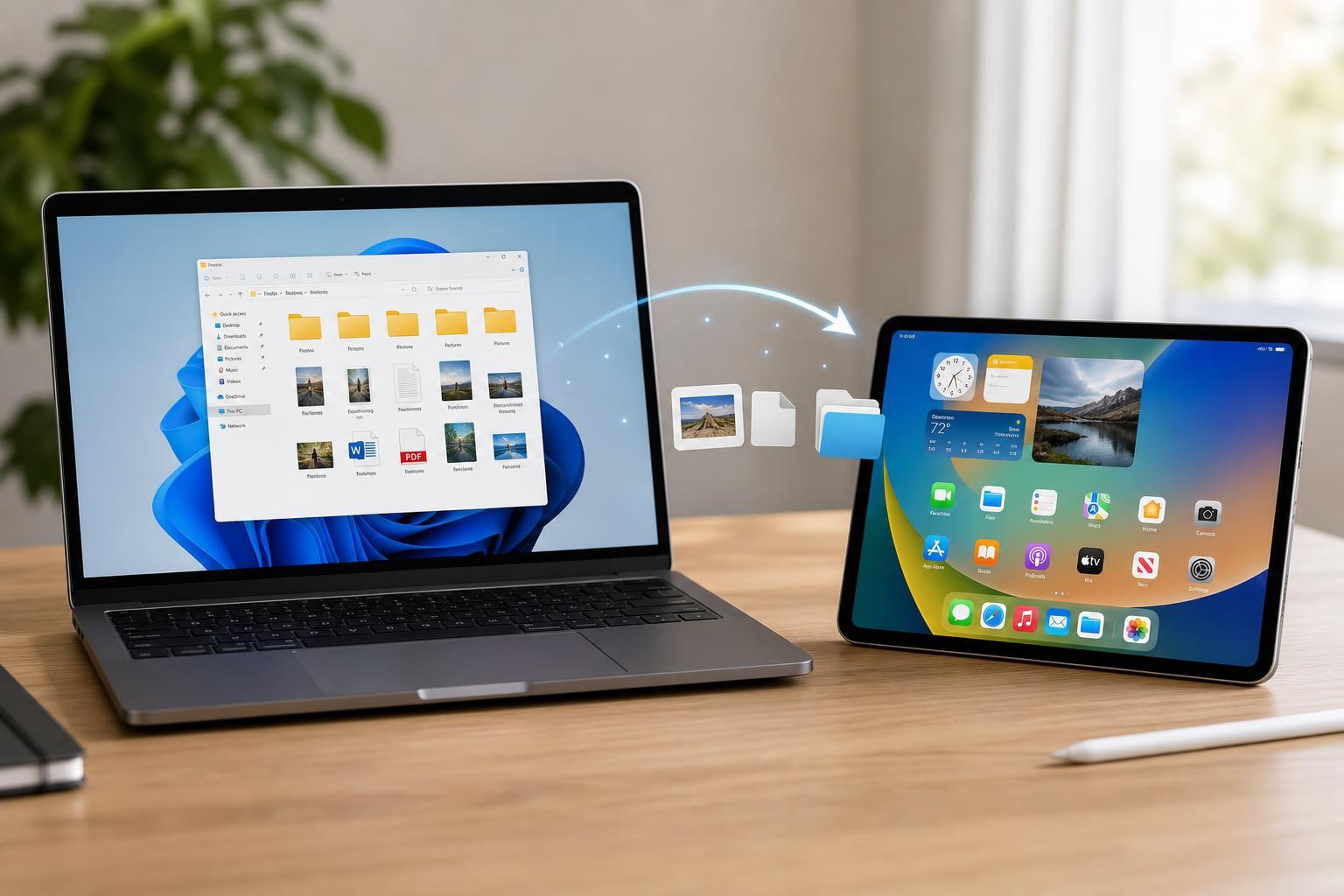
1. Use iCloud Drive to Sync Files Automatically
If you want your files available on both devices without manually copying them each time, iCloud Drive is one of the most convenient options. You install iCloud for Windows on your PC, sign in with your Apple ID, and then place files in the iCloud Drive folder so they appear on your iPad.
- Best for documents, PDFs, spreadsheets, and folders you want available on both devices
- Works well if you already use Apple apps or iCloud storage
- Keeps files synced instead of creating a one-time copy
- Install iCloud for Windows on your PC and sign in with your Apple ID.
- Turn on iCloud Drive in the iCloud settings.
- Open File Explorer and look for the iCloud Drive folder.
- Copy or drag the files you want to transfer into that folder.
- On your iPad, open the Files app and browse iCloud Drive to access them.
2. Transfer Files with a USB Cable and iTunes or Finder Alternatives
For some file types, you can connect the iPad directly to your Windows PC with a USB cable and use iTunes or a compatible file-transfer tool to copy data into supported apps. This is useful when you want a direct transfer without relying on internet access.
- Install iTunes on your Windows PC if you do not already have it.
- Connect the iPad to the PC with a USB cable and unlock the iPad.
- If prompted, tap Trust This Computer on the iPad.
- Open iTunes and select your device.
- Look for the File Sharing section and choose a compatible app.
- Add the files you want to transfer to that app.
3. Upload to Cloud Storage Services
Cloud storage services such as OneDrive, Google Drive, and Dropbox make it easy to move files between Windows and iPad without cables. You upload the file from your PC, then open the same service on your iPad and download or open the file there.
- Good for one-time transfers and ongoing access to the same files
- Useful when you use multiple devices or share files with other people
- Works well for photos, PDFs, office documents, and smaller media files
- Install or open your preferred cloud storage app on the Windows PC.
- Upload the file from File Explorer or the web interface.
- Open the same cloud storage app on the iPad.
- Find the uploaded file and either open it or save it for offline use if needed.
4. Send Files Through Email or Messaging Apps
For small files, email is still one of the quickest ways to move something from a Windows PC to an iPad. You send the file to yourself, then open the message on the iPad and download the attachment.
This approach also works with messaging apps that support file attachments, but it is usually best reserved for smaller documents rather than large videos or archives.
- Best for a few small documents or images
- No extra software is needed if you already use email
- Fast and simple when you only need a one-time transfer
Which Method Should You Choose?
The right transfer method depends on how you use your PC and iPad together. If you want automatic syncing, iCloud Drive is usually the most seamless choice. If you prefer direct cable transfers for supported apps, iTunes can work well. Cloud storage is the most flexible option for regular use across devices, while email is best for quick transfers of small files.
- Choose iCloud Drive for synced access across Apple devices
- Choose USB and iTunes for direct app-based transfers
- Choose cloud storage for flexible wireless access
- Choose email for quick, small file transfers
A Few File Transfer Tips
Before transferring files, check that the file format is something your iPad app can open. For example, a PDF may open in the Files app or Books, while a Word document may need Pages, Microsoft Word, or another compatible app.
Also, if you are moving photos or videos, make sure the file size will fit within your chosen service’s limits and that the iPad has enough free storage to save it.





