
If Bluetooth keeps turning itself back on after you switch it off on your iPhone, you are not imagining it. In many cases, Bluetooth is not fully disabled the way it seems from Control Center, and certain iPhone features or connected devices can turn it back on again.
This guide shows four practical ways to stop Bluetooth from coming back on automatically, along with the settings that are most likely responsible.
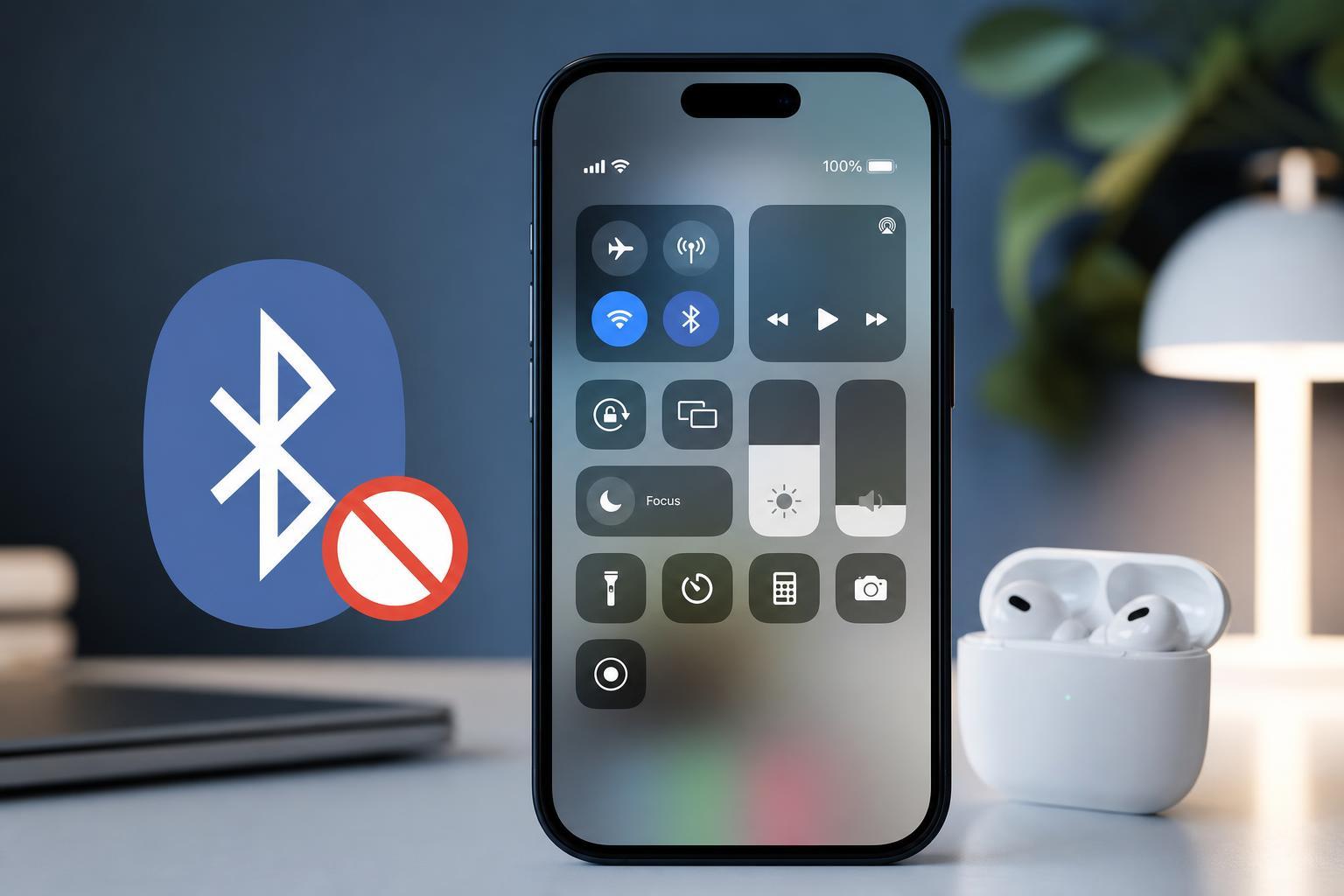
1. Turn Bluetooth Off in Settings, Not Just in Control Center
The first thing to know is that the Bluetooth button in Control Center does not always fully disable Bluetooth. In many cases, it disconnects accessories temporarily but leaves Bluetooth available for system features, AirDrop, Apple Watch, and other services.
To actually turn Bluetooth off, use the Settings app:
- Open Settings on your iPhone.
- Tap Bluetooth.
- Switch Bluetooth off at the top of the screen.
2. Check Whether a Shortcut or Automation Is Turning It Back On
If Bluetooth keeps re-enabling at the same time each day, after arriving somewhere, or when you open a certain app, a Shortcut automation may be responsible.
- Open the Shortcuts app.
- Tap Automation at the bottom.
- Look for any personal automation that mentions Bluetooth, app launches, location changes, time of day, or device connection.
- Open the automation and disable it or delete it if it is the cause.
You should also check whether an automation is running without asking for confirmation. Some automations can change settings automatically if they were set up that way.
3. Remove or Forget Accessories That Keep Reconnecting
A paired accessory can sometimes cause your iPhone to turn Bluetooth back on so it can reconnect. This is common with headphones, speakers, car systems, keyboards, watches, and other Bluetooth devices.
- Open Settings and tap Bluetooth.
- Find the accessory under My Devices.
- Tap the info button next to the accessory.
- Select Forget This Device if you no longer want the iPhone to reconnect automatically.
If you still need the accessory later, you can pair it again manually. This is a good test if you suspect one specific device is triggering the behavior.
4. Review System Features That Depend on Bluetooth
Some iPhone features rely on Bluetooth and can make it seem like Bluetooth is turning itself on for no reason. This includes features such as Apple Watch connectivity, AirDrop-related functions, Find My network behavior, and some location services.
If you want Bluetooth to stay off for testing, check whether any of these are enabled or actively in use:
- Apple Watch pairing and unlocking features
- AirDrop behavior and nearby sharing features
- Handoff and Continuity functions
- Location-based features that use Bluetooth accessories
- Wireless CarPlay or similar connected systems
You may not want to disable all of these permanently, but checking them helps you figure out whether the iPhone is turning Bluetooth back on because a feature depends on it.
If Bluetooth Still Turns On by Itself
If you have tried the steps above and Bluetooth still comes back on unexpectedly, the most likely causes are a connected accessory, a Shortcut automation, or a system feature that needs Bluetooth in the background.
- Check Bluetooth again in Settings, not Control Center.
- Review all Shortcuts automations.
- Forget recently used Bluetooth accessories.
- Restarting the phone is not usually the main fix here, but it can help if the iPhone is acting oddly after a software glitch.
- If the problem started after an iOS update, check for another update in Settings > General > Software Update.





