
Refreshing a webpage in Safari can solve a surprising number of small problems, from missing images to a page that is stuck loading. The exact method depends on whether you are using iPhone, iPad, or Mac, but Safari gives you several quick ways to do it.
In this guide, you’ll learn four practical ways to reload webpages in Safari and when each method is most useful.
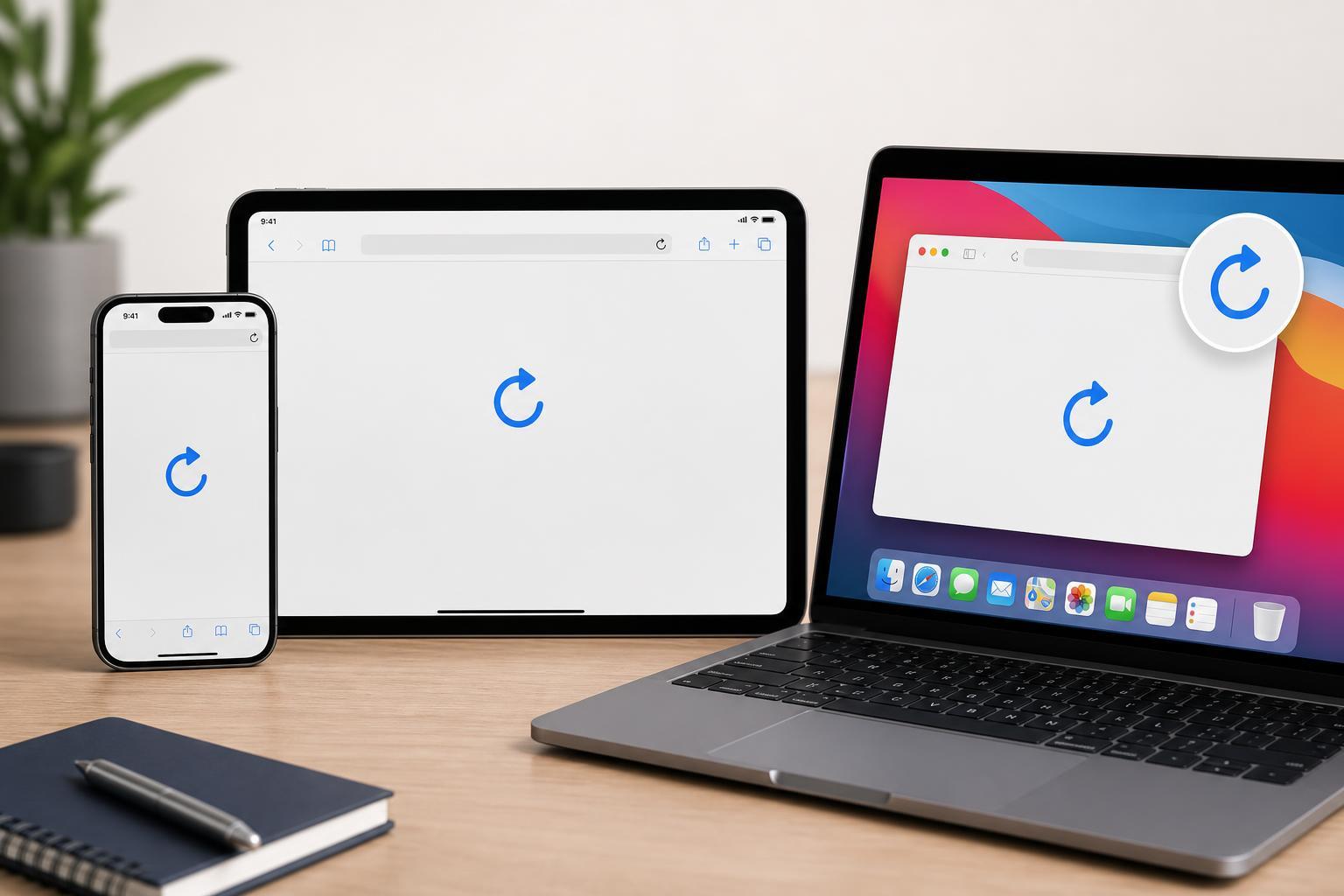
1. Use the Safari Refresh Button
The simplest way to reload a page is to tap or click Safari’s refresh icon. This is usually the first method to try because it works on all Apple devices and does not require any special steps.
- On iPhone or iPad, open the webpage in Safari.
- Look for the circular arrow icon in the address bar area.
- Tap the icon to reload the page.
- On Mac, click the same refresh icon in the Safari toolbar if it is visible.
2. Pull Down to Refresh on iPhone and iPad
On iPhone and iPad, Safari also supports the familiar pull-down gesture. This is often the fastest option when the refresh button is harder to reach or when you are using Safari in portrait mode.
- Open the webpage in Safari.
- Place your finger near the top of the page.
- Drag the page downward until you see the refresh indicator.
- Release your finger to reload the page.
3. Use Keyboard Shortcuts on Mac
If you are using Safari on a Mac, keyboard shortcuts are often the quickest way to refresh a page. They are especially handy if you are browsing with a mouse, trackpad, or external keyboard.
- Press Command + R to reload the current webpage.
- If Safari seems to be holding onto an outdated version of the page, press Option + Command + R for a harder refresh in many situations.
- Wait for the page to finish reloading before interacting with it again.
4. Force a Hard Refresh When a Page Looks Stuck
Sometimes a normal refresh is not enough. If a page is showing broken layout elements, outdated content, or images that never load properly, you may need a more complete reload.
- Use Option + Command + R in Safari on Mac for a more forceful reload in many cases.
- Close and reopen the tab on iPhone or iPad if a page keeps misbehaving after a normal refresh.
- Try the same page in a new tab if you suspect the tab itself is stuck.
Which Refresh Method Should You Use?
For most situations, the normal refresh button is enough. Use pull-to-refresh on iPhone and iPad when it is easier, and use Command + R on Mac when you want the fastest option from the keyboard. If a page appears broken or outdated, try a harder reload or reopen the tab.





