
When your Android phone connects to Wi‑Fi but shows limited connectivity, it usually means the device can see the network but cannot get full internet access. You may still see a Wi‑Fi icon, but apps, web pages, and updates may fail to load.
The problem can come from the router, the phone, a bad IP address, a weak signal, or a network setting that is blocking normal access. The four fixes below cover the most common causes without jumping straight to more complicated steps.
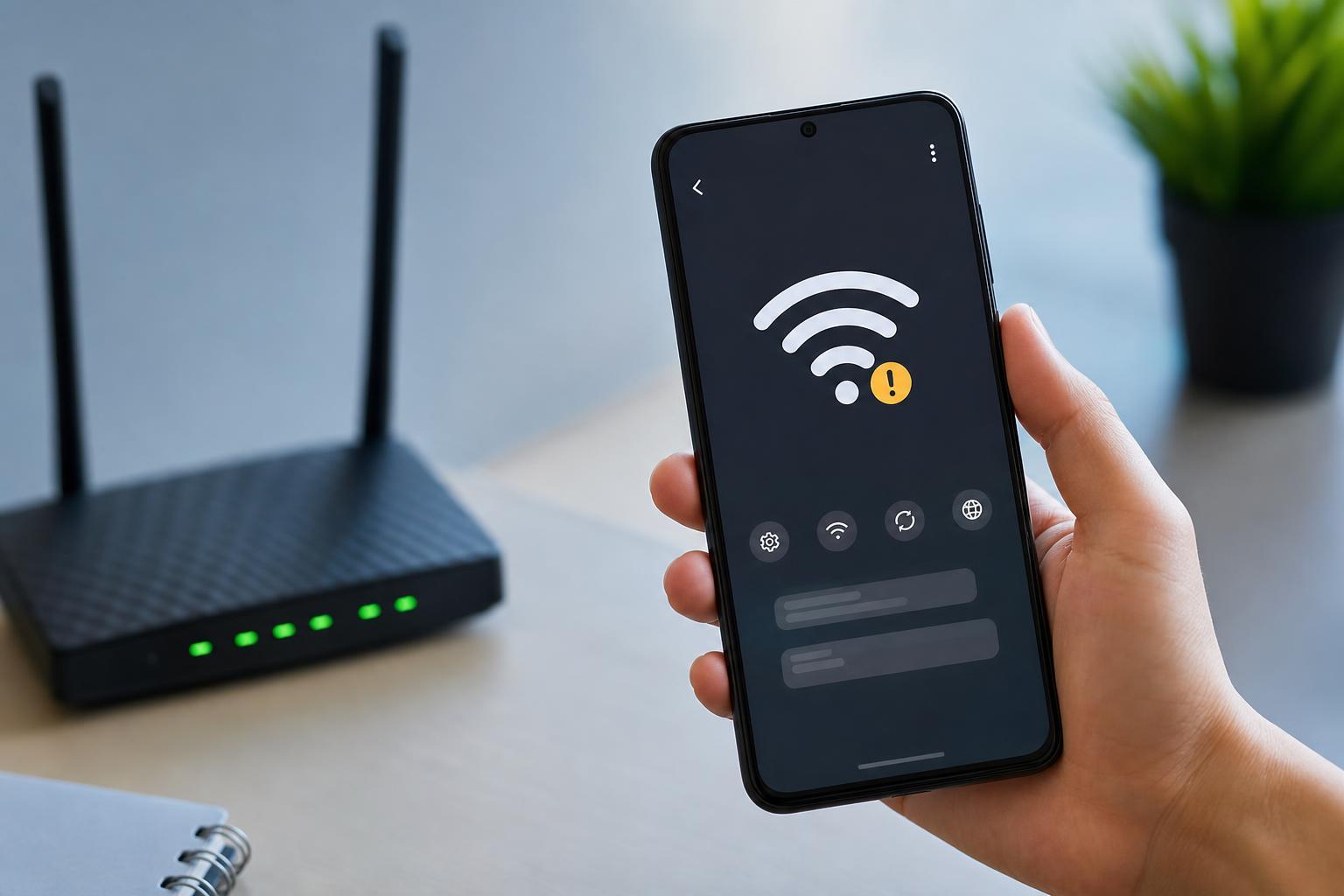
1. Check Whether the Wi‑Fi Network Is Actually Working
Before changing anything on your phone, confirm that the network itself has internet access. Limited connectivity is sometimes caused by the router or internet provider, not the Android device.
- Open the Wi‑Fi network on another device, such as a laptop or another phone.
- Try loading a website or opening an app that needs internet access.
- If other devices also fail, the issue is likely with the router, modem, or internet service.
- If only your Android device has the problem, move on to the phone-specific fixes below.
2. Forget the Network and Connect Again
A saved Wi‑Fi profile can sometimes become corrupted or keep old login details, which can lead to limited connectivity. Removing the network and joining it again forces Android to create a fresh connection profile.
- Open Settings on your Android phone.
- Go to Network & internet or Connections, depending on your device.
- Tap Wi‑Fi.
- Select the network that is showing limited connectivity.
- Choose Forget or Forget network.
- Reconnect to the same network and enter the password again.
3. Restart the Router and Refresh the Phone’s Network Connection
If the phone is connected but not getting internet properly, the router may have handed out a bad IP address or may simply need to re-establish the connection. Power-cycling the router often clears temporary network issues.
- Turn off the router or unplug its power cable.
- Wait about 30 seconds.
- Turn it back on and allow it to fully reconnect to the internet.
- On your Android phone, turn Wi‑Fi off and back on.
- Reconnect to the network and test whether websites and apps load normally.
4. Reset the Android Network Settings
If the problem keeps coming back on the same phone, the network settings on Android may be the cause. A network reset removes saved Wi‑Fi networks, Bluetooth pairings, and mobile network settings, then restores the defaults so the phone can reconnect cleanly.
- Open Settings.
- Go to System, General management, or a similar section on your phone.
- Look for Reset options or Reset.
- Choose Reset Wi‑Fi, mobile & Bluetooth or Reset network settings.
- Confirm the action and wait for the phone to finish.
- Reconnect to Wi‑Fi and enter the password again.
Other Causes Worth Checking
If none of the four fixes help, the limited connectivity may be caused by one of these common issues:
- Weak Wi‑Fi signal or too much distance from the router
- Captive portal login required on public Wi‑Fi, such as a hotel or café network
- Incorrect date and time on the phone causing network authentication problems
- VPN or private DNS settings interfering with connection
- Router settings that block the device or limit DHCP addresses
When to Suspect the Router or Internet Provider
If every device on the Wi‑Fi network shows the same problem, the issue is probably outside the Android phone. In that case, check the modem, router, and internet service before spending time on phone settings.
- Test another device on the same Wi‑Fi network.
- Check whether the router has internet lights or warning indicators.
- Connect the phone to a different Wi‑Fi network or mobile data to confirm the phone itself is working.
- If the issue happens on all devices and all networks, contact your internet provider or the router manufacturer for support.
What to Try First
The quickest approach is to test the network on another device, then forget the Wi‑Fi network on your Android phone and reconnect. If that does not help, restart the router and finally reset the phone’s network settings if the issue is still limited to one device.





